How to Restart Your Wi-Fi RouterWithout Losing Your Settings
Restart your Wi-Fi router safely without losing its settings. Follow four illustrated steps, learn the correct modem/router order, and troubleshoot connection problems.
What you need: Access to the router or gateway power plug; a phone or computer for testing
Quick answer: Disconnect your router’s power (not its Reset button), wait about 30 seconds, reconnect it, and allow several minutes for it to start. Then reconnect a phone or computer and check whether websites load. If your home has a separate modem and router, follow the two-device instructions below instead.
A Wi-Fi restart is a sensible first step when your connection keeps dropping, the network seems unusually slow, or several devices cannot get online. It does not fix every internet problem, and it should not erase your Wi-Fi name or password. The important detail is knowing which device you are restarting.
Before you start: identify your setup
One box — modem/router gateway: A single device may connect to your incoming internet line and broadcast Wi-Fi. Restarting it temporarily takes your whole connection offline. Follow the single-device steps below, or the directions from your internet provider.
Two boxes — separate modem and router: The modem connects to your internet service; the router creates your home network. Restarting them in the correct order can matter. See If you have a separate modem and router below.
Mesh Wi-Fi: You may have a main router and several satellite points. Check your mesh system’s app or manufacturer instructions; some systems offer a network-wide restart option.
Before unplugging: Tell anyone on a call or working online that the connection will stop temporarily. Smart cameras, alarms, work VPNs and connected devices may briefly go offline. If this equipment must stay online, choose a suitable time or follow your provider’s instructions.
Restart one Wi-Fi router or gateway in four steps
Step 1 — Disconnect power, not the Reset button
Find the router’s power adapter and unplug it from the electrical outlet or disconnect its power connector, following the device instructions. Leave Ethernet, coaxial and fiber connections alone unless the manufacturer specifically tells you otherwise.
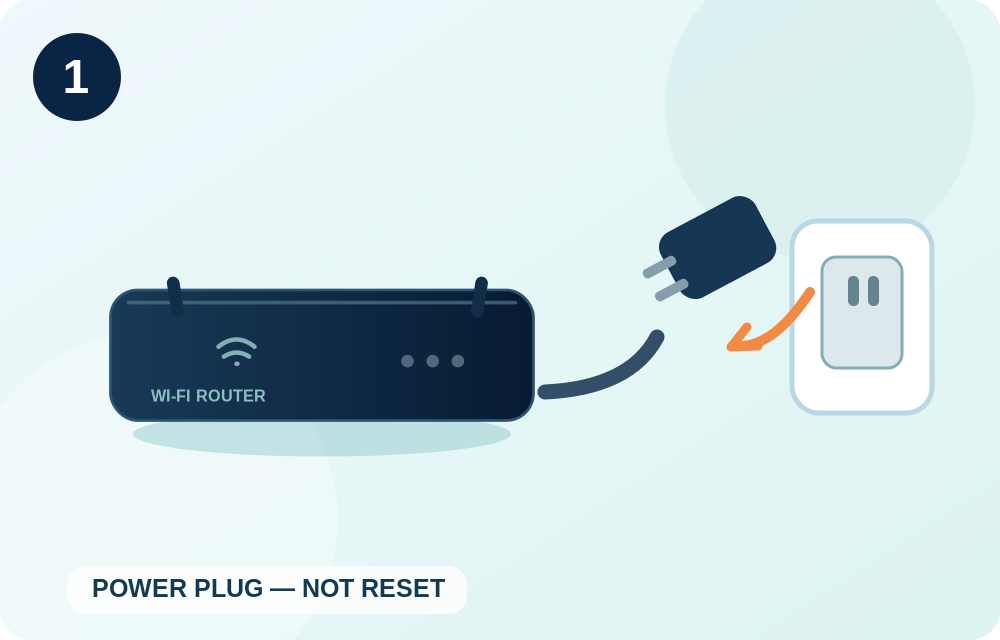
Do not press or hold a recessed button labeled RESET. On many devices that button starts a factory reset rather than a restart.
Step 2 — Wait about 30 seconds
Leave the router unpowered for about 30 seconds. That is a practical general power-cycle interval; some brands specify a different wait time, so the device manual takes precedence.
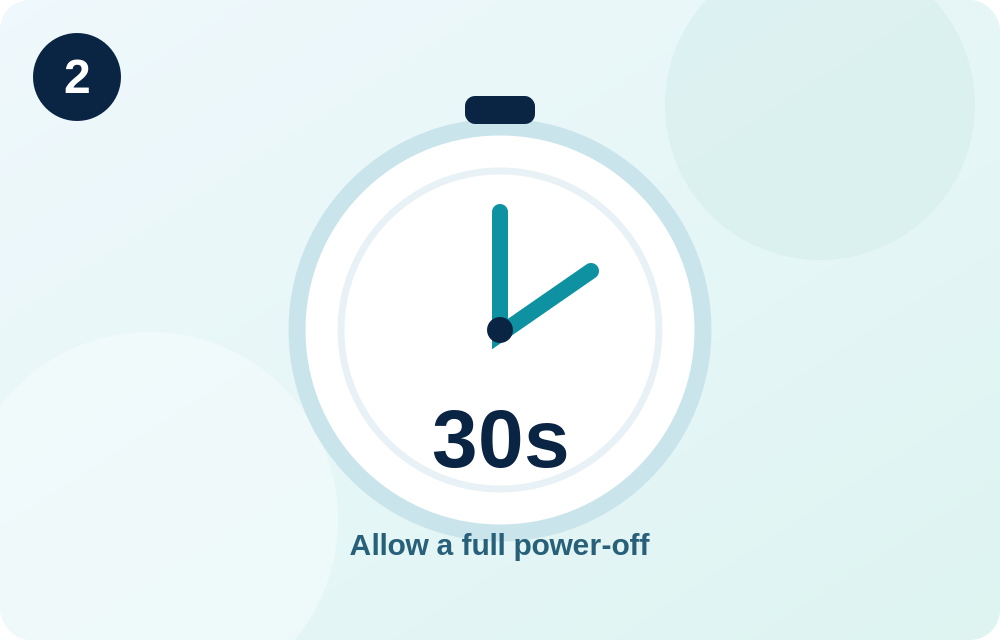
If the lights stay on after unplugging power, your modem or gateway may have a backup battery or another power supply. Check the manufacturer’s directions instead of opening the device.
Step 3 — Reconnect power and let it start
Plug the power adapter back in securely. Wait while the router starts and restores its connection. For many routers this takes a few minutes; the exact time and meaning of the indicator lights differ by model. Avoid unplugging it repeatedly while it boots.
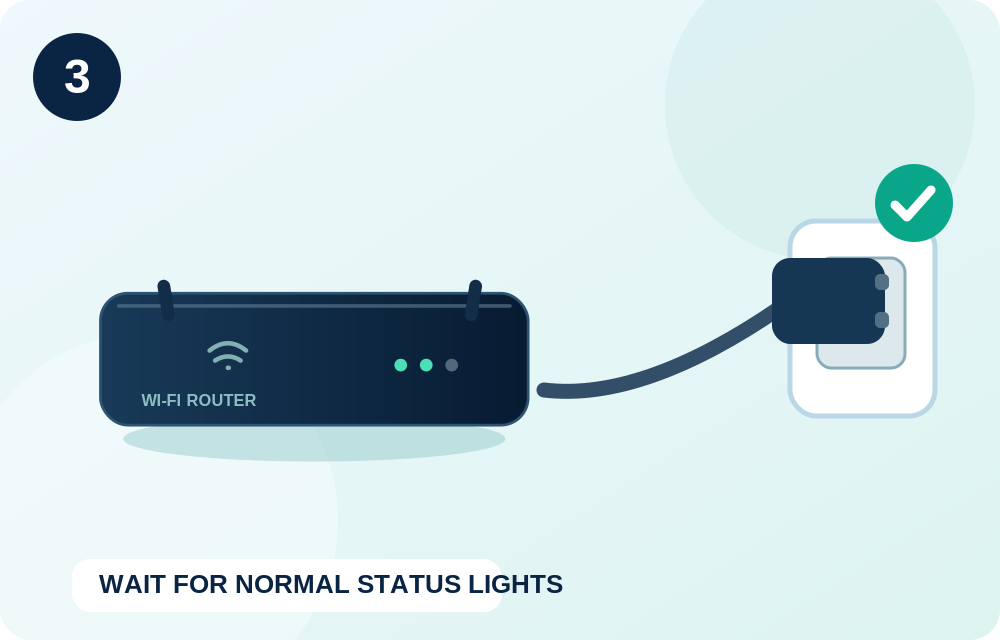
Look for the device’s normal power and internet indicators. If you are unsure what a blinking or colored light means, use the model-specific light guide instead of assuming green always means success.
Step 4 — Reconnect and test two devices
Connect a phone or computer to your existing Wi-Fi network. Its name and password should normally be unchanged. Open a website, then test a second device if possible.
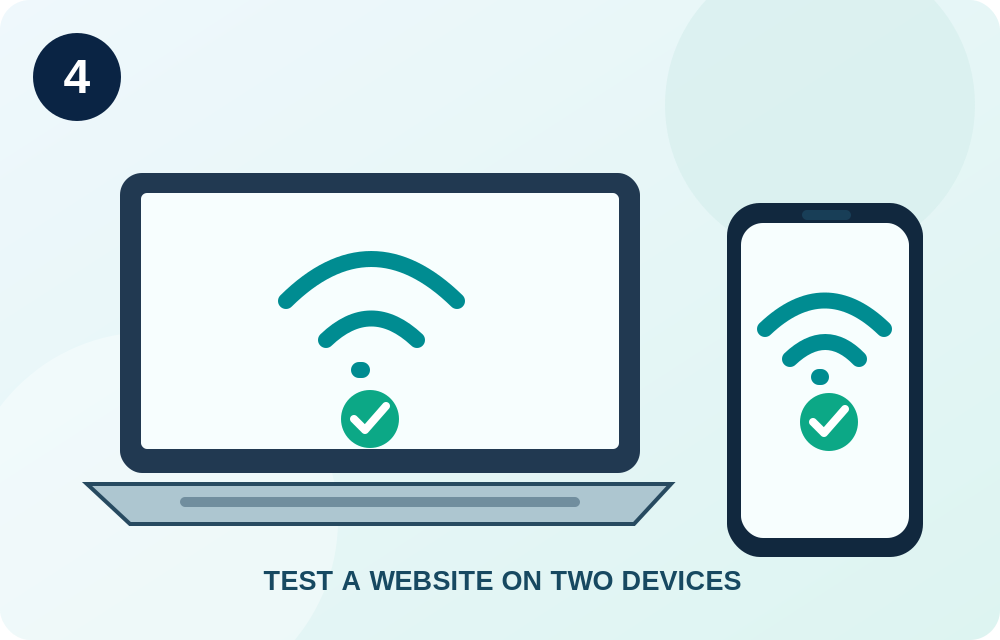
If one device works but another does not, focus on the affected device before resetting the whole network. If all devices connect to Wi-Fi but cannot reach websites, check the modem, cables, and your internet service.
If you have a separate modem and router
For a standard two-device setup, NETGEAR recommends restarting the network in this order:
- Turn off the modem and router (or disconnect their power, as their instructions permit).
- Wait approximately two minutes before powering up the modem.
- Turn on the modem first. Allow it to establish a connection with the internet provider; NETGEAR advises waiting roughly five minutes, though this varies.
- Turn on the router after the modem is online, allow it to boot, then test your connected devices.
Some manufacturers or specific models prescribe a different order. Follow your device’s manual if it disagrees with this general sequence. If your modem and router are combined into a single gateway, you do not have two boxes to restart.
Still no internet? Use this quick diagnosis
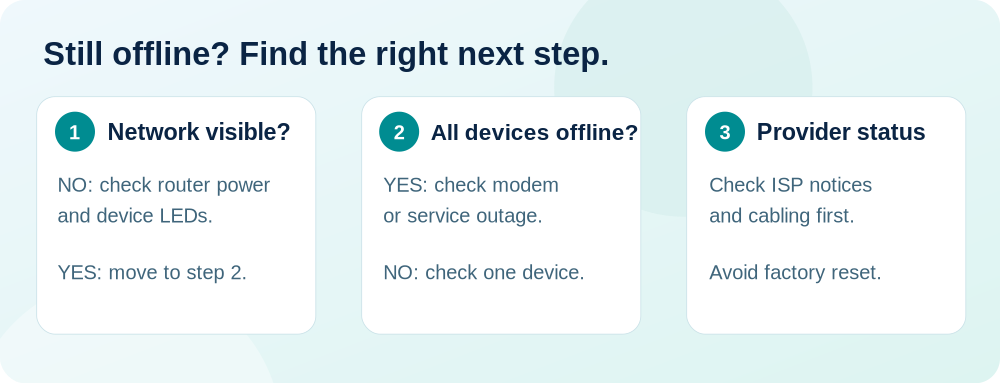
| What you see | What to check next |
|---|---|
| Your Wi-Fi network name is missing | Make sure the router has power and has finished starting. Check its indicator lights and whether Wi-Fi is enabled. |
| Wi-Fi connects, but no websites load on any device | Check the modem or gateway internet indicator, the modem-to-router Ethernet cable if present, and your provider’s outage notices. |
| One phone or laptop fails, while others work | Restart the affected device, check its Wi-Fi settings, or reconnect to the saved network. |
| The issue returns frequently | Check heat and ventilation, outdated firmware, interference, and your provider’s connection quality. Follow the manufacturer’s instructions before changing settings. |
A restart is a diagnostic step, not a guaranteed fix. If the modem cannot establish an internet connection, restarting the Wi-Fi router repeatedly is unlikely to repair an upstream service outage.
Restart vs. factory reset: the difference matters
Restart / reboot / power cycle: Turns the device off and back on. Your saved configuration normally remains in place.
Factory reset: Restores the device to its default state and can erase the custom Wi-Fi name, password, parental controls, guest networks, and other settings. It may require full setup again. Google explicitly distinguishes a restart from a factory reset in its Wi-Fi support guidance.
For an ordinary connectivity problem, try a restart before considering a factory reset. Never press an unlabeled recessed button based solely on a generic illustration.
Frequently asked questions
Will restarting my router change the Wi-Fi password?
Normally, no. A reboot does not erase the saved network settings. A factory reset is different and may remove custom configuration.
How long should I wait after plugging it back in?
Allow several minutes, and use the router’s status lights or app to confirm that it has finished starting. Some systems take longer than others.
Should I unplug the internet cable too?
Usually not for a simple router restart. Disconnect the power connection. Follow manufacturer or provider guidance when working with a modem, fiber terminal, or a multi-device network.
Do I need to restart my router every day?
There is no universal need to restart a properly working router daily. If repeated restarts are necessary, investigate the underlying connection, firmware, ventilation, or hardware issue instead.
Does this work for Google Nest Wifi or Google Wifi?
Those devices have their own documented restart method. Google advises disconnecting the power cable, waiting 10–20 seconds, reconnecting it, and allowing a minute or two to start. Use the manufacturer-specific guidance for your model.
The takeaway
Start with the power cable, never the Reset button. Wait, let the router finish booting, and test more than one device. If the entire home remains offline, diagnose the modem and service connection next. That simple sequence avoids turning a routine interruption into a full network reconfiguration.
Sources and further reading
Use the checklists as you go, and confirm the result before moving on to a more involved repair.