How to Transfer Photos from iPhone to PC
Install Apple Devices on Windows, connect and trust the iPhone, then import through Microsoft Photos.
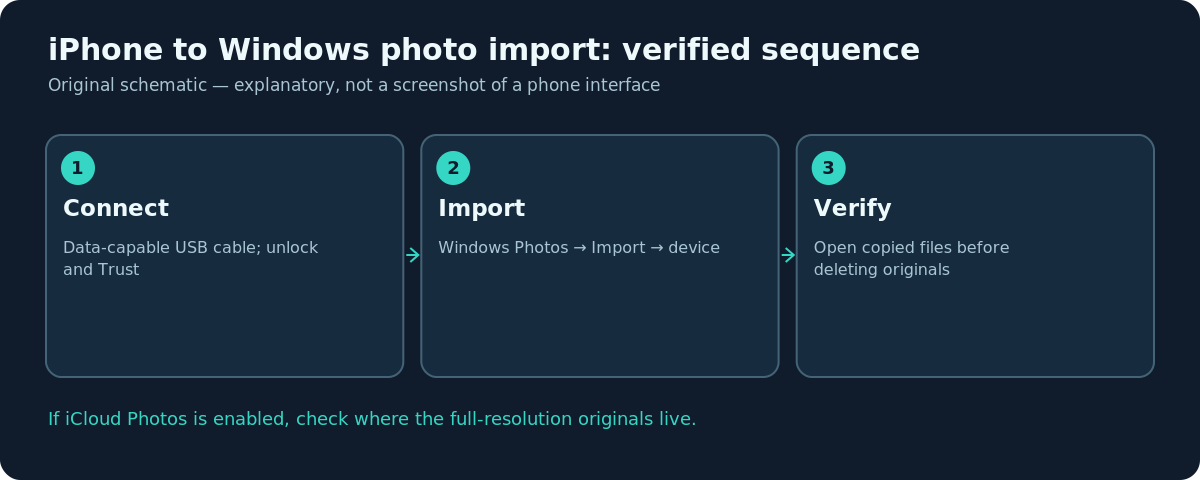
Quick answer: On your Windows PC, install Apple’s Apple Devices app from the Microsoft Store. Connect the iPhone using a USB cable that supports data, unlock it and choose Trust or Allow when prompted. Open Windows Photos → Import → your connected iPhone, select pictures and choose where to save them. Check the imported files before deleting anything from the phone.
These instructions are for transferring iPhone photos to a Windows PC, not a Mac. Apple and Microsoft both document the cable-and-Photos approach. The experience can differ between Windows versions, the iPhone’s USB connector and whether iCloud Photos is enabled. A charging-only cable may power the phone yet never expose its photos to Windows.
Import photos using a USB cable
- Install or update the official Apple Devices application on the PC. This gives Windows Apple’s current device support path.
- Connect the iPhone with a known data-capable USB cable. Connect directly to the computer if a hub or dock has caused unreliable detection.
- Unlock the iPhone. If asked to Trust This Computer or Allow access, approve only if the PC is yours or another computer you trust.
- Open the Windows Photos app, select Import, then choose the connected iPhone.
- Wait for the device content to be examined. Select the photos/videos you actually need and choose a destination folder.
- Start the import and leave both devices connected until Photos reports completion.
- Open several transferred files, including a long video if one was included, and confirm the copies are usable before you remove them from the phone.
Use a folder naming scheme you can recognize later, such as Pictures/Phone Imports/2026-10. A big import can contain files with duplicate-looking names, so do not assume that a copy exists because Windows displayed a thumbnail. Open the actual destination and inspect the exported originals.
What if iCloud Photos is enabled?
Apple cautions that when iCloud Photos is active, you may need to download the full-resolution originals onto the iPhone before using USB import to the PC. If the iPhone keeps optimized, space-saving versions, a photo visible in Photos may not be the full local file Windows expects. On a phone with limited storage, downloading everything at once can be inconvenient.
For a large iCloud Photos library, an alternative is to set up iCloud Photos on Windows or download originals through the authorized iCloud web interface. This accesses the synchronized library rather than relying entirely on USB copies stored on the phone. Whichever method you choose, keep track of duplicates and distinguish downloaded copies from the live synchronized cloud library.
Handle HEIC and video formats
Some iPhone images use HEIF/HEIC, while video files may use HEVC or high-efficiency formats that require Windows-compatible codecs or software. Do not assume every viewer will open every transferred file. Check the file extensions before converting anything; conversion can change metadata or image quality. For photographs you plan to take in the future, Apple documents Settings → Camera → Formats → Most Compatible to favour JPEG and H.264 capture. It does not convert your existing library.
If someone needs plain JPEGs, export suitable copies rather than changing or deleting the original HEIC files. Keep the high-quality originals until you have confirmed the conversions meet their needs.
Import a selected album or a small group
For a few photos, open Windows Photos and pick selected items rather than everything. If you need a particular iPhone album, check how your chosen transfer method handles albums: a USB import may produce files without the exact album organization seen on iPhone. If album membership matters, consider an iCloud-based route or organize the files into new Windows folders after transfer.
Do not assume moving the images into Windows automatically removes the source copies. In fact, copying first is safer. Later, decide separately what can be deleted from the phone after you’ve verified both backup and import integrity.
If Windows does not recognize the iPhone
First disconnect and reconnect after unlocking the phone. Try another data-capable cable and USB port. Close competing device-management windows and reopen Microsoft Photos. Check whether Windows sees the device in Apple Devices. A missing trust permission on the iPhone can block access; do not accept a trust dialog on a public or unfamiliar computer.
If imported media appears incomplete, check the iCloud Photos setting and whether the originals have downloaded. A file that exists only in iCloud may need time on a strong internet connection before a reliable USB copy is possible. For a large import, process in smaller batches if the app freezes or disconnects.
Keep your photos safe after the import
A Windows folder is one copy, not necessarily a backup. Consider backing it up to a second drive or a properly secured cloud service. Spot-check several files from different dates, including videos, edited images and Live Photos where relevant. Photos that look fine as tiny previews can still be incomplete or in an unsupported format when opened full-size.
Only after the imported copy is verified should you decide whether to clear space on the iPhone. If iCloud Photos sync is on, deletion inside the iPhone Photos library can synchronize the deletion to other devices; importing to Windows does not make this behavior disappear.
Troubleshooting
- iPhone charges but does not appear: Try a different cable and port; unlock and check the trust prompt.
- Photos opens but displays no new files: Check the device selection, iCloud originals and connection stability.
- Only some photos import: Compare selections and whether older originals are still cloud-only.
- Windows cannot open HEIC: Use supported codecs/viewers or export compatible copies; retain originals.
- Want a wireless method: iCloud Photos is a separate sync workflow, not the same operation as USB import.
Frequently asked questions
Do I need iTunes for a Windows photo import?
Apple’s current support instructions reference the Apple Devices app and Microsoft Photos for the Windows route.
Will importing erase photos from my iPhone?
No deletion should be assumed. Check both destinations and handle removal as a separate decision.
Is a USB-C charging cable always enough?
No. It must support data transfer and function correctly with both devices.
Why do some iPhone photos show HEIC instead of JPG?
HEIC is an image format used by high-efficiency iPhone capture. You can use compatible software or export JPEG copies when needed.
Sources and further reading
- Transfer photos and videos from your iPhone or iPad to your Mac or PC — Apple Support.
- Import photos and videos from phone to PC — Microsoft Support.
Use the checklists as you go, and confirm the result before moving on to a more involved repair.