How to Create a Shared Photo Album on iPhone
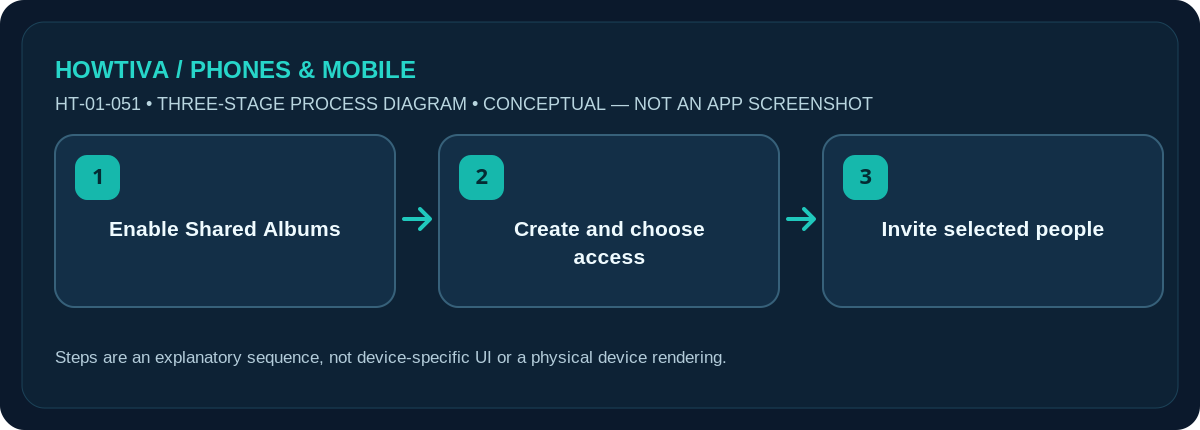
Enable Shared Albums under Settings > [your name] > iCloud > Photos, then open Photos > Collections > Shared Albums, tap Add, choose images, name the album and configure who can access it.
Quick answer: Enable Shared Albums under Settings > [your name] > iCloud > Photos, then open Photos > Collections > Shared Albums, tap Add, choose images, name the album and configure who can access it. Invite people only after reviewing sharing permissions.
These steps are checked against Apple’s iOS 27 guide. On iOS 26 or earlier, Photos may arrange Shared Albums differently. A Shared Album is not identical to an iCloud Shared Photo Library or a backup of originals.
Create and share an album with chosen people
- Turn on Shared Albums. In Settings, tap your Apple Account name, open iCloud > Photos and enable Shared Albums.
- Open the Photos app > Collections > Shared Albums. Tap the Add control. The exact location of a Shared Albums entry can differ on earlier iOS builds.
- Choose Add Photos, select the photos or clips you want to share and confirm. Include only the material intended for the recipients.
- Name the album and review Sharing Options. Select People You Choose for invited collaborators, or another access option only when you understand who could view the link.
- Finish and invite participants. Open the new Shared Album, select its management control and choose Invite Participants. Confirm identities before sending invitations.
Understand permissions and links
Apple’s current shared-album options can include invited-only access and Anyone with the Link, subject to version availability. A link that can be forwarded may be seen by more people than expected. For private family pictures, prefer individually chosen participants. Owners can manage participants, contribution rights and access; confirm whether guests may add photos or only view/comment. Permissions can evolve across iOS versions.
Temporary albums and storage rules
Apple documents optional temporary shared albums on iOS 27, which can expire after 30 days. That control does not belong to every prior iOS release. A temporary album should not be the sole surviving copy of important photos: participants may need to save their images before expiry. Apple also distinguishes the organiser’s iCloud storage responsibility from the temporary-album rule; check the current storage terms for your account.
Shared Albums are not a shared library
An iCloud Shared Photo Library is a separate collaborative library arrangement with different limits, storage and photo-editing behaviour. If the goal is a small event or family album with a selected audience, Shared Albums may be the simpler option. Do not confuse adding an item to an album with moving or backing up your entire photo library. Always keep your originals elsewhere when preservation matters.
Add and remove people later
In the Shared Album, find its management option and use Invite Participants to add someone or participant controls to change permissions or remove access. People with access may have saved copies; removing them does not retrieve those copies. Before sharing sensitive photographs, review their content and any visible identifying information. Do not create public link access for a private album simply because invitations are slow.
Troubleshooting and alternatives
- Shared Albums missing: Enable Shared Albums in iCloud Photos and check your iOS version.
- Invite not received: Verify the destination account or link and ask the invitee to inspect pending invitations.
- Album is too public: Restrict Sharing Options to chosen participants.
- Temporary album expires: Save copies of important photos elsewhere before expiry.
Frequently asked questions
Why can’t I see Shared Albums?
Confirm your Apple Account and the Shared Albums iCloud setting. The Photos navigation changes by iOS version.
Is it the same as backing up all my photos?
No. Shared Albums is for selected shared content, not a replacement for a deliberate backup strategy.
Can someone keep an image after I remove them?
They may already have saved a copy. Revoking access does not erase copies stored outside the album.
Sources & Further Reading
- Apple iPhone User Guide: Create shared albums in Photos on iPhone (checked 2026-10-27)
- Apple iPhone User Guide: Add and remove people in a shared album on iPhone (checked 2026-10-27)
Use the checklists as you go, and confirm the result before moving on to a more involved repair.