How to Organize Photos into Albums on iPhone
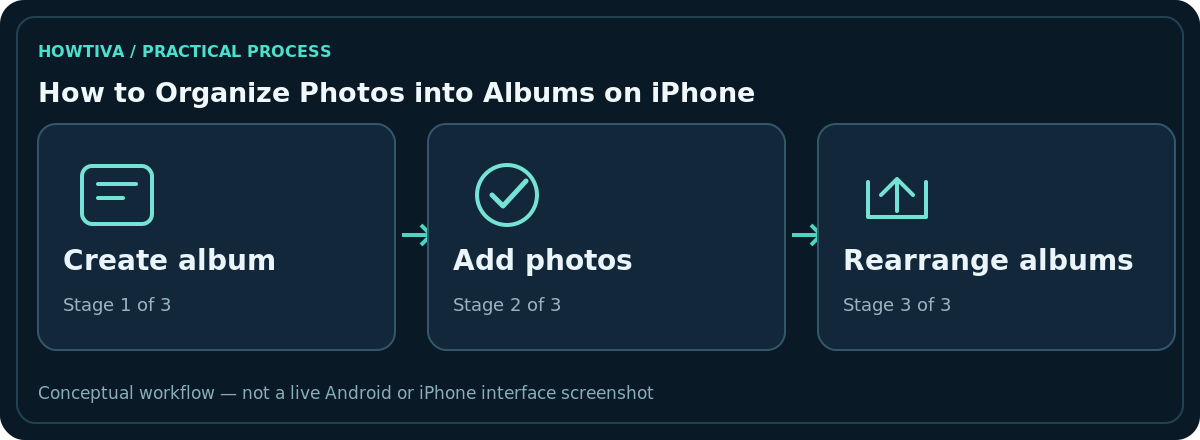
Open Photos > Collections > Albums, tap the Add (+) control, choose New Album, give it a descriptive name, add photos and tap Create.
Quick answer: Open Photos > Collections > Albums, tap the Add (+) control, choose New Album, give it a descriptive name, add photos and tap Create. Albums organise the same photo library; they do not automatically make separate backup copies or create additional phone storage.
The steps below follow the current iOS 27 Photos guide. Older versions can have different tab placement or button icons, but the fundamental idea—create an album and add library photos—remains similar.
Create an album for one topic
- Open Photos and tap Collections.
- Choose Albums, then use the Add button.
- Select New Album, type a meaningful title such as Family Holiday 2026 and choose the items to include.
- Pick a key photo to represent the album if offered, and tap Create.
- Reopen the album and check that every intended picture appears. You can always add more later.
For recurring events, use consistent names such as ‘2026 — Trips’ or ‘2026 — Receipts’. Organising by year and category makes albums easier to scan. Avoid overly narrow albums containing only one or two photos unless that is useful to you.
Add or remove pictures later
Go to Collections > Albums, open the album and tap the More control. The current Apple guide describes an album editing option in which you can Add Photos, select additions or deselect images you want removed from the album and then save. If your layout differs, look for the album’s edit or add-photo controls instead of deleting the library originals.
Removing a photo from the album is a different action from choosing Delete on the photo in the main library. Apple warns that deleting a photo from Photos deletes it everywhere in that library, including albums. Confirm the wording in any deletion dialogue.
Rename, move and reorder albums
Open Albums, then open the album and its More menu to edit the title or key photo where supported. To change album ordering, use the Albums More > Sort by Custom Order option if shown, then touch and hold an album to rearrange it. A chronological or title sort may be simpler for large collections.
Folders are useful for grouping related albums—for example, a Travel folder that contains albums for individual destinations. Folders organise albums rather than raw pictures, so do not confuse ‘New Folder’ with ‘New Album’.
iCloud Photos and cross-device organisation
With iCloud Photos enabled, your album organisation can be kept up to date on other supported devices signed in to the same Apple Account. A shared Apple Account or shared photo library can affect which people see changes. Albums are not an offline safety copy: deleting the underlying item is still a deletion of the library photo.
If you need an archive independent of your day-to-day photo library, export important originals to a verified external disk or another clearly managed backup destination and confirm that you can open them.
Fix common album problems
A photo appears in multiple albums: This is expected. An album groups references to library photos; it does not necessarily duplicate each file. You cannot find an album: Check the correct Collections view and any folders; review sorting and whether you are on the intended Apple Account. A picture disappeared after deletion: Search Recently Deleted promptly and recover it if available. Albums do not sync: Verify iCloud Photos settings, account, network and available cloud storage.
A naming system that scales beyond a dozen albums
Use short, predictable titles with a date, person, project or place. For example, a travel collection could be divided into a folder named ‘Trips’ and albums named ‘2026 — Rome’ or ‘2026 — Berlin’. Resist storing every one-off screenshot in a new album: a large number of tiny albums can become harder to browse than the original library. Periodically review the most useful album names and retire obsolete organisational categories.
Albums are particularly useful when preparing a presentation or showing relatives a curated selection. They let you browse a smaller set without copying the originals into other apps. If someone else needs to contribute photos, check Apple’s Shared Albums workflow instead of assuming your private personal album is shareable and editable by others.
Before you remove an album
Open the album and make sure you are choosing to remove the album container, not deleting the library items inside it. If the option’s language seems ambiguous on your version, cancel and check Apple’s current Photos instructions. If an image is especially important, export it independently before any broad cleanup. After major changes, check a second device only once iCloud Photos has finished syncing; a temporary delay does not necessarily indicate missing images.
Frequently asked questions
Does putting a picture in an album duplicate its storage?
No. Albums organise library items and are not normally new full-size copies.
Can I hide private photos by creating an album?
A regular album is not a privacy vault. Use the Photos Hidden collection where appropriate and keep device access secure.
Can I share a private album with family?
Use Apple’s separate Shared Albums feature if supported; ordinary personal albums are not automatically collaborative.
Will deleting an album delete its photos?
Album removal generally does not equal deleting its underlying library items. Always read the on-screen confirmation carefully rather than selecting an unrelated Delete Photo action.
Sources & Further Reading
- Create and work with photo albums on iPhone — Apple iPhone User Guide; checked 2026-10-27.
- If you are missing photos or videos in Photos — Apple Support; checked 2026-10-27.
Use the checklists as you go, and confirm the result before moving on to a more involved repair.