How to Transfer Contacts to a New Phone
First identify where your contacts are saved, then sync the same account or import a VCF on the new phone.
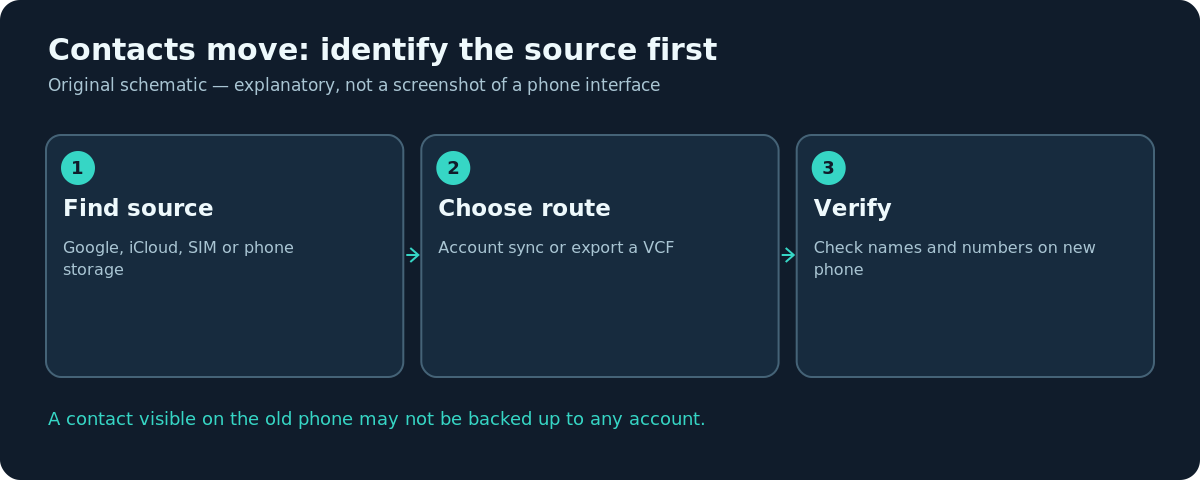
Quick answer: First find out where your contacts actually live. If they are in Google Contacts, sign in to the same Google Account on the new Android phone or add that account to iPhone Contacts. If they are in iCloud, enable iCloud Contacts on the new iPhone. For contacts stored only on the phone or SIM, use the supported Restore contacts, Import SIM Contacts or VCF (.vcf) export/import path. Check the resulting names and numbers before erasing the old phone.
The biggest mistake is assuming every name visible in a Contacts app is synchronized. A contact may live in Google, iCloud, Exchange, the device itself, the SIM or a work directory. Those stores behave differently. The correct method depends more on where the original record is saved than on whether the handset is Android or iPhone.
Identify the original contact account
- On the old phone, open Contacts and inspect its account or list filter. Look for Google, iCloud, device, SIM or a managed work account.
- If several accounts are shown, choose one recognizable contact and inspect its account details when supported by the app.
- On a computer or new phone, sign into the associated authorized contact service and check whether a few recent entries exist there.
- Note any locally stored or SIM-only contacts that are absent from the cloud service. Plan to migrate these separately.
- Keep the old phone powered and untouched until you can confirm the contacts on the new device.
Your contact list may contain duplicates from several accounts. Do not run bulk deletion or merging on the original list as a first step; make a backup or export when possible. A confusing duplicate is less damaging than deleting the only copy of an important number.
Android to Android: use your Google Account
For contacts synchronized with Google Contacts, sign into that Google Account on the new Android phone and allow Contacts to synchronize. If you have contacts from phone storage or a SIM backed up through Google’s device services, Android Help describes Settings → Google → All services → Backup & restore → Restore contacts. Select the correct account and source phone, choose appropriate SIM/device storage sources and tap Restore.
Google states restored contacts should sync into the current Google Account and other compatible devices, while avoiding duplicates that already exist. However, the exact options can vary by Android version and manufacturer. A company account may intentionally restrict exports or copying.
Android to iPhone: add the Google Contacts account
If your source contacts live in Google, open the new iPhone’s Settings → Apps → Contacts → Contacts Accounts → Add Account on recent iOS versions. Choose Google, sign in to the same account and turn on Contacts. Open Apple’s Contacts app and check whether the names appear. Older iOS versions may present this under a slightly different Settings route.
You do not have to copy every Google contact into iCloud simply to view it on an iPhone. The iPhone Contacts app can combine authorized accounts in one view. If you later remove that Google Account from the phone, entries belonging to that account may stop appearing there even though they remain on Google’s servers.
iPhone to iPhone: iCloud Contacts
On the old and new iPhone, use the appropriate Apple Account and check Settings → [your name] → iCloud → Contacts (or See All under saved-to-iCloud services on newer releases). Once Contacts synchronization is enabled and completed, the entries should be accessible on the new device with the same account. Do not confuse iCloud Contacts sync with an iPhone device backup; contact synchronization can happen independently.
If the new iPhone is using a different Apple Account, a deliberate contacts export/import route may be more appropriate. Make sure you have the right to transfer any work contacts first.
Transfer SIM-only or VCF contacts
Apple’s iPhone guide documents Settings → Apps → Contacts → Import SIM Contacts for compatible SIM cards. Be aware that an iPhone does not normally save its contacts onto a SIM in the first place; this is mainly for importing contacts originally stored there. For a digital contact file, iPhone also supports opening a .vcf attachment from email or messages.
A VCF/vCard export is useful when the old and new devices use different services. Export only the contacts you intend to move, transfer the file through a trusted channel and import it on the new device using the available Contacts tool. A VCF can include personal numbers and addresses: delete temporary unencrypted copies from shared computers afterward.
Verify the new address book
Search for several distinctive entries including a recently added contact, a person with more than one telephone number and a contact with a photo or postal address. Call or message only when it is appropriate. Inspect country codes; some dialers display local formatting differently, and a formatting difference alone is not proof that a number transferred incorrectly.
If some contacts are missing, check the app’s account/list filters before running another import. Hidden accounts can look exactly like lost contacts. If duplicates appear, inspect which account owns each copy and use your contact provider’s supported merge tools cautiously.
Troubleshooting
- Contacts are missing after Google sign-in: Confirm the old contacts were Google-synced rather than stored only on device/SIM.
- iPhone contact list looks empty: Check Contacts account toggles and list filters.
- Only some names moved: Determine whether they originated in a separate account or a work directory.
- SIM import does nothing: The SIM may not store contact records, or that SIM/device combination may not support the requested import.
- Duplicate entries appear: Compare account sources before using a merge feature; avoid deleting blindly.
Frequently asked questions
Can I move Android contacts to iPhone without resetting it?
Often yes. Adding the Google Contacts account or importing a VCF does not require a full phone reset.
Are contacts stored in the SIM automatically?
No. Modern phones often store contacts in cloud accounts or internal storage, not necessarily on the SIM.
Will adding Google Contacts delete my iCloud contacts?
Adding another account does not require deleting your existing iCloud list, although both lists may appear together and show duplicates.
Should I delete the old phone’s contacts right after transfer?
No. First verify important entries and account ownership on the new phone, then decide how to handle the original.
Sources and further reading
- Restore your contacts — Android Help.
- Add or remove accounts in Contacts on iPhone — Apple iPhone User Guide.
- Import contacts on iPhone — Apple iPhone User Guide.
Use the checklists as you go, and confirm the result before moving on to a more involved repair.