How to Set Up Emergency Contacts on iPhone
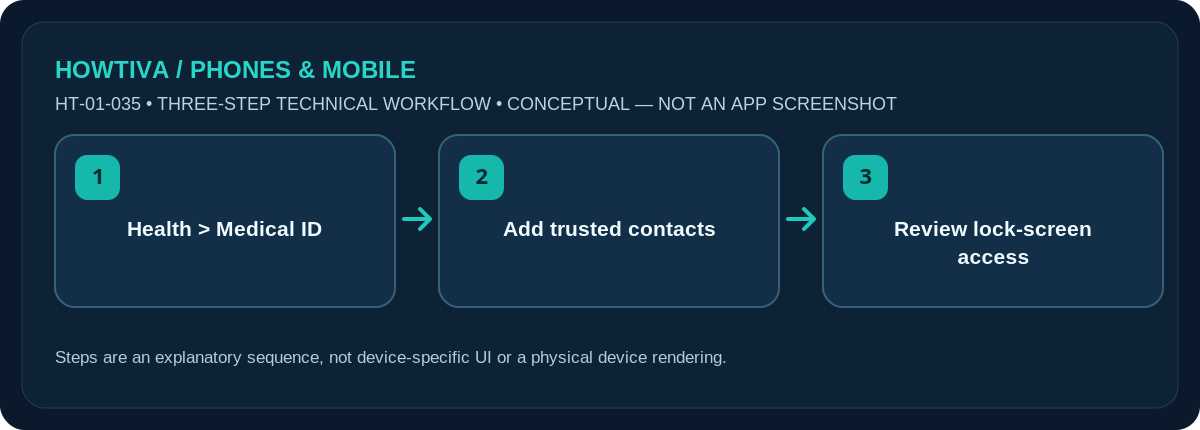
Open the Health app, tap your profile picture, choose Medical ID > Edit (or Get Started), then add people under Emergency Contacts and tap Done. Review Show When Locked so responders can access only the information you intend.
Quick answer: Open the Health app, tap your profile picture, choose Medical ID > Edit (or Get Started), then add people under Emergency Contacts and tap Done. Review Show When Locked so responders can access only the information you intend.
Medical ID and Emergency SOS are related but different. Emergency-contact messaging and sharing depend on cellular/network connectivity, regional features and your device settings; they are not a substitute for contacting emergency services.
Add emergency contacts in Medical ID
- Open the built-in Health app and tap your profile picture. Select Medical ID; choose Set Up/Get Started if this is your first time, or Edit to modify existing information.
- Scroll to Emergency Contacts and tap Add Emergency Contact. Select someone already saved in Contacts and choose their relationship to you if asked.
- Repeat for any additional trusted contacts who would genuinely be able to respond. Prefer people who know you and agree to be listed.
- Review your medical information carefully. Only enter conditions, allergies and medicines you want emergency responders to see; old or inaccurate details can be worse than an empty entry.
- Check Show When Locked and other sharing options, read their implications, then tap Done. You are choosing whether private information may be available to somebody holding your locked phone.
Understand access from the Lock Screen
Apple’s Medical ID can be viewed from the emergency controls without unlocking the phone if you enable Show When Locked. The usual path is to open the passcode screen, choose Emergency, then Medical ID. The exact gesture for reaching the passcode screen differs between Face ID and Home-button iPhones. You can inspect the result yourself without placing an emergency call; do not trigger a live SOS as a casual test.
You may also see options for sharing Medical ID information during emergency calls. Apple identifies special automatic medical information sharing in supported locations and circumstances, including limitations in the United States and Canada; it is not a worldwide guarantee of transmission to first responders.
How Emergency SOS uses your contacts
Apple says an Emergency SOS call may lead to a text alert to listed emergency contacts after the call ends, unless you cancel the alert. Location information may be included when available and updated for a period of time. This is not the same as sharing your location continuously through Find My. Your contacts should know why you listed them and how you prefer them to respond.
If you change a person’s number or remove them from Contacts, re-open Medical ID and check the selected entry. Keep a separate accessible record of essential health information if you regularly travel without network access or share a phone with somebody else.
Keep the contact list useful over time
A reliable emergency contact should be more than a saved name. Check whether the number is current, whether international country codes are correct if you travel, and whether the person can be reached during the times you are most likely to need help. Tell them they are listed so an unexpected location update or notification does not look like spam. Avoid listing someone who does not want that responsibility.
Share only information you would want visible
Medical ID is designed for emergencies, so brief and current details are usually more useful than a long medical autobiography. You may choose to list life-threatening allergies, critical medications or a contact relationship, while leaving unrelated personal information blank. If you change prescriptions, travel coverage or contact numbers, make revisiting Medical ID part of that update. Enabling Lock Screen access is a conscious privacy trade-off; review it whenever somebody else will be handling your phone.
Troubleshooting and privacy checks
- Cannot select a person: ensure they exist in Contacts with a usable phone number and that Contacts permissions are appropriate.
- Medical ID not visible when locked: verify Show When Locked is enabled; then check the emergency/passcode screen without starting SOS.
- Outdated medicines or allergies: update the entry immediately rather than relying on old text.
- No automated text arrived: Emergency SOS delivery varies with the actual SOS action, network availability and region; do not interpret a routine phone-call test as proof.
- Concerned about privacy: keep the lock-screen medical details minimal while retaining the key information responders need.
Frequently asked questions
Is an emergency contact automatically called whenever I fall?
No. Emergency SOS, Crash Detection and other alert features have their own requirements and settings. A contact record alone does not activate those features.
Can responders see Medical ID without my passcode?
Only when the relevant lock-screen visibility option is enabled and the phone supports the feature.
Should I place a trial emergency call?
No. Review the Medical ID display without contacting emergency services. Only call emergency services for a genuine emergency.
Sources & Further Reading
- Apple iPhone User Guide: Set up and view your Medical ID (checked 2026-10-27)
- Apple iPhone User Guide: Use SOS to contact emergency services on your iPhone (checked 2026-10-27)
Use the checklists as you go, and confirm the result before moving on to a more involved repair.