How to Share a Folder on Google Drive
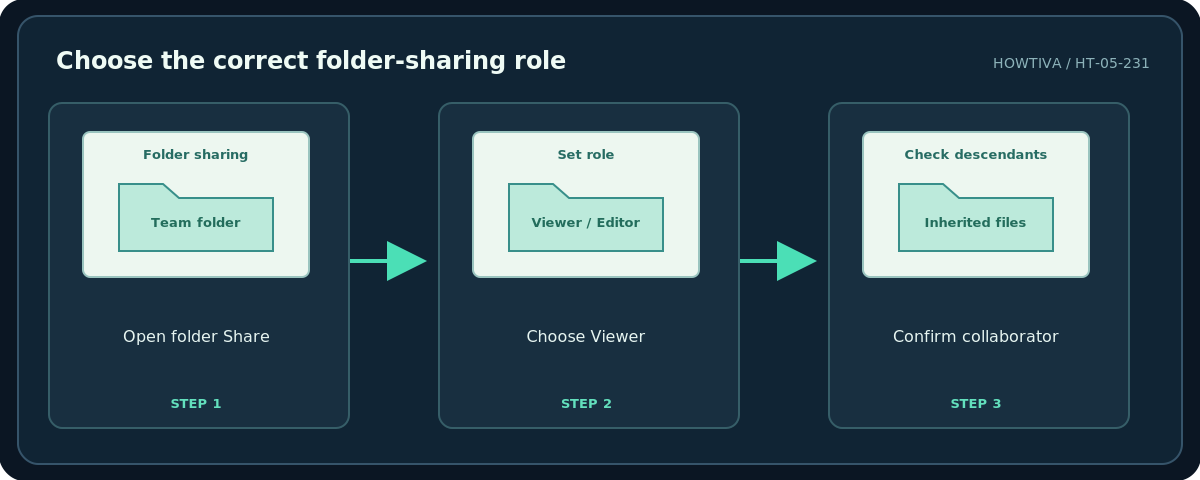
In Google Drive on a computer, right-click the folder and select Share → Share. Add the recipient's email, choose Viewer, Commenter or Editor, and click Send.
Quick answer: In Google Drive on a computer, right-click the folder and select Share → Share. Add the recipient’s email, choose Viewer, Commenter or Editor, and click Send. Sharing a folder also shares the files and subfolders inside it according to inherited permissions. Check for private material before inviting anybody.
Create a dedicated folder for the items that belong together. Avoid using the root of your personal or work Drive for ad hoc sharing. A folder with mixed confidential and public files is better split into separate areas before setting roles.
Method 1: Share with invited people
- Open drive.google.com and sign in to the intended Google Account. Locate or create the folder that should contain the shared materials.
- Open the folder and review every file, shortcut and subfolder. Move private items elsewhere before sharing the folder. Shared shortcuts may refer to items with different underlying access.
- Right-click the folder, select Share, then choose Share again if the menu includes multiple options.
- Enter the person’s email or an approved Google Group. Verify that the suggested address belongs to the intended recipient.
- Select Viewer if they should only read, Commenter if they should comment where supported, or Editor if they must add, change or delete contents.
- Send the invitation and reopen the Share dialog to inspect the access list. If you selected Editor, remember that folder editors can have broad control over items inside it.
Method 2: Share a folder link
- Open the folder’s Share dialog and review General access.
- Keep it Restricted when the folder is for specific collaborators. You can still copy the link, but people need their own authorized access.
- For truly public distribution, and only where allowed, choose Anyone with the link. Set the least-privileged role suitable for the purpose; normally Viewer.
- Copy the link and check the correct recipient account can use it. Be aware that people can forward an open-access link.
Why inherited permissions matter
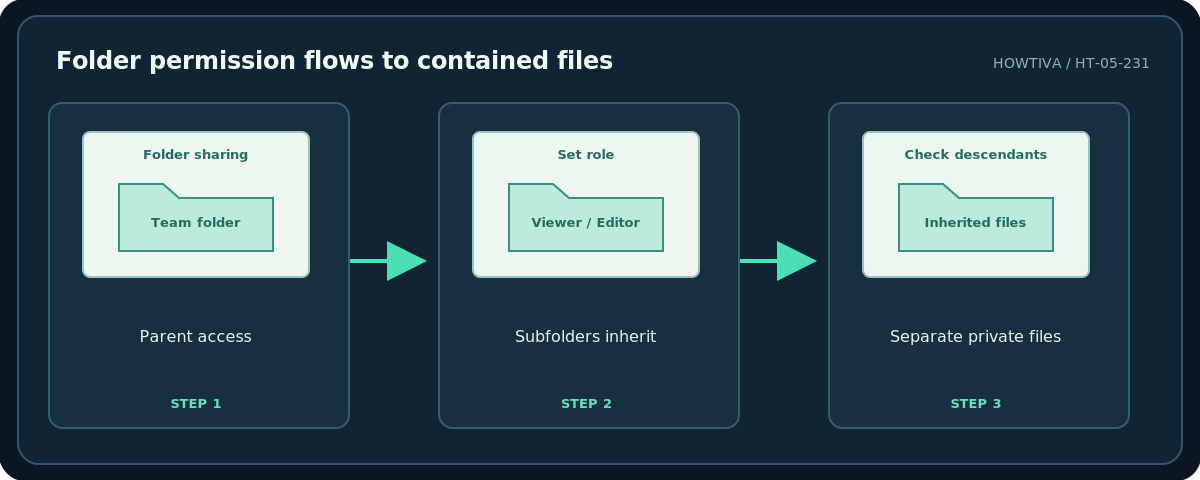
Google Drive’s folder permissions propagate to contained files and folders. If a person is an Editor on the parent folder, assigning Viewer on a child file generally cannot simply negate those inherited rights. To keep one sensitive file private, move it outside the broad-access parent or create a dedicated limited-access folder when supported. A limited-access folder may be visible as a grayed-out entry to some people but inaccessible to those without permission.
Shared drives are not exactly the same as folders in My Drive. Shared-drive membership, manager settings, and organizational policy can affect whether a role can be granted. Ask the owner or administrator if you do not control the item. Sharing options also vary between free accounts and managed organizations.
Update or revoke access
Open Share again, change a person’s role or remove their access, and save. To disable an open link, change General access back to Restricted. Before removing a team member, check whether their access comes from an organization group or a parent. Removing someone from a shared folder can affect access to all its contents, so announce changes to collaborators who depend on the folder.
Troubleshooting
The recipient can see the folder but not one file: That file may have separate ownership or limited-access settings. A person can edit despite Viewer on an item: They may inherit Editor rights from the folder. Outside sharing is unavailable: A Workspace administrator may block the domain or user. The folder has sensitive items: Remove them before sharing rather than hoping a single file’s Viewer role will override parent Editor access. You need to collaborate with many people: Consider an approved Google Group, but review group membership regularly.
Frequently asked questions
Does sharing a folder share future files placed in it?
Yes, newly added files normally inherit the folder’s access. Review the folder before adding confidential documents later.
Can an Editor delete files in a shared folder?
Depending on the Drive type and permissions, an Editor may be able to organize, move and delete contents. Use Viewer if editing is unnecessary.
Is Restricted the safest default?
For a folder containing non-public documents, Restricted plus named collaborators is generally preferable to anyone-with-the-link access.
Sources & Further Reading
- Google Drive Help — Share and manage access to files and folders — Folder sharing, role capabilities and inheritance.
- Google Drive Help — Learn about limited access to files and folders — Limited-access folder behavior.
Use the checklists as you go, and confirm the result before moving on to a more involved repair.