How to Stop Sharing a Google Drive File
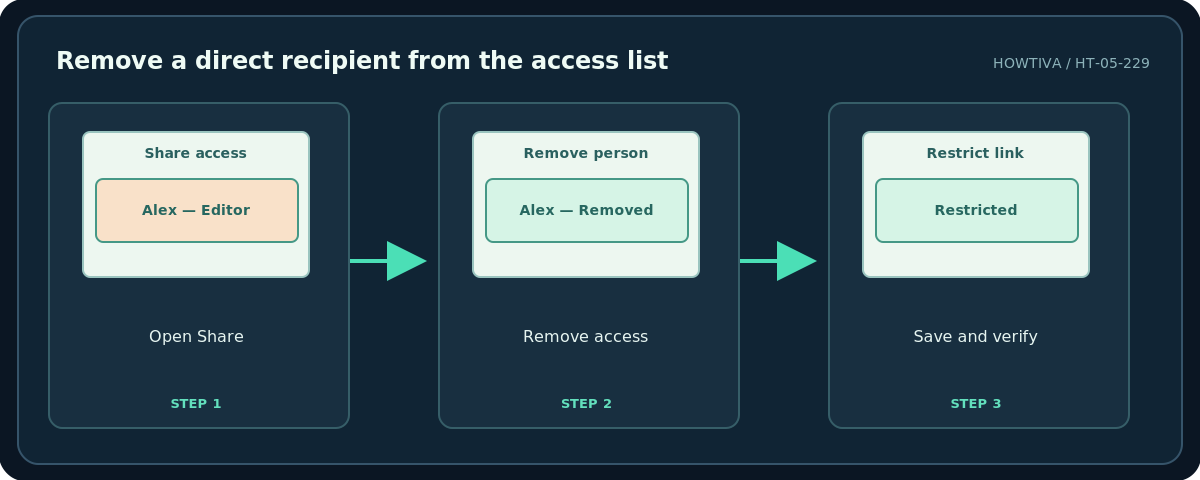
In Google Drive on a computer, select the file and open Share. Find the person, choose the arrow beside their role and select Remove access, then Save.
Quick answer: In Google Drive on a computer, select the file and open Share. Find the person, choose the arrow beside their role and select Remove access, then Save. If the file also has an open link, set General access → Restricted. Check parent folders and groups because access inherited from elsewhere may remain.
Stopping access to the current Drive file is not the same as deleting every copy someone may already have made. A recipient might previously have downloaded the file, taken a screenshot or copied its contents.
Method 1: Remove a specific person
- Find the correct file at drive.google.com. Verify its name and location; duplicate titles are common.
- Right-click it or select it and open Share. Inspect the People with access list.
- Find the email address whose access should be removed. Check whether the person is listed directly, as part of a group, or via parent-folder membership.
- If directly invited and the control is available, click the dropdown beside the person and select Remove access.
- Click Save. Reopen the share dialog to check the resulting access list.
- If you must verify they cannot access it, request confirmation through an authorized test account; owner access is not a valid access test.
Method 2: Turn off an anyone-with-the-link setting
- Still in the file’s Share dialog, find General access.
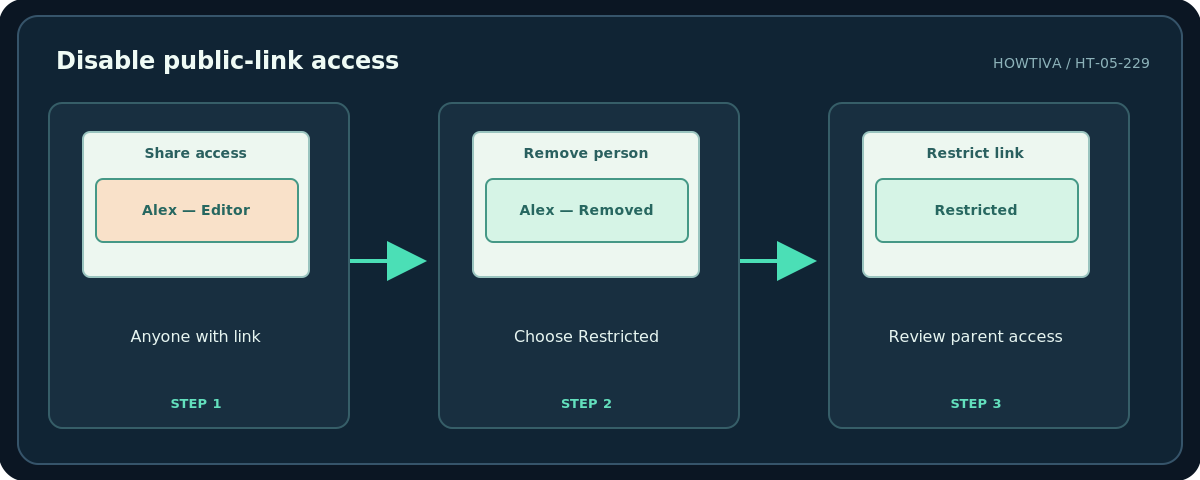
- If it shows Anyone with the link, open its dropdown and select Restricted.
- Click Done or Save. Restricted access limits the file to explicitly granted people and those covered by applicable inherited or organizational permissions.
- Review any website, chat or document where you published the old link. Changing access limits new openings but cannot retract copies already obtained.
Check inherited access and special cases
A parent folder can grant access to every file inside it. If someone has Editor access to the folder, changing just the file may not reduce their effective rights. Google may prompt you to change parent-folder permissions, move the file, or use a limited-access folder. Consider whether changing a folder affects other team members and projects before acting. Files on a shared drive have different membership and manager rules; you may need a manager’s help.
A file can also be reachable through a group invitation; removing one named address does not revoke group membership. For an item published with Publish to the web in Docs, Sheets or Slides, unpublish it separately if appropriate. Finally, removing your own shortcut or a file shared with you from My Drive does not necessarily remove other people’s access to the owner’s original.
Mobile alternative
In the Google Drive app, open the item’s menu and look for Manage access or Share. Select the person, choose Remove, and change General access to Restricted where available. The exact tap sequence differs across iOS, Android and app versions; use the desktop browser if you cannot find the controls.
Troubleshooting
Someone can still open the file: Check folder inheritance, groups, general access, shared drives and whether they own or have a separate copy. Remove access is disabled: You may lack ownership or permission to change sharing. The link still opens on your computer: You are likely still signed in as an owner/editor; that does not prove external access. A teammate unexpectedly loses other documents: You may have altered the parent’s sharing; restore the appropriate folder role only after reviewing intended access. The file is public in a website: Look for Publish to web as well as Drive link sharing.
Frequently asked questions
Does Restricted mean nobody can open the file?
No. Owners and other authorized people retain access.
Will recipients be notified when I remove access?
Do not rely on a notification either way; treat changes as access controls and communicate separately when necessary.
Can I remotely delete someone’s downloaded PDF?
Not through ordinary Drive sharing permissions.
Sources & Further Reading
- Google Docs Editors Help — Stop, limit, or change sharing — Remove access, restrict general link access, folder inheritance.
- Google Drive Help — Share and manage access — Folder roles, link roles and access inheritance.
- Google Drive Help — Limited access folders — When limited-access folders are appropriate.
Use the checklists as you go, and confirm the result before moving on to a more involved repair.