How to Schedule a Meeting Across Time Zones
Pick a real calendar date and time in a named time zone, not a bare abbreviation such as EST. In Google Calendar on a computer, create an event, open More options, and select Time zone near its start or end time if you need to specify another zone.
Quick answer: Pick a real calendar date and time in a named time zone, not a bare abbreviation such as EST. In Google Calendar on a computer, create an event, open More options, and select Time zone near its start or end time if you need to specify another zone. Add guests and verify the local times before sending the invitation. Calendar converts the event for invited users; it does not guarantee that the time is convenient for them.
This procedure is useful for distributed teams, remote interviews and cross-border calls. Record both the date and region-based zone such as Europe/London, America/New_York or Asia/Tokyo. Abbreviations like CST can be ambiguous, and offsets like UTC−5 may fail to reflect seasonal daylight-saving changes. If a city is not available, choose a nearby city in the same official time-zone region and verify against the invite preview.
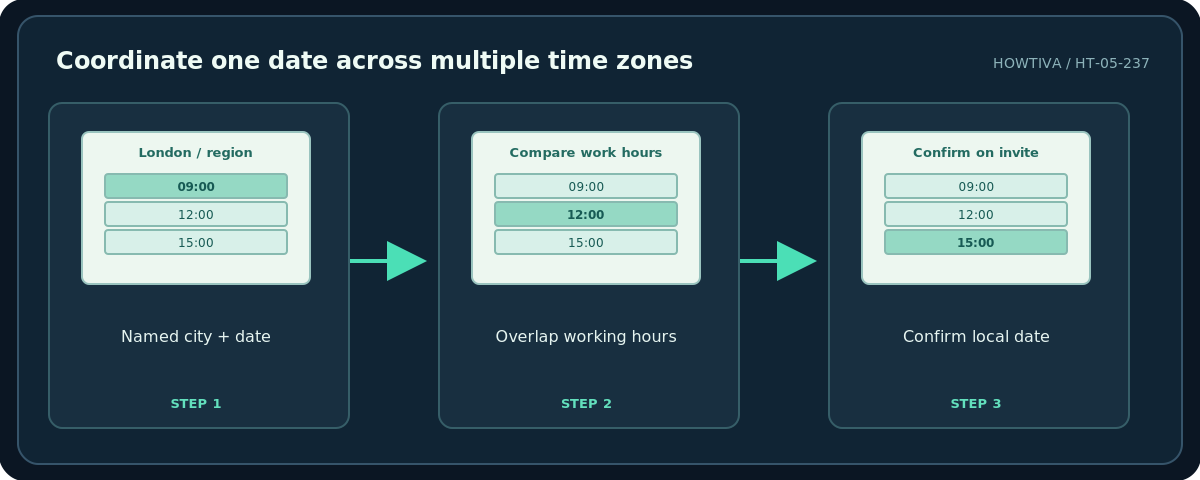
Step 1: Agree on a time window, not just a clock time
- Write down each participant’s city or IANA time-zone name, along with the meeting date. A location is especially important around spring and autumn clock changes.
- Ask about normal working hours and any hard constraints. Do not assume a guest is free because you can see a blank shared calendar; they may use another account.
- Propose two or three slots in an overlapping window, then confirm whether the date for each participant is the same day. A meeting near midnight can cross a calendar date.
- Note who owns the invitation and the authoritative source for any last-minute changes. An organizer changing their laptop’s time-zone setting is not a substitute for checking the actual event zone.
- Before sending, inspect the event’s displayed start and end times and explicit zone. Use one authoritative invite to reduce confusion.
Step 2: Create the event in Google Calendar
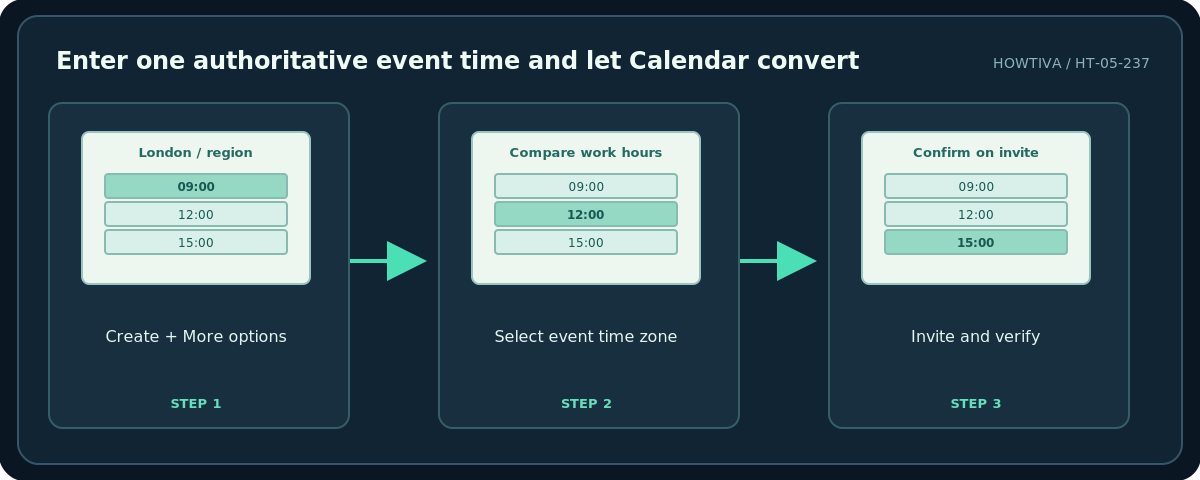
On a computer, visit Google Calendar and choose Create → Event → More options. Set a descriptive title, date, duration and meeting method. Next to the event time choose Time zone, search for a city or country, select the desired time zone, then OK. Google Calendar also provides an option for separate start and end time zones; use that only when the schedule actually requires it (for example, some travel scenarios), not as a way to display every guest’s time.
Add guests using their email addresses. If the guests have shared their calendar availability with you, choose Find a time to compare schedules; Google documents a limit of 50 schedules displayed for this availability comparison. This does not show private, unshared calendars and does not guarantee that people are willing to attend. If the feature is missing or all guests are external, propose times by email and collect explicit confirmation instead.
Google says an event created in one zone is displayed to invitees in their own local time zones. Once sent, the invite is a better reference than typing a copied time in a message without a zone.
Step 3: Check daylight saving and the invited date
Time-zone offsets change during the year in some countries, often on different dates. A city-based zone accounts for the rules better than a manually typed fixed offset. Verify the meeting date itself; do not calculate an October meeting using a conversion you remembered from July. Google warns that very old or distant-future events can display imperfect daylight-saving calculations if government rules change.
Make one final review with the organizer’s display and, where possible, have a guest confirm their calendar entry. An example: a hypothetical event on 10 November 2026 at 15:00 in London will show different local hours across regions. Do not publish a specific conversion table for that example without calculating the date’s actual zone rules; the calendar invite should be the operational source of truth.
Step 4: Include useful invite details
Specify the call link or physical location, exact expected duration, agenda, preparation notes and whether the meeting will be recorded. Consider accessibility and language. For recurring meetings, inspect at least one occurrence before and after anticipated clock changes. Fixed local-time meetings and fixed UTC-time meetings can behave differently for overseas attendees. Ask organizers not to edit recurring series casually: modifying one instance can leave others inconsistent.
Alternatives
Microsoft Outlook: Its meeting scheduler also handles time zones, but menus vary by desktop/web edition; review the final invitation rather than borrowing Google Calendar instructions. Plain-language planning: Send two candidate slots, each marked with its city-based zone and date, and ask participants which is workable. Shared calendar view: In Calendar desktop settings, under the general time-zone controls, you can show additional zones as reference columns; this affects the view rather than relocating existing meetings.
Troubleshooting
A guest sees a different hour: This is expected when the guests have different local zones; confirm the instant is the same. Everyone shows free but a guest declines: Shared calendar availability may be incomplete. One-hour discrepancy in March or November: Recheck daylight-saving rules for that exact date. The wrong day appears: Recalculate near-midnight events and verify the start date. A copied invite shows only “3 PM”: Re-send the Calendar invitation or add an explicit named time zone and date in writing.
Frequently asked questions
Should I use UTC?
UTC can be a useful fixed reference for technical teams, but many participants still need a correctly localized calendar invite. Avoid fixed offsets where local seasonal time matters.
Can Calendar see everyone’s availability?
No. It relies on calendars that guests have shared or that are visible within permitted organization settings.
Does changing my computer time zone move the meeting?
It changes how times are displayed; verify the event’s original time-zone settings before editing its scheduled instant.
Sources & Further Reading
- Google Calendar Help — Use Google Calendar in different time zones — Regional time-zone options, local display and daylight-saving caveats.
- Google Calendar Help — Find times to meet — Shared-calendar comparison, Find a time and 50 schedule display limitation.
- Google Calendar Help — Invite people to your Calendar event — Guest invitations and local time display.
Use the checklists as you go, and confirm the result before moving on to a more involved repair.