How to Convert Word to PDF
In Word for Windows, open your document, choose File → Save As (or Export, depending on your version), and select PDF.
Quick answer: In Word for Windows, open your document, choose File → Save As (or Export, depending on your version), and select PDF. In Word on a Mac, choose File → Save As and select PDF as the file format. In Word for the web, choose File → Export → Download as PDF. Save a new copy and open that PDF to check the finished pages.
Converting Word to PDF is generally easier than converting PDF back into Word, because Word knows the original headings, paragraphs and tables. Even so, the exact output can depend on fonts, tracked changes, export options and platform. These steps cover modern desktop Word and Word for the web as documented by Microsoft as of October 2026.
Export a Word document to PDF on Windows
- Open the original .docx in desktop Word. Save your latest changes first.
- Choose File → Save As or Save a Copy; browse to the desired destination.
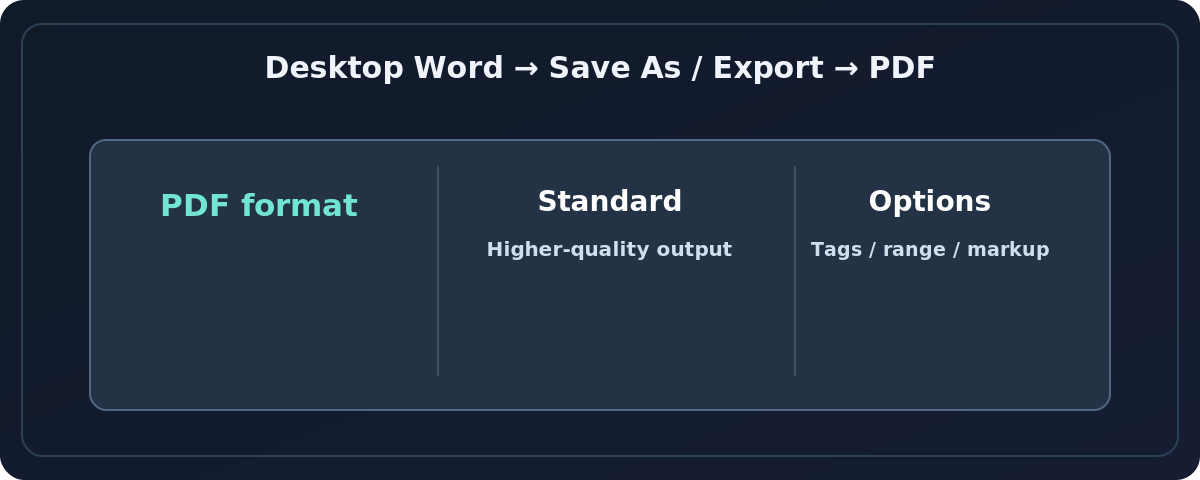
- Set Save as type to PDF (*.pdf). On some versions, you can instead choose File → Export → Create PDF/XPS Document → Create PDF/XPS.
- Where offered, choose Standard (publishing online and printing) for higher-quality output; Minimum size (publishing online) may reduce quality or image detail.
- Check Options if you need to specify a page range, handle markup or ensure accessibility tags. Save or publish with a new filename.
- Open the resulting PDF in a viewer, scan multiple pages and test a link before sharing it.
Saving as a PDF does not erase or convert your original Word file. Keep the .docx in case you need to correct headings, captions, accessibility or page breaks later.
Export Word to PDF on a Mac
- Open the document in Word for Mac and save your changes.
- Choose File → Save As or Save a Copy, and select the destination.
- Use the File Format menu to choose PDF, then select Save.
- If your version shows quality/accessibility options, read them carefully and choose based on your destination.
- Reopen the PDF to verify font appearance and links. Microsoft notes that certain Word for Mac export modes can affect hyperlink conversion, and its online-service mode may substitute some custom fonts.
Do not assume a Mac screenshot of these controls matches a Windows installation. Word on the Mac has a different Save dialog, and labels may vary by release.
Export using Word for the web
- Open your document in Word for the web using an account that can access it.
- Select File → Export.
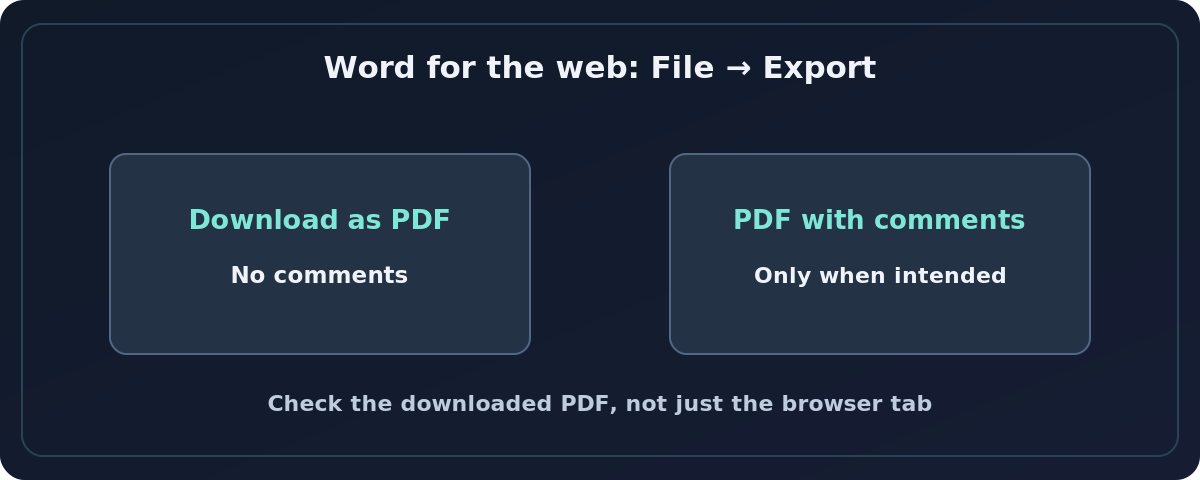
- Choose Download as PDF, or Download as PDF with comments if you explicitly want comments included and the option is offered.
- Select Download when prompted and look in the browser’s download location.
- Open the saved PDF and verify the correct content was exported.
Avoid treating a saved browser webpage as your document’s PDF. Use Word’s dedicated export flow when available. If you need options absent in the web application—such as finer control of document structure or page ranges—open the source in desktop Word if your license permits.
Keep the formatting and make a readable PDF
Before export, check the Word document in Print Layout and resolve warnings from Word’s Accessibility Checker. Use real heading styles instead of manually enlarged text, add alternative text to informative images, and ensure tables have a clear reading order. Microsoft documents PDF accessibility tags for Word and recommends checking the source document before generating the PDF.
Fonts matter. A recipient may see substitutions if a font is not correctly embedded or handled during export. Check decorative titles, special glyphs, non-Latin characters and equations carefully. For a portfolio or design document, compare the exported PDF with the source at typical viewing size and at print scale. If a printer has technical requirements, ask for the required color/profile, page size and bleed rather than assuming the default PDF meets a print shop’s specification.
Export only certain pages, or include comments
In desktop Word, the available Options dialog may allow a page range and markup choices. This is safer than deleting pages from your editable source merely to create a small handout. In Word for the web, Microsoft distinguishes Download as PDF from Download as PDF with comments; choose deliberately, especially for internal reviews. A PDF is not guaranteed to hide tracked changes or comments unless you have inspected what is actually exported.
If you need to share without markup, resolve or remove tracked changes and comments in an authorized copy of the Word document before export. Never rely solely on changing the filename or choosing PDF to protect confidential material.
Common problems and how to fix them
The PDF’s last page is blank
Check for an extra paragraph mark after a table, a manual page break or a section break in Word. Fix the layout in the source file and export again instead of repeatedly cropping the PDF.
A hyperlink does not work
Check the link in the Word source, export with another available quality setting if necessary, and verify the target URL in a PDF reader. Microsoft notes a Mac-specific hyperlink issue with the Best for printing option in some workflows.
Fonts, bullets or symbols changed
Replace unsupported fonts with a dependable family, inspect font embedding/export settings where available, or ask the recipient what viewers they use. Confirm the PDF visually rather than relying on the conversion dialog’s success message.
The PDF is unexpectedly large
Look for high-resolution photos in the Word file and consider the Minimum size export option only after comparing image clarity. You can also use a separate PDF optimizer, but check small text, charts and signatures before sending.
Someone can still edit the PDF
PDF is a document format, not an unbreakable copy-protection system. Microsoft explicitly warns that making a PDF does not guarantee the recipient cannot edit it. Use proper access control, document handling policies and approved security features when restrictions matter.
Final checks before you send
Open the saved file outside Word. Confirm the page count, orientation, embedded images, hyperlinks, table borders, headers, footers and any comments. If accessibility matters, validate reading order, document tags and contrast with appropriate tools. Name the file clearly—for example, proposal-final-2026-10.pdf—and retain the editable original separately.
Frequently asked questions
Can I convert Word to PDF without Adobe Acrobat?
Yes. Word for Windows, Word for Mac and Word for the web have documented ways to export or save a PDF. Adobe software is not required for these methods.
Is saving as PDF the same as printing to PDF?
Both create a PDF, but Word’s export or Save As flow may provide more document-specific choices, such as accessibility tags or comment-handling controls. Prefer export when those choices matter.
Will the PDF look exactly like the Word document?
Usually it will closely match the exported layout, but fonts, hyperlinks, quality options and environment can affect the output. Verify the finished PDF.
Do I lose the editable Word document?
No. Save the PDF as a separate file and keep your original .docx for future editing.
Sources and further reading
- Microsoft Support: Save or convert to PDF or XPS in Office Desktop apps (checked 2026-10-27).
- Microsoft Support: Export Word document as PDF (checked 2026-10-27).
- Microsoft Support: Create accessible PDFs (checked 2026-10-27).
Use the checklists as you go, and confirm the result before moving on to a more involved repair.