How to Compare Two Word Documents
In a supported desktop version of Microsoft Word on Windows, open Review → Compare → Compare (often labeled Compare two versions of a document).
Quick answer: In a supported desktop version of Microsoft Word on Windows, open Review → Compare → Compare (often labeled Compare two versions of a document). Choose the Original document and Revised document, then run the comparison. Word normally opens a third document showing differences as tracked revisions, leaving the two inputs unchanged. On Mac, the supported command is Review → Compare → Compare Documents. Save the comparison under a new name after reviewing it.
This is useful when someone sends back a Word file with no Track Changes history, or when you need to see differences between two dated drafts. The software compares document content and, depending on your chosen options, formatting and comments. It does not determine whether a change is correct. A human still needs to assess whether wording, numbers, tables and disclaimers reflect the intended decision.
Prepare a clean original and revised copy
- Put both files in a working folder. Name them clearly, such as
Contract_Original.docxandContract_Revised.docx. - Make a backup or use copies. Never conduct an experiment directly on the only copy of a signed, approved or legally retained document.
- Confirm the files are actually Word documents and that you are authorized to examine and compare them.
- Identify which version came first. If you accidentally reverse them, insertions may appear as deletions and vice versa, causing confusion.
- Decide whether you care only about words or also about formatting and comments. Word’s compare options can include or exclude categories.
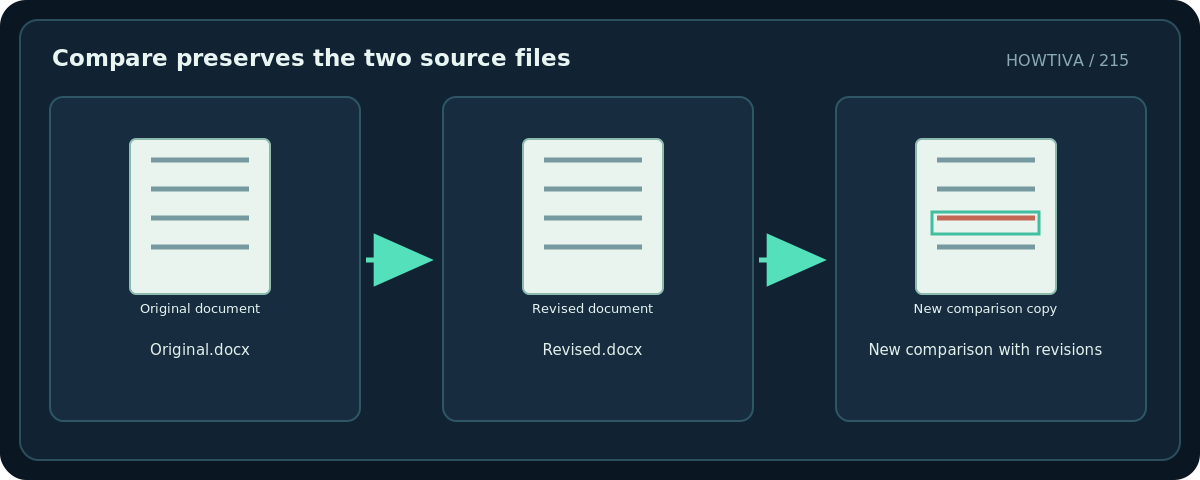
If the documents already contain tracked revisions, Word may prompt you about how those revisions will be handled during comparison. Microsoft notes that it may accept changes in the compared document state for the comparison process. Read the prompt instead of clicking through: if preserving earlier review history matters, make separate backups and plan the workflow carefully.
Method 1: Compare two files in Word for Windows
- Open desktop Word and go to the Review tab.
- Select Compare, then choose Compare two versions of a document or the current equivalent.
- In Original document, choose the baseline file. In Revised document, choose the newer file.
- Expand additional settings if needed. Microsoft’s support notes options for comparing changes in comments, text and formatting, and character-level versus word-level display.
- For Show changes in, prefer a New document. Microsoft warns that selecting the Original or Revised target can modify the chosen source document.
- Run the comparison, study the results pane and the marked-up document, then save the generated result under a new descriptive filename.
Do not blindly choose the original/revised file as the comparison output. The normal new-document output is safer for protecting the source documents. Compare a small sample first if the inputs contain large tables, embedded objects or complicated formatting.
Method 2: Compare Word documents on Mac
Microsoft’s Mac support describes opening a document, selecting Review → Compare → Compare Documents, choosing the Original and Revised versions and clicking OK. The result shows differences with revision marks in a new copy based on the original. The Mac command’s placement and available comparison options may vary by current version, so follow the actual menu rather than assuming Windows dialog labels map exactly.
Compare versus Combine
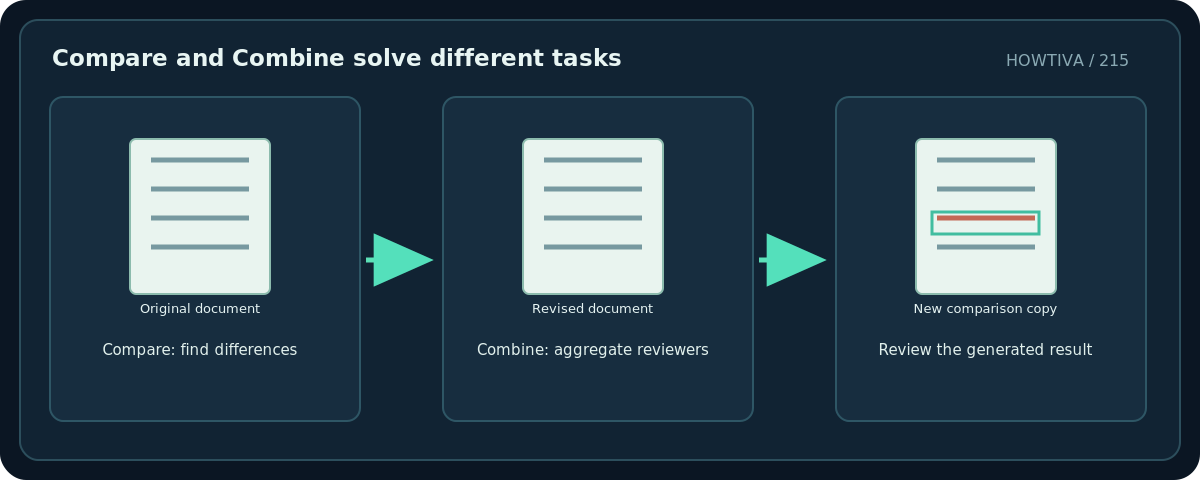
- Compare answers: What changed between version A and version B? Use it when you have two snapshots and need an annotated difference document.
- Combine answers: How do I bring changes from multiple reviewers into one review copy? Microsoft’s guidance directs users toward Combine revisions from multiple authors rather than Compare when merging reviewer markup.
- Track Changes answers: What edits are being recorded as people work in one document? It should ideally be enabled during the edit session, not used as a replacement for comparing two existing files.
These concepts can overlap in a complex review cycle, but they are not interchangeable. If your team works across separate offline branches, define a baseline and maintain a human review of every combined change.
Inspect the results intelligently
- Start with headings and the document title; a small change to a defined term can affect every later paragraph.
- Review figures, dates, percentages, money amounts and named parties. These are high-impact differences even when only a character changes.
- Inspect tables and footnotes separately. A large table rearrangement may produce busy markup that is harder to interpret automatically.
- Check layout changes if you selected formatting comparison. Decide whether they are substantive or incidental template differences.
- Record any accepted business decisions outside the comparison file, if your workflow requires a decision log.
- Save the comparison, then produce a final clean document only after accepting or rejecting the desired revisions through a separate review step.
Troubleshooting
The comparison looks backward. Verify which file was assigned Original and which Revised. Reverse the inputs in a fresh comparison if necessary.
The output is an enormous wall of changes. The files may have different templates, extensive formatting revisions or moved blocks. Reduce selected comparison categories or compare smaller sections while keeping source copies unchanged.
I cannot find Compare in Word for the web. Microsoft documents this robust legal-blackline workflow primarily for supported desktop editions. Use desktop Word for complex comparisons.
It changed one of my files. Check whether the comparison destination was set to the Original or Revised document. Use backups and choose a new document next time.
The results are not a legally authoritative redline. Comparison finds document differences; it does not verify authenticity, timestamps or intent. Legal or regulated review may require other controls.
Final review
Save the third file clearly as a comparison artifact, note which versions were compared and preserve both original inputs. Confirm that any final Word file shared externally has had its Track Changes and comments handled under your team’s disclosure and retention policy.
Frequently asked questions
Does Compare overwrite my original file?
By default the Windows desktop workflow displays a third new document. Avoid destination options that deliberately use Original or Revised.
Can I compare two files that were edited without Track Changes?
Yes. That is a principal use case for comparing saved versions.
Should I choose Compare or Combine for two reviewers?
Use Combine if your goal is merging reviewer revisions; use Compare to find differences between two document versions.
Sources & Further Reading
- Microsoft — Compare document differences (legal blackline) — Windows desktop Review > Compare; third document; source preservation and optional compare settings.
- Microsoft — Compare and merge two versions on Mac — Mac Review > Compare > Compare Documents and Combine Documents distinction.
- Microsoft — Track changes in Word — Tracked changes as the display of text edits for reviewing.
Use the checklists as you go, and confirm the result before moving on to a more involved repair.