How to Crop a Screenshot on Windows
On Windows 11, press Windows + Shift + S, select the area you want, then open the resulting capture in Snipping Tool.
Quick answer: On Windows 11, press Windows + Shift + S, select the area you want, then open the resulting capture in Snipping Tool. If you already have a screenshot, open it in Snipping Tool and select the Image crop control, adjust the borders and save the result as a new copy. You can also open an existing screenshot in Photos, use its crop editor and save a copy. Cropping removes visible outer pixels from the exported image; it is not a general-purpose document redaction tool.
Cropping helps readers focus on the relevant button, error or chart. The ideal crop keeps enough surrounding context to identify the app and problem, but removes unrelated windows and distracting empty desktop. A crop can be too tight: if an error message has no app title or surrounding field, the recipient may not know where it came from.
Method 1: Capture only the region you need
- Arrange the screen so that the desired subject is visible. Hide notifications and private windows before capturing where possible.
- Press Windows + Shift + S. Windows opens the Snipping Tool capture overlay.
- Choose a rectangular snip if that fits the task and drag around the area you want. Microsoft documents additional snip modes, so the buttons may vary with version.
- Open the resulting snip in Snipping Tool if it is not already visible, and confirm it contains the entire message or control that matters.
- Save the image using Save or Save as, choosing a descriptive name. The exact autosave location can vary with Snipping Tool settings.
- Open the saved file from its folder rather than trusting the editing window. Check that it includes no unintended screen content.
When you capture the correct region at the start, you avoid a second crop and retain a clear record of what was originally included. However, if a private name appears inside the chosen rectangle, cropping around the outside will not hide it—use the separate privacy workflow in guide #210.
Method 2: Crop an existing screenshot in Snipping Tool
- Open Snipping Tool, then open the screenshot you previously saved. You can also use an Open With action if Snipping Tool is available as an editor.
- Select Image crop, which Microsoft documents among Snipping Tool’s annotation controls.
- Move the crop handles inward to mark the rectangle to keep. Check the top, bottom, left and right edges for cut-off labels, cursor tooltips and the line above an error.
- Apply or confirm the crop, according to the version of the tool you’re using.
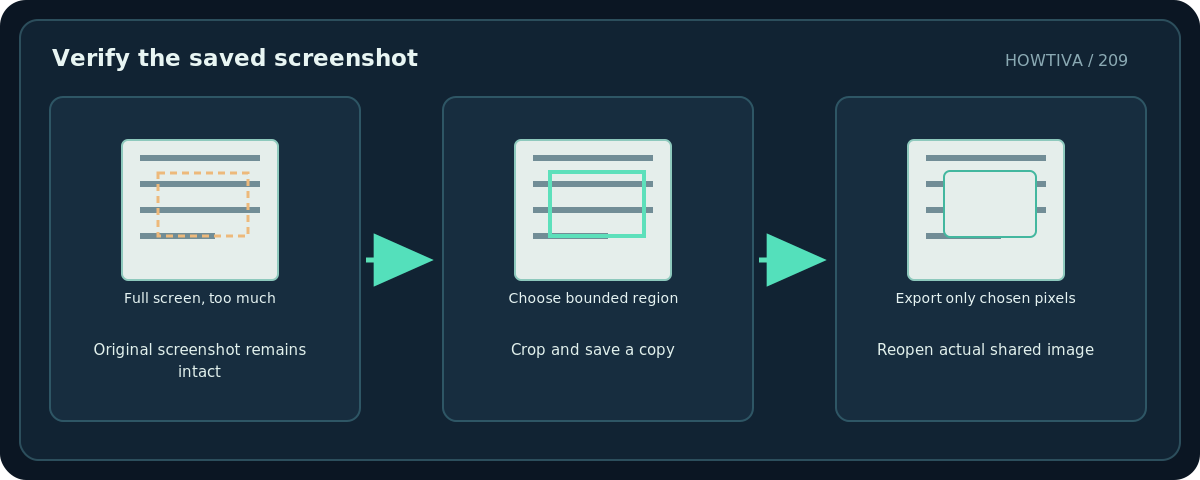
- Save the edited image as a new file where the app allows it. Avoid overwriting the original until you have verified the result.
- Reopen the saved file and check both its pixel dimensions and content.
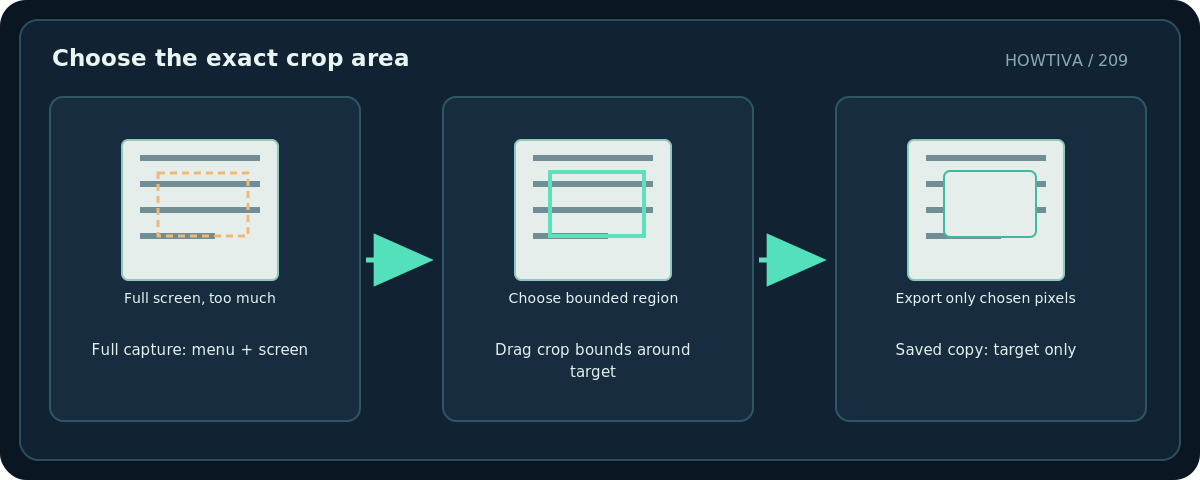
Do not confuse resize with crop. Resizing scales the entire image, which often makes text smaller. Cropping discards pixels outside the selection without changing the retained portion’s fundamental proportions. If you need both, crop to the relevant content first and then resize proportionally to the target display size.
Method 3: Use Windows Photos for an existing screenshot
- Open the screenshot in Photos. Choose the edit-image control for the current version of Photos.
- Open the Crop editing area. Adjust the aspect ratio only if required; for a help article or bug report, a freeform rectangle is often more useful than a preset square.
- Keep the error text, relevant buttons and a small amount of context. Avoid cutting off a screenshot’s vertical scrollbar if its position explains the problem.
- Choose Save as copy where offered, so the original remains available. Microsoft documents save-as-copy behavior in the Photos editor.
- Inspect the new file outside Photos before attaching it or placing it into a document.
Troubleshooting
The screenshot opens but no Crop command is visible. You may be viewing it in a file browser or another application, not the editing surface. Open it directly in Snipping Tool or Photos; interface labels can change with app updates.
Everything looks tiny after cropping. The screenshot may have been resized rather than cropped, or a website may be displaying the image in a small container. Check its pixel dimensions and view at 100%.
The crop removed important context. Return to your original screenshot, crop a slightly larger rectangle, and save a new version. Keeping the original saves this rework.
An area outside the crop is still visible in another app. Confirm you shared the newly exported flat image and not an editable project with hidden layers or the original file.
The screenshot contains passwords or personal data. Do not trust a partial crop as a privacy review. Check the retained content and use explicit removal or redaction methods before sharing. Some apps may store editing history or metadata separately.
Final quality check
Read the smallest visible text at actual size, verify controls have their full labels, and make sure the correct screenshot—not an older version—appears in the message or report. If you are writing a tutorial, use the same crop width across related images when that helps visual consistency, but never crop away steps users need to recognize.
Frequently asked questions
Can I crop after taking a full-screen screenshot?
Yes. Open the saved picture in Snipping Tool or Photos, crop it and save a copy.
Is cropping the same as resizing?
No. Cropping removes outside pixels; resizing changes the number of pixels used to represent the image.
Does cropping hide sensitive data safely?
Only pixels truly removed from a flattened output are absent from that output. Review the exported file and any editable layers; for confidentiality, follow a dedicated privacy check.
Sources & Further Reading
- Microsoft — Use Snipping Tool to capture screenshots — Windows Snipping Tool capture, image crop, saving, shortcuts.
- Microsoft — Edit photos and videos in Windows — Windows Photos crop panel and save-as-copy workflow.
Use the checklists as you go, and confirm the result before moving on to a more involved repair.