How to Create a Calendar Invite in Google Calendar
Quick answer: On a computer, open Google Calendar, choose Create → Event , enter a title, start and end time, and add invitees under Guests . Add the location or meeting link and click Save ; if Google asks whether to email guests, choose to send invitations. Invitees can respond Yes, No or Maybe .
Quick answer: On a computer, open Google Calendar, choose Create → Event, enter a title, start and end time, and add invitees under Guests. Add the location or meeting link and click Save; if Google asks whether to email guests, choose to send invitations. Invitees can respond Yes, No or Maybe. Saving a personal calendar event without any guests does not invite anybody.
Google Calendar can send invitations to anyone with an email address, even if they do not use Google Calendar. The guide below covers the browser interface first and Android as an alternative. Your account permissions, external-guest policies and Google Workspace settings can affect the options. Use a realistic event name that tells recipients why they are being invited; do not include passwords, private personal records or client secrets in the visible title or description.
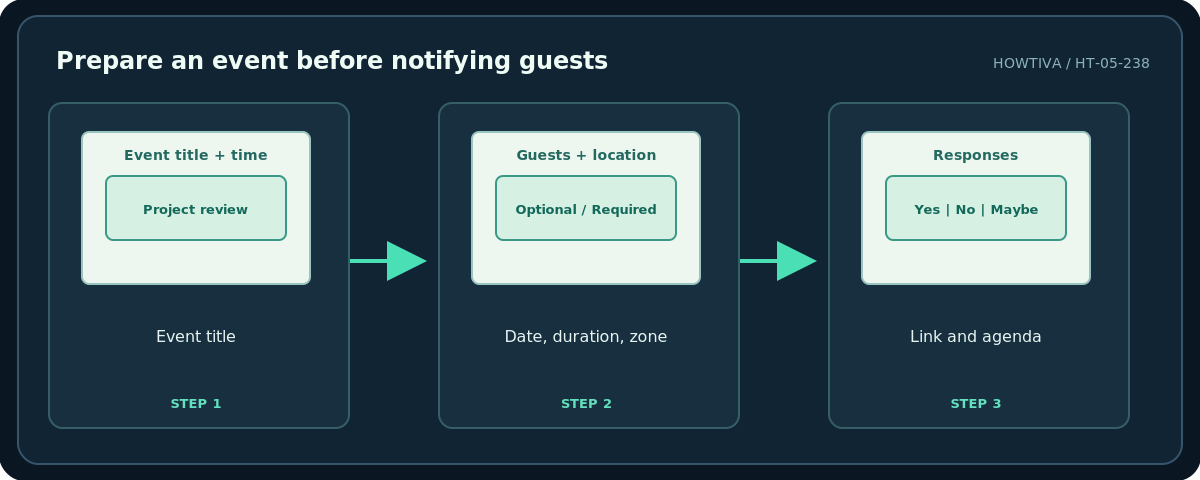
Step 1: Enter the correct event details
- Visit calendar.google.com and confirm that you are signed into the intended Google Account.
- Click Create → Event or select a time on the calendar grid to begin an event. Open the detailed event editor if only a compact panel appears.
- Enter a short, specific title such as
Project review — design sign-off. Choose the correct date, start time, end time and time zone. A one-hour event is not automatically correct for every agenda. - Add the meeting location or a permitted video meeting link. Confirm the link actually belongs to the meeting; do not reuse an unrelated private room link.
- Add an agenda and any documents that the participants are allowed to access. Verify Drive sharing permissions separately: attaching or pasting a link does not always grant readers access.
Step 2: Add and invite people
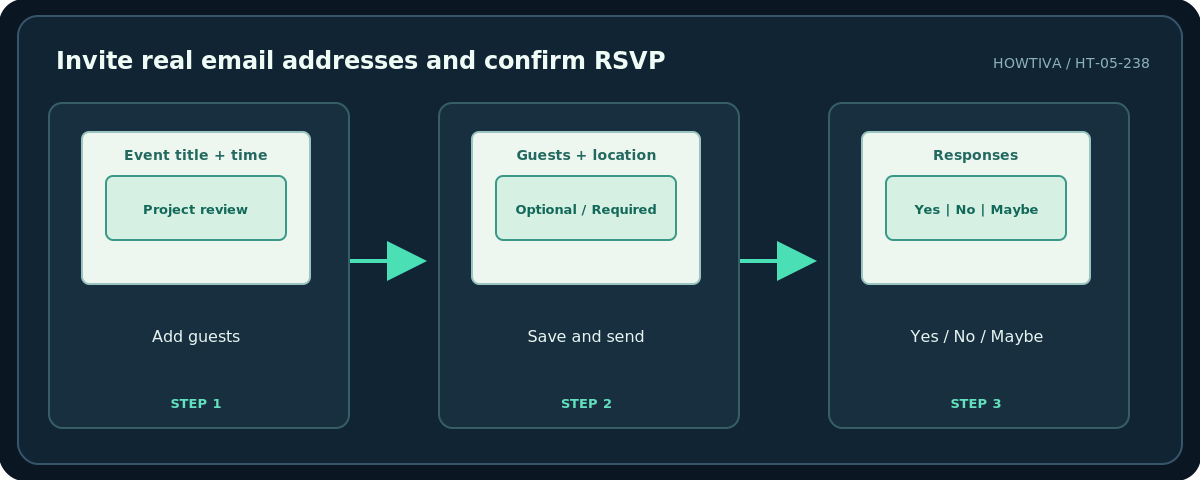
In the event editor, enter each participant’s name or email under Guests. Review every address for typos before saving. Google supports marking attendees as optional via the guest control, where available. If you do not see an optional toggle on a compact mobile screen, use the desktop editor instead of guessing its location.
Check whether the selected calendar is your own or a calendar for which you have event editing rights. You cannot add guests to certain automatically created events (including Gmail-generated events, birthdays, holidays or sports-calendar events). Create a normal new event instead. When you save or update a guest event, Google may ask about sending invitation emails; choose Send when the recipients must be notified. Google notes that email notifications can be suppressed by recipient settings even when calendar details are updated.
Step 3: Check attendance and availability
Open the saved event and look at Guests to see RSVP responses: Yes, No, or Maybe. Treat an unanswered invitation as unconfirmed, not accepted. For an organization or a guest who shares calendar availability, Find a time can help compare free/busy information before you finalize the meeting. An external guest who shares no calendar may not appear in availability suggestions. Do not assume an empty schedule proves they are available.
Google states that guest notification and automatic calendar addition can depend on sender familiarity and recipient preferences. When an invite is important, request an explicit RSVP via email or another agreed channel. If a guest has never interacted with the sender, the invitation may require an RSVP before appearing on their calendar.
Step 4: Edit, reschedule or cancel responsibly
Open the event and choose Edit to change the start time, guest list, description or location. Save the changes and send updates so invitees know what happened. For recurring series, first decide whether you intend to modify only this event, this and following, or the entire series, where those options appear. Read the choice carefully to avoid surprising the whole team.
If you need to cancel, use the Calendar event deletion/cancellation flow and tell guests the meeting is canceled. Avoid leaving a stale video link and an ambiguous subject in the calendar. The host’s reminders do not necessarily control all guests’ reminders; Google notes that guests usually receive notifications according to their own settings.
Android and other alternatives
In the Google Calendar Android app, open or create an event, tap Add people, enter email addresses, then Done and Save. Google documents View schedules on some mobile layouts when guests are added. On an iPhone, create or edit the event in the Google Calendar app using its displayed guest controls; when in doubt, use the web version, since mobile labels and account permissions can vary. You can also invite people who use other calendar software by email; their RSVP and synchronization behavior depends on their provider.
Troubleshooting
A guest never got the invite: Recheck the exact email address, spam folder and notification settings, then ask them to RSVP via the invitation email. Guests cannot open the agenda file: Confirm separate Drive access. No Send prompt: Check whether there are actually guests and whether your account or Calendar settings change how updates are delivered. The suggested meeting time seems wrong: Check the guests’ working hours, shared availability and time zones. Can’t add guests: You may be editing a read-only calendar or an automatically generated event; create a new event with sufficient permission.
Frequently asked questions
Do invitees need Gmail?
No. Google supports sending a Calendar invite to anyone with an email address, though handling differs across calendar applications.
Can I invite someone as optional?
Google documents an optional-guest control in the event editor. Its appearance depends on device and editor view.
Does everyone get my reminders?
Not necessarily. Guests can have their own notification settings, especially if they use Google Calendar.
Sources & Further Reading
- Google Calendar Help — Invite people to your Calendar event — Guest roles, invitations, RSVP, notifications and failure modes.
- Google Calendar Help — Find times to meet — Availability comparison requirements.
- Google Calendar Help — Use Calendar in different time zones — Guest-local displays and time zone settings.
Use the checklists as you go, and confirm the result before moving on to a more involved repair.