How to Make a Scanned PDF Searchable
Open your scan in Adobe Acrobat, choose All tools → Scan & OCR → In this file, select the page range and recognition language, then choose Recognize Text.
Quick answer: Open your scan in Adobe Acrobat, choose All tools → Scan & OCR → In this file, select the page range and recognition language, then choose Recognize Text. Save a new PDF and try selecting and searching for a sentence. OCR adds a text layer; it does not guarantee every recognized character is correct.
OCR means optical character recognition: software guesses characters from pixels in a scanned image. A searchable file is useful for finding terms, copying text and archiving documents, but the process can misread tiny numbers, faint print, columns and handwriting.
Check whether OCR is necessary
- Open the PDF and try selecting a word with the text-selection cursor.
- Use Find to search for a distinctive word visibly printed on the page.
- If the page behaves like one image and search cannot locate visible words, it probably lacks useful text recognition.
- If it already searches correctly, keep the original: additional OCR may be unnecessary.
Method: Recognize text in Acrobat
- Copy the original scan to a new working file so you can compare before and after.
- In Acrobat with OCR features available, choose All tools → Scan & OCR.
- Select In this file and choose the intended pages. Mixed documents can contain some text pages and some image-only pages; check which pages need recognition.
- Set the language that matches the source document. Inspect how your edition handles mixed-language pages rather than assuming automatic detection always succeeds.
- Review optional Settings, choose Recognize Text, and allow Acrobat to process the selected pages.
- Save as a new PDF, reopen it, and search for multiple words across different pages.
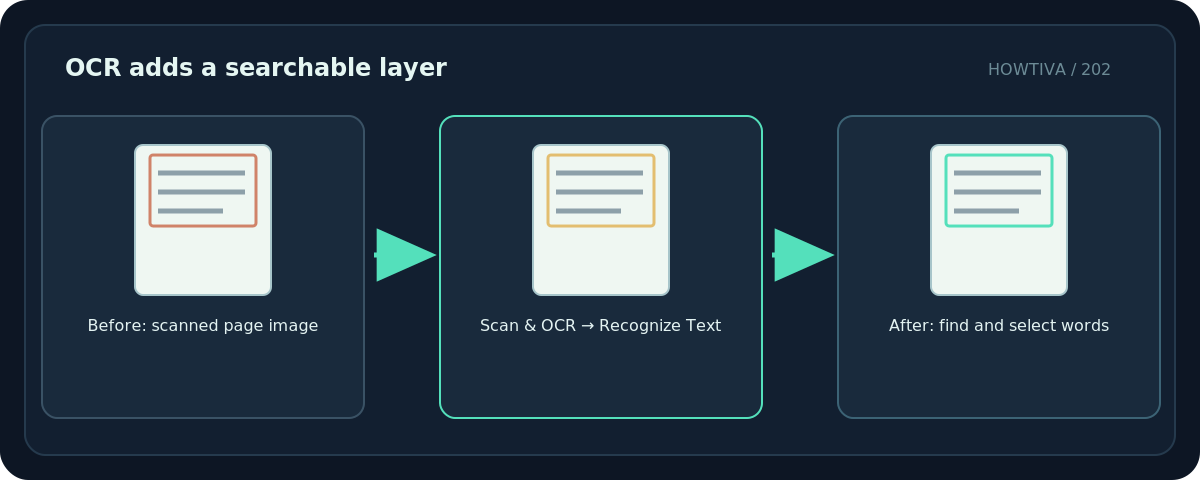
Adobe documents that Acrobat creates a searchable text layer. It usually does not need to replace the scanned page with a retyped imitation, so the visible layout may still resemble the original scan. OCR is not the same as exporting a fully editable Word document.
Improve a difficult scan first
OCR quality depends on the image. If words are faint, tilted, heavily compressed or obscured by shadows, consider rescanning the paper in better lighting. Adobe also documents Scan & OCR → Enhance scanned file and options for scan improvement. If you change enhancement settings, compare the new image with the original and be wary of losing thin marks.
Avoid strong perspective distortion along book spines or crumpled paperwork. Recognizing text from a blurry photo cannot reliably reconstruct details that were not captured. If the scan contains several writing systems, inspect representative pages in each language.
Proofread text—not just page appearance
- Search for a distinctive word near the beginning, middle and end of the file.
- Copy a sentence into a plain-text editor and compare it character by character with the original printed image.
- Test letters that resemble digits: O/0, I/1/l, B/8 and S/5.
- Check prices, dates, account numbers, names and unusual symbols independently; spellcheck can miss plausible but wrong numbers.
- If available, use Acrobat’s Scan & OCR → Correct recognized text controls to inspect uncertain results.
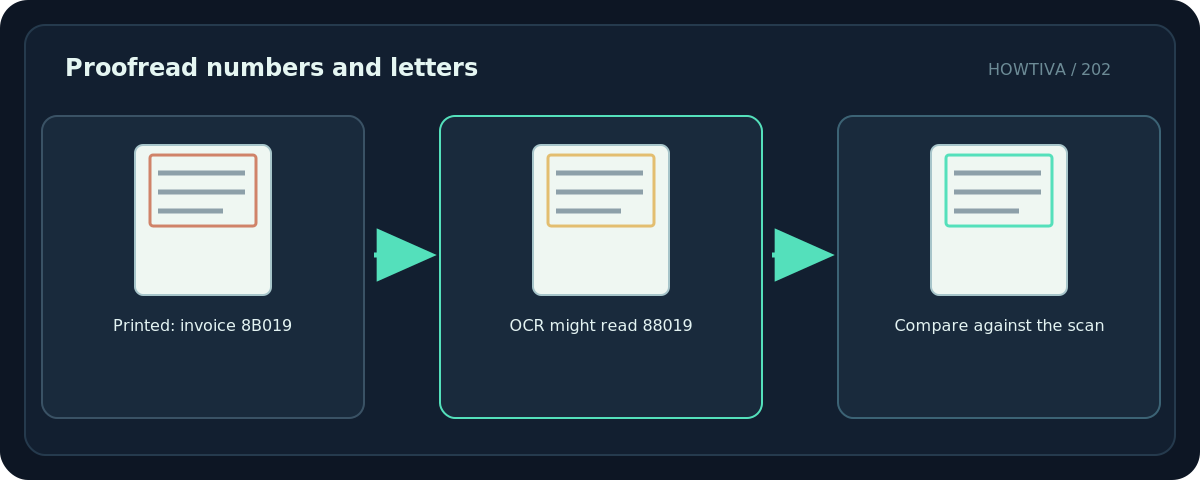
For a medical, financial, legal or scientific record, OCR output should be human-verified before being used as evidence. A text layer can be searchable yet wrong, and copied text may have incorrect reading order in multi-column pages.
Troubleshooting
Search works on some pages only. The selected range may exclude other scanned pages. Review each page, especially appendices.
Copied text is gibberish. The language setting, scan quality or reading order may be wrong. Reprocess a duplicate with suitable settings or obtain a better scan.
The PDF is protected. Editing restrictions may disable recognition. Request an authorized working copy instead of trying to bypass access permissions.
A number is different from the scan. Correct recognition errors and inspect all high-impact identifiers. OCR is not a source-of-truth database.
The file is still not accessible. Searchable text is only one accessibility component. Tags, reading order, alternative text and accessible form controls may require further work.
Frequently asked questions
Does OCR always make text editable?
Not in the sense of recreating a fully editable formatted document; it adds recognition data that can be searched and sometimes selected or copied.
Should I discard the original scan?
No. Keep it for comparison and for future reprocessing.
Will OCR fix spelling mistakes in the original?
No. It attempts to transcribe existing marks and may introduce new errors.
Sources & Further Reading
- Adobe — Recognize text in scanned documents — All tools Scan & OCR, page range, language and recognition.
- Adobe — Fix text recognition errors — Correct recognized text.
- Adobe — Enhance scanned documents — Scan enhancement and OCR.
Use the checklists as you go, and confirm the result before moving on to a more involved repair.