How to Combine Photos into One PDF
In Finder on Mac, select the photos in the order you want them to appear, Control-click → Quick Actions → Create PDF.
Quick answer: In Finder on Mac, select the photos in the order you want them to appear, Control-click → Quick Actions → Create PDF. Apple states that files appear in the PDF in the order you select them. Open the resulting PDF in Preview, choose View → Thumbnails, and correct the page sequence before sending.
Putting photos into one PDF helps organize receipts, scanned homework, application evidence and image portfolios. However, conversion can change page sizing and may not retain all original photo metadata. Keep the source pictures, and do not assume the generated PDF is automatically ready for printing or official submission.
Prepare the image sequence
- Gather the source images in one folder; keep an untouched backup.
- Decide which picture belongs on page 1 and which should follow it. For documents, keep fronts, backs and multi-page items in logical order.
- Consider renaming working copies
01-front.jpg,02-back.jpg,03-proof.jpgto reduce accidental mistakes. - Correct sideways images using an image viewer before combining, or plan to rotate the corresponding PDF page later.
- Check small printed details for blur before converting. A PDF cannot restore text that is unreadable in the picture.
Method 1: Combine photos with Finder
- Open Finder and navigate to the photo folder.
- Select the desired images in the intended order. Apple documents that this selection order is used by the Create PDF action.
- Control-click the selection and choose Quick Actions → Create PDF.
- Find the generated file and rename it to something descriptive, such as
receipt-photos.pdf. - Open it in Preview and choose View → Thumbnails.
- Compare the page count with the number of source photos, and make sure each photo appears once.
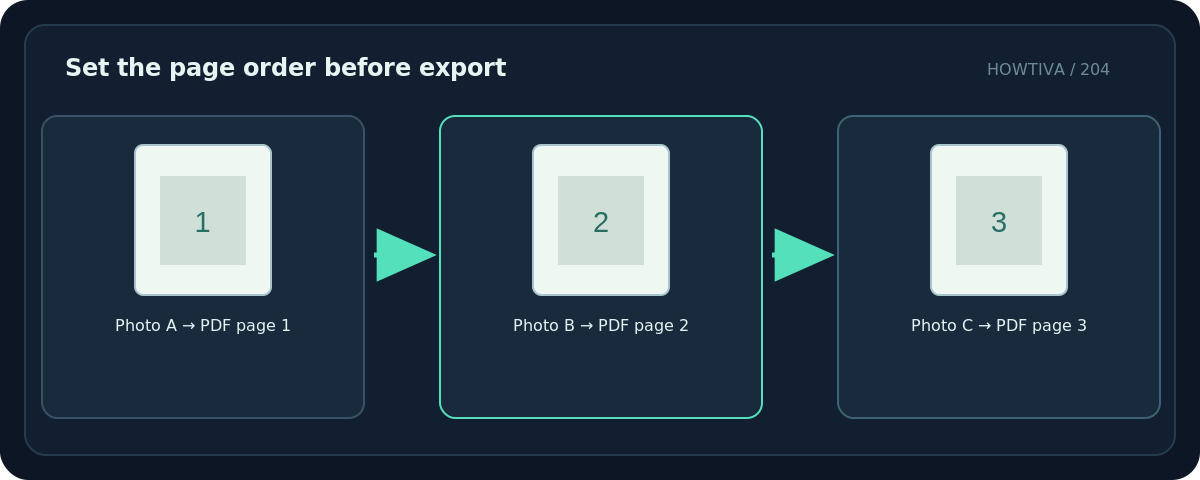
Finder Quick Actions can be configured or hidden. If Create PDF is not visible, look under More and inspect your enabled extensions. There is no need to upload private photos to a website when the local Finder action is available.
Method 2: Correct the sequence in Preview
- Open the newly combined PDF in Preview.
- Choose View → Thumbnails or View → Contact Sheet to see all pages.
- Drag a thumbnail to the intended position. The page order will change accordingly.
- If a duplicate or unwanted page appears, select that thumbnail and delete it only after confirming you have the source and a backup.
- Save a new copy and reopen it to ensure the intended order was retained.
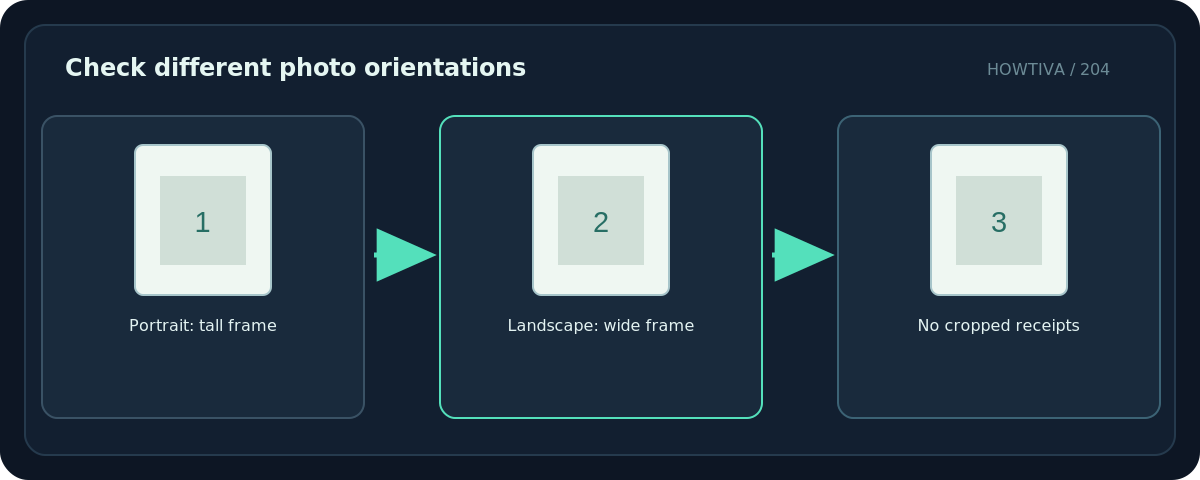
Apple also documents adding and moving PDF pages between files using thumbnails. That is useful if you missed a photo during the original conversion. Confirm that you inserted it in the right place, not at the end by accident.
Windows alternative and limitations
A Windows application that supports printing multiple selected images can use Microsoft Print to PDF, but the layout, page-count and ordering controls depend on that specific app. Confirm that the print preview includes every image in the desired sequence. If it handles only one photo per job, use an approved multi-file PDF creation tool instead of assuming Windows already combined the set.
For sensitive images, review the privacy policies of any online converter before uploading. Do not send unredacted identity documents or health records to an unfamiliar service.
Troubleshooting
The pages are in the wrong order. Rearrange the thumbnails in Preview, save a new file and reopen it.
A receipt is cut off. Return to the source photo or use a conversion layout that fits the entire image without cropping.
I see multiple copies of one image. Compare all page thumbnails against the source-folder list; delete duplicates only after verification.
Landscape photos are sideways. Rotate the affected pages, not the whole document; confirm the result stays corrected after saving.
The PDF is too large to email. Work from a copy and use an approved compression option, then verify that small printed text remains readable.
Some images are missing. Check whether they were actually selected at the start and whether the file type is accepted by the conversion method.
Review before sending
Count pages, inspect first and last, check all receipts are legible, verify orientation and margins, and remove photos you did not intend to share. If an institution specifies maximum file size, PDF page size or required order, follow those exact rules instead of relying on default settings.
Frequently asked questions
Does the Mac method make separate PDFs?
The multi-selection Create PDF action combines selected items into a single PDF.
Can I reorder photos after creating the PDF?
Yes. Drag pages in Preview’s thumbnail sidebar and save.
Does choosing filenames like 01 and 02 guarantee the right order?
No. Apple specifies selection order for the Finder action, so always inspect the output.
Sources & Further Reading
- Apple — Combine files into a PDF on Mac — Finder multi-select and selection order.
- Apple — Quick Actions in Finder — Quick Actions availability.
- Apple — Move PDF pages in Preview — Thumbnail reordering and removal.
Use the checklists as you go, and confirm the result before moving on to a more involved repair.