How to Share Files Between iPhone and Windows
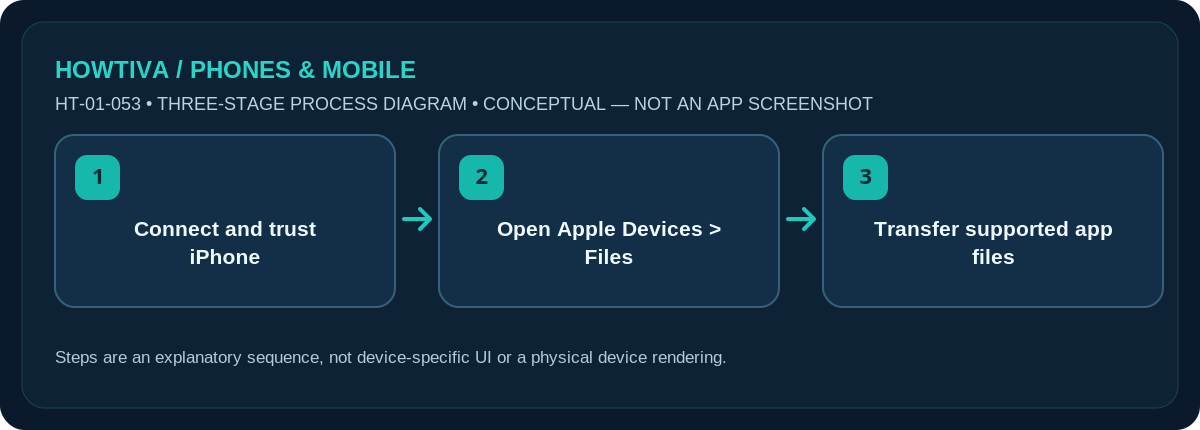
For a compatible USB transfer, install Apple Devices on Windows, connect and trust the iPhone, select your device, then open Files to transfer files to or from apps that support Apple File Sharing.
Quick answer: For a compatible USB transfer, install Apple Devices on Windows, connect and trust the iPhone, select your device, then open Files to transfer files to or from apps that support Apple File Sharing. For ordinary documents, a trusted cloud service or email attachment can be simpler.
Apple Devices file sharing is restricted to apps exposing documents through the file-sharing interface; it is not access to every folder on your iPhone. Windows 10+ and current Apple Devices documentation are the basis for this guide.
Transfer app documents by cable with Apple Devices
- Install Apple Devices for Windows from the official Microsoft Store or Apple-linked channel. Ensure Windows and the app are updated and use a working data-capable USB/USB-C cable.
- Connect and unlock the iPhone. If asked Trust This Computer?, select Trust only if you control the Windows machine and enter the passcode if requested.
- Open Apple Devices and select the iPhone in the sidebar. If the device is absent, try another cable/port and follow Apple’s device-recognition help.
- Choose Files in the sidebar. Only apps supporting Apple File Sharing will appear. Select the intended app and its exposed document list.
- Drag documents between the app list and a Windows folder following the available direction of transfer. Confirm the files open in the destination before disconnecting or removing an original.
What Apple Devices cannot do
Apple’s Files view is not an unrestricted iPhone drive browser. Some iPhone apps store data in formats that are not available through File Sharing, and certain files may be protected or proprietary. If the Files section shows no apps, your installed apps may not expose file sharing. Do not interpret that as a failed iPhone-to-PC connection. Photos are commonly handled via a separate photo import workflow rather than Apple Devices File Sharing.
Use iCloud Drive or another approved service
For a regular PDF, document or presentation, save it from the iPhone Files app to iCloud Drive if you use that service, then sign in on Windows to the same authorised account. Other trusted cloud providers can work similarly when the app supports Files. Uploading and synchronising can change where a file is stored, and deleting a synchronised file might remove it from other devices. Confirm your backup and account before bulk moves.
Email, messaging and local storage options
For a small non-sensitive document, sharing as an attachment may be more convenient than connecting by cable; note provider size limits and privacy policies. A compatible external storage device can also move files through the iPhone Files app. iPhone models use different port types, and accessories may require appropriate power or adapters. Verify the drive is safe to eject before unplugging it.
Security checks before transfer
Avoid pressing Trust on public or unfamiliar PCs. On shared computers, protect signed-in cloud accounts, remove transferred confidential copies when appropriate, and log out. Do not disable device security merely to move files. Transfer success means you can open the exact intended file at the destination, not just that a progress bar reached completion.
Troubleshooting and alternatives
- Files tab empty: The installed iPhone apps may not expose Apple File Sharing.
- Device not detected: Unlock, review Trust prompts and try a data-capable cable.
- File not opening on Windows: Confirm destination format and compatible desktop app.
- Large file/cloud conflicts: Copy first, check the result and avoid deleting synced originals.
Frequently asked questions
Why are only a few apps listed in Apple Devices?
Only apps with supported File Sharing appear there; the iPhone’s entire filesystem is not exposed.
Can I use Phone Link as a full iPhone file explorer?
Do not assume so. Microsoft’s iPhone Phone Link documentation emphasises calls, messages and notifications; its features differ from Android integration.
Will sharing a file delete it on my iPhone?
Normally copying creates another file, but synchronised storage and app-specific moves can behave differently. Verify the destination and retain a backup.
Sources & Further Reading
- Apple Devices User Guide: Transfer files between your Windows device and iPhone, iPad, or iPod touch (checked 2026-10-27)
- Apple iPhone User Guide: Transfer files between your iPhone and other devices (checked 2026-10-27)
- Microsoft Support: Phone Link requirements and setup (checked 2026-10-27)
Use the checklists as you go, and confirm the result before moving on to a more involved repair.