How to Recover an Earlier Version of a Google Doc
Open the Google Doc on a computer, then select File → Version history → See version history, or click the Last edit /version-history control if shown.
Quick answer: Open the Google Doc on a computer, then select File → Version history → See version history, or click the Last edit/version-history control if shown. Select an older version in the right panel, review its content and click Restore this version if you truly want to make it current. When you need only a paragraph or want to protect recent edits, make a copy of the earlier version instead.
Google Docs automatically maintains versions, but entries can be grouped or merged. A revision you expected may not appear as a separate timestamp. You generally need editing permission to view version history; a Viewer usually cannot use this method.
Step 1: Locate a good version
- Open the correct document and confirm its title and Google account. If a project has similarly named copies, identify the one actually used by your collaborators.
- Use File → Version history → See version history or the last-edit icon at the top. A timeline appears on the right.
- Select candidate entries by timestamp or contributor. Expand grouped versions if necessary. Review the document body in the preview.
- Look for the last version before the unwanted change. If your goal is to recover one lost sentence, avoid restoring the entire document before examining copy options.
- Note what current collaborators have added since that version. A restoration affects the current document content and can displace later edits from the latest state.
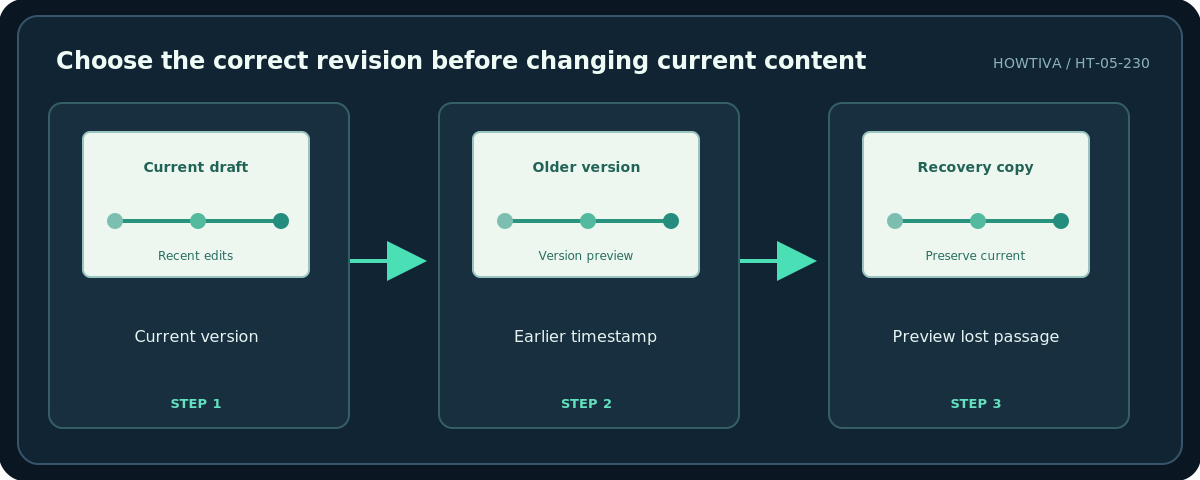
Step 2: Choose Restore or Make a copy
Restore this version: Select the earlier entry and click Restore this version, then confirm Restore. That selected content becomes the current document state. The document’s historical versions are generally available for further review, but do not depend on this as a backup for every case.
Make a copy: In the version panel, open the More menu beside the version and choose Make a copy if available. Name it with a descriptive suffix, for example Project Brief — recovered 18 Oct, and choose a secure folder. You can compare and manually transfer only the desired material into the latest document. Check whether the copy should retain the same sharing list; do not automatically expose a historical document to people who no longer need it.
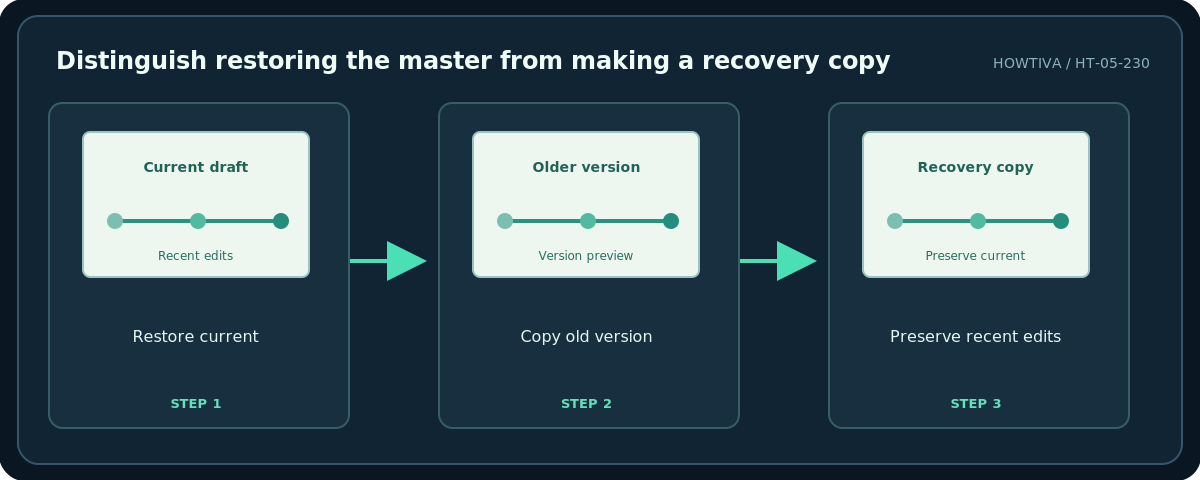
Recovery strategy when a team is editing
Before restoring a shared master, tell collaborators that you are investigating a past version and ask them to pause major edits if possible. Make a current backup copy first. If the problem is only one accidental deletion, inspect the old version and copy the missing passage into a newly saved current draft. This preserves unrelated recent work better than replacing everything.
For important milestones, consider naming a version in the version-history panel before a review or release. Named versions make future navigation easier, though they are not a substitute for separate backups. Version-history access can be limited by organization policy or account permissions.
Alternatives
Immediately after a mistake: Use Undo while the current editing session can still reverse it; version history is for changes across sessions or collaborators. Someone sent you an export: A PDF or Word download is a separate file; restoring its contents requires copying or importing them, not clicking a Google Docs revision timestamp. You cannot access history: Ask an authorized editor to recover or share an earlier copy.
Troubleshooting
Version history is missing: Confirm the file is a Google Doc and that you have edit permission. Earlier content is not found: Expand grouped versions and inspect neighboring dates; some revisions may be merged. Restore appears disabled: Access or file mode may prevent restoring. Restored file appears wrong: Revisit Version history and inspect later entries or a preserved backup; coordinate before another restore. Comments or layout differ: Review the current doc carefully, especially with embedded objects and collaborator comments.
Frequently asked questions
Does restoring remove other people’s contributions?
It changes what is current, including edits made after the chosen version. Copying an old version first is usually safer for selective recovery.
Can a Viewer restore a revision?
Usually not. Google’s version-history guidance requires edit access.
Is Version history a perfect audit log?
No. Some changes can be grouped or absent as individual entries, so keep separate backups for critical documents.
Sources & Further Reading
- Google Docs Editors Help — Find what’s changed in a file — See version history, restore, make copy, naming and edit access requirements.
- Google Drive Help — Share and manage access — Check copy sharing and permissions.
Use the checklists as you go, and confirm the result before moving on to a more involved repair.