How to Remove a Blank Page in Word
In desktop Word, press Ctrl + Shift + 8 on Windows or Command + 8 on Mac to display formatting marks. On the unwanted blank page, look for an extra ¶ paragraph mark, a Page Break, or a Section Break.
Quick answer: In desktop Word, press Ctrl + Shift + 8 on Windows or Command + 8 on Mac to display formatting marks. On the unwanted blank page, look for an extra ¶ paragraph mark, a Page Break, or a Section Break. Delete only the unnecessary item, or change the section break type if removing it would damage formatting. For a final blank page after a table, the required ending paragraph may need a smaller font rather than deletion.
A blank page is rarely a mysterious separate object in Word. It is usually a result of page layout: an explicit break, a forced paragraph setting, a table that fills the preceding page, or a section rule that requires the next section to start on an odd or even page. Deleting everything in sight can move headers, margins and page numbering. Identify the cause before editing.
Step 1: Reveal the page’s hidden structure
- Save a copy of the document, especially if it contains letterhead, signatures, a table of contents or multiple sections.
- On Windows, press Ctrl + Shift + 8; on Mac, press Command + 8 to show ¶ marks and breaks.
- Navigate to the blank page and the end of the page immediately before it.
- Look carefully for Page Break, Section Break (Next Page), Section Break (Odd Page) or a series of extra blank paragraphs.
- Decide which item actually creates the gap. Do not delete several different breaks at once.
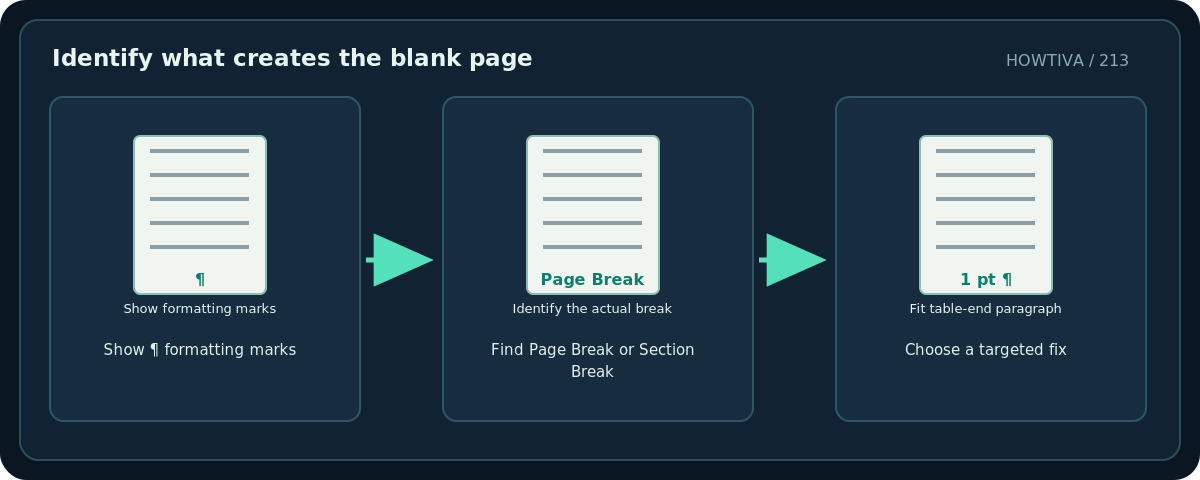
The ¶ symbol represents a paragraph mark. It is normal for Word documents to contain many of them. The one that matters is the specific mark or break pushing content onto the unwanted page. If a document is blank because of a page-numbering or print-layout requirement, you may want to keep it.
Case A: Remove empty paragraphs or a manual page break
- If the blank page contains multiple empty paragraph marks, select the extra ones and delete them one at a time. Watch the surrounding heading and spacing.
- If you find a literal Page Break label inserted manually, select that break and press Delete or Backspace as appropriate.
- Hide formatting marks temporarily to see whether the page has disappeared.
- Scroll a few pages backward and forward to check that text and tables have not shifted into an unintended position.
- Save the corrected document under a new name.
A page-break-before paragraph property is another possible cause. Microsoft’s documentation explains that a paragraph with this setting can be found via paragraph settings and the Line and Page Breaks tab. If there is no visible manual break, inspect that property on the paragraph beginning the following page.
Case B: Handle section breaks carefully
A Next Page, Odd Page or Even Page section break can force extra pages. Removing the break may unexpectedly merge section formatting—different headers, page numbers, margins or orientation. Microsoft describes changing a break to Continuous in appropriate cases instead of deleting it outright.
- Show formatting marks and locate the break on the page preceding the blank.
- Confirm what that section controls: look at page orientation and the headers/footers on both sides.
- If the new section does not need to start on a fresh page, change its break type to Continuous using Word’s Layout/Breaks or section settings in the supported desktop UI.
- If the document was designed for facing-page printing, Odd Page or Even Page breaks might be intentional; do not remove them without checking the print specification.
- Review pagination and headers after any change. Restore the saved copy if changes cascade.
Case C: A stubborn final blank page after a table
Word requires an ending paragraph after a table. If the table reaches the page’s bottom edge, that paragraph may be pushed onto another page, leaving what looks like an empty extra sheet. You generally cannot delete the required final paragraph. Instead, Microsoft documents selecting the ending paragraph mark and making its font as small as 1 point, or reducing the bottom margin slightly where appropriate.
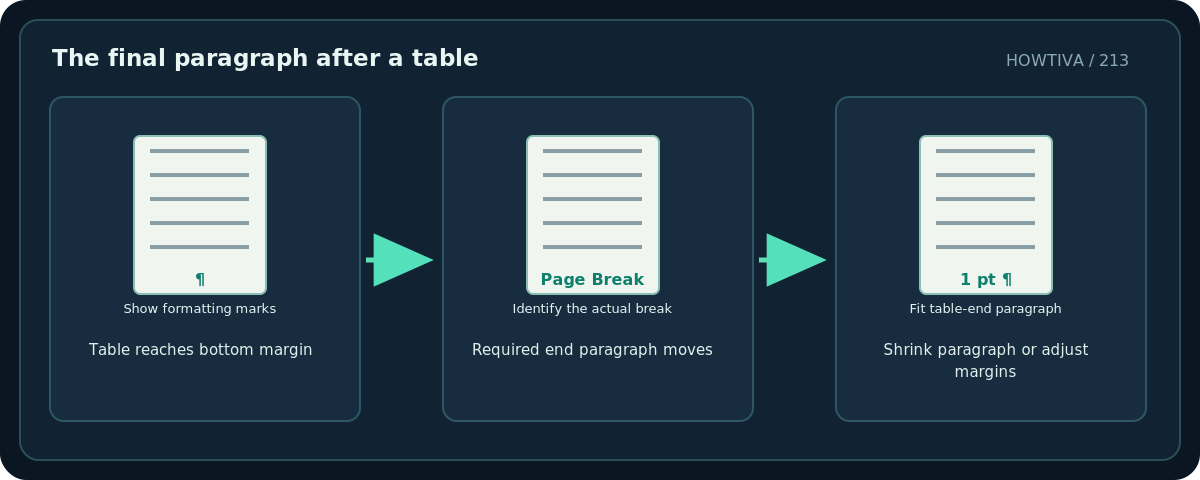
- Place the cursor in the final paragraph after the table while formatting marks are visible.
- Select only that paragraph mark and set its font size to 1 using the Font Size box, if needed.
- If the paragraph still does not fit, evaluate a modest margin change, but be aware this changes page geometry and may violate a template.
- Check table rows and footnotes; ensure nothing important was hidden or clipped to force the page away.
- Print-preview the final two pages and confirm the extra blank sheet is gone.
Troubleshooting
Backspace removes text but not the page. You may have an active break or a table-end paragraph, not simple empty content. Show formatting marks and identify it first.
Deleting a section break changes my header. The section break carried formatting. Undo, then use an appropriate continuous break or restore separate section controls.
The blank page is only in the PDF. Check Word Print Preview and printer/export settings for blank-sheet insertion or duplex printing behavior.
The page returns after editing another section. The document may be very close to a pagination boundary. A new line or footnote can push the end paragraph down again.
I cannot see any breaks. Check that formatting marks are actually enabled. In Word for the web, some advanced section/page controls are less accessible than in desktop Word.
Before final export
Inspect the page before and after the deletion, update the table of contents if one exists, and confirm that page numbers, section headers and landscape pages remain correct. A blank page may be required by a formal printing template; do not silently remove a deliberate page.
Frequently asked questions
Why does Word add a blank page after a table?
The required end paragraph may not fit on the preceding page. Shrinking that paragraph can resolve it.
Can I delete a section break to remove the blank page?
Sometimes, but it may merge section formatting. Check whether changing the break type is safer.
Does hiding ¶ delete paragraph marks?
No. The shortcut only changes whether formatting marks are displayed.
Sources & Further Reading
- Microsoft — Delete a blank page in Word — Show paragraph marks; non-deletable final paragraph; section break fixes.
- Microsoft — Delete a page in Word — Find manual page breaks and section-break effects.
Use the checklists as you go, and confirm the result before moving on to a more involved repair.