How to Resize an ImageWithout Distorting It
Resize by changing one dimension while keeping the aspect ratio locked. In Preview on Mac, choose Tools → Adjust Size, turn on Scale proportionally, and enter a new width or height.
Quick answer: Resize by changing one dimension while keeping the aspect ratio locked. In Preview on Mac, choose Tools → Adjust Size, turn on Scale proportionally, and enter a new width or height. In Paint on Windows, open Resize, choose Pixels, and keep Maintain aspect ratio checked before typing the new dimension.
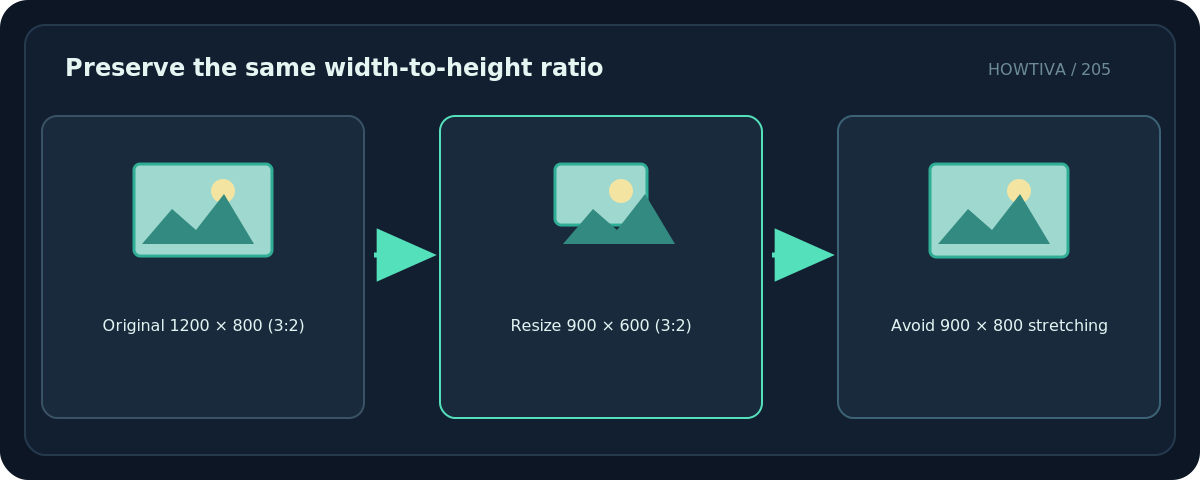
Aspect ratio means the width compared with the height. A 1200 × 800 photo has a 3:2 ratio. Scaling it down to 900 × 600 keeps that shape. Resizing it to 900 × 800 without cropping makes everything look compressed horizontally.
Understand resize, crop and resampling
- Resize: changes dimensions while preserving the full image if done proportionally.
- Crop: removes parts of the image to make a new frame or ratio.
- Padding: adds margins around the original image so it fits a differently shaped canvas without cutting anything away.
- Resampling: recalculates the number of pixels. Shrinking discards some information; enlarging estimates new pixels rather than recovering lost details.
Always keep a copy of the original, especially if you are working with a JPEG that may degrade after repeated edits and saves.
Method 1: Resize in Preview on Mac
- Open the source picture in Preview.
- Choose Tools → Adjust Size, or the Adjust Size control if it appears in your toolbar.
- Enable Scale proportionally. Changing width should automatically update height (and vice versa).
- Select pixels when preparing a digital image for a website, email or application that specifies pixel dimensions.
- Enter a new width, review the calculated height, and decide whether Resample image should be enabled. Apple describes that setting separately from changes to measurement or print resolution.
- Apply the size and save a copy with a descriptive filename.
- Reopen the file and check that details and fine text remain legible at its intended display size.
Apple notes that a preset Fit into size can produce an image whose one dimension is smaller than the requested limit; this is correct when keeping proportions. Do not disable proportional scaling simply to make both boxes show exact target values.
Method 2: Resize in Paint on Windows
- Open the photo in Paint using Open with or Paint’s own File → Open command.
- Choose Resize. Exact toolbar placement varies by Paint version.
- Select Pixels or percentage as appropriate and keep Maintain aspect ratio selected.
- Enter the intended width or height. Let the other dimension update automatically.
- Apply the adjustment, then choose Save as so you do not replace the source file.
- Check the output’s pixel dimensions and whether thin lines or faces look stretched or blurry.

Microsoft support describes the Paint Resize → Pixels → Maintain aspect ratio workflow. Its newer Paint releases can change menu placement, so follow the matching control in your installed edition.
What if a site asks for exactly 1000 × 1000 pixels?
A rectangular photo cannot fill a square perfectly while preserving every edge and keeping its natural proportions. Crop some of the picture, or pad it with margins. Stretching it into a square makes circles oval and distorts people and objects.
For a complete product photo, padding usually preserves essential details. For a headshot, a careful crop may be acceptable. Choose based on what the recipient needs, and preserve important content such as labels and faces.
Troubleshooting
The height changes when I enter a width. That is expected. The aspect ratio lock is protecting the image shape.
The resized photo looks blurry. You may have enlarged a small image or compressed it too heavily. Start again from a higher-resolution original.
The site rejects the dimensions. The required aspect ratio may differ. Check if cropping or padding is allowed, rather than stretching to force acceptance.
The file remains too big in megabytes. Pixel dimensions are only one factor; format, compression, transparency and picture complexity also matter.
A diagram’s text looks poor after saving as JPEG. PNG is often more suitable for sharp line art and interface text; preview in the intended app.
Final quality check
Verify new dimensions, original-to-result ratio, image legibility and correct file extension. An image that looks fine at Fit to Window may still be soft at full size; check at 100% where relevant.
Frequently asked questions
Can I change only width and preserve height?
You can, but that stretches the content unless you crop or pad rather than directly resizing the pixels.
Does upscaling make an image sharper?
Not necessarily. Increasing pixel count cannot reconstruct information absent from the original.
How do I fit a landscape photo into a square?
Crop the sides or add top/bottom margins as appropriate, while preserving proportions.
Sources & Further Reading
- Apple — Crop, resize, or rotate an image in Preview — Adjust Size, Scale proportionally, Resample image.
- Microsoft support community — Resize in Paint — Paint Resize Pixels Maintain aspect ratio.
- Microsoft — Paint release notes — Paint interface version changes.
Use the checklists as you go, and confirm the result before moving on to a more involved repair.