How to Schedule an Email in Gmail
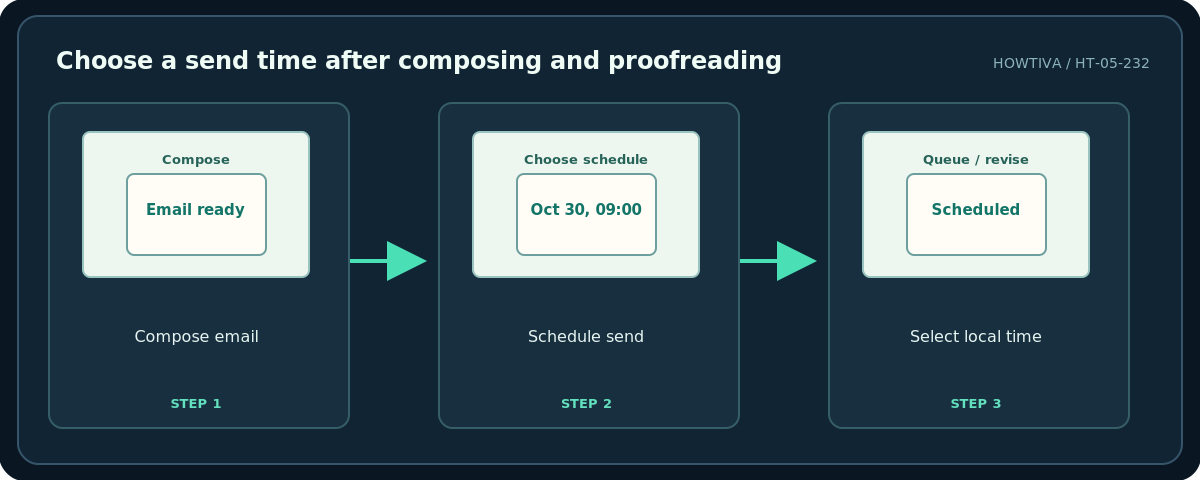
In Gmail on a computer, compose your message, click the down arrow next to Send, choose Schedule send, and select a date and time.
Quick answer: In Gmail on a computer, compose your message, click the down arrow next to Send, choose Schedule send, and select a date and time. On the Gmail mobile app, compose and open the More menu in the upper right, then choose Schedule send. You can review messages in Scheduled before they are sent.
Scheduling is useful for planned follow-ups and recipients in other time zones, but it is not an exact-to-the-second delivery service. Google says scheduled messages may go out a few minutes after the chosen time, and the schedule follows the time zone in which you schedule the message.
Schedule from a desktop browser
- Open gmail.com and verify which Google Account is active if you manage several inboxes.
- Click Compose. Add recipients carefully, with the correct Cc and Bcc behavior for your situation.
- Enter a useful subject and write the full message. Attach the file if needed, and check that the attachment has finished uploading.
- Proofread names, dates, links and confidential content. A scheduled email is still a real outgoing message if it reaches its send time.
- Near the bottom-left Send control, click its small down arrow, then choose Schedule send.
- Select a suggested date or choose a specific date and time. Confirm the local time zone before finalizing.
- Open Scheduled in the left Gmail sidebar and verify that the intended message appears there with the intended time.
Schedule from Android or iPhone
In the Gmail app, tap Compose, write the email, and open the upper-right More menu (often three dots). Select Schedule send and choose the send time. Menu placement may vary by app version and screen size. Use the desktop browser when you cannot locate an option. Recheck the saved message under Menu → Scheduled.
Change the time or edit the message
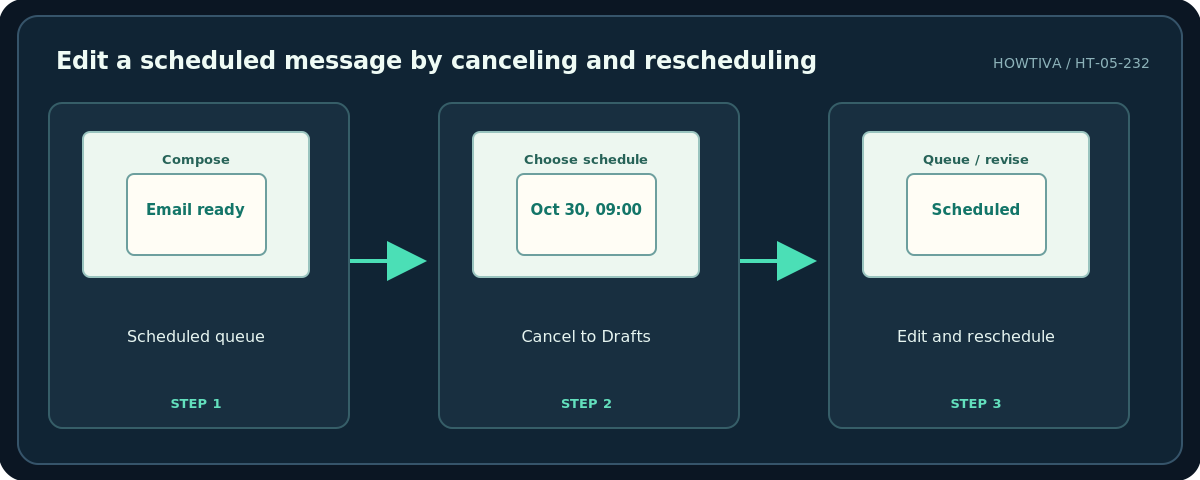
Google’s documented workflow does not offer ordinary in-place edits to a queued message. Open Scheduled, select the message, then choose Cancel send. The message becomes a draft. Open that draft, revise recipients or text, and use Schedule send again. This is important: after canceling, the original schedule is no longer active until you schedule it again.
Cancel a scheduled email entirely
Open Scheduled, select the queued message, and choose Cancel send. Gmail converts it into a draft; it does not delete the writing. You can leave it unsent or delete the draft if you are certain you do not need it. If the scheduled time has already passed, check Sent first: cancellation cannot recall an email that has already gone out.
Limits and reliability
Gmail allows up to 100 scheduled emails per Google help documentation. Delivery can occur a few minutes later than selected. Schedule based on the time zone shown at the time of scheduling; consider daylight-saving differences for international recipients, and confirm the correct calendar date rather than assuming the recipient shares your local time. For high-stakes deadlines, send earlier or use a formal delivery workflow rather than relying on the exact timestamp.
Troubleshooting
The message is missing: Check Scheduled, Drafts and Sent in the correct account. The time seems wrong: Review your local time zone and daylight saving. You cannot edit while scheduled: Cancel send first, then reschedule. An attachment was forgotten: Cancel and revise before the scheduled send. Schedule send is missing: Check the Send dropdown on desktop or More in the official Gmail app; managed accounts may have restrictions.
Frequently asked questions
Can I schedule a message for a different time zone?
Gmail’s schedule uses the time zone where you schedule it. Convert the target time yourself and check the actual date.
Does canceling a scheduled email delete the draft?
No. Gmail normally returns it to Drafts.
Will the recipient know it was scheduled?
The normal email does not require you to tell the recipient how you prepared the send.
Sources & Further Reading
- Gmail Help — Schedule emails to send — Desktop and mobile schedule workflows, 100-message limit, time zone, cancellation and drafts.
- Gmail Help — Send or unsend Gmail messages — Send and Undo distinction.
Use the checklists as you go, and confirm the result before moving on to a more involved repair.