How to Turn Off Location Sharing for an App
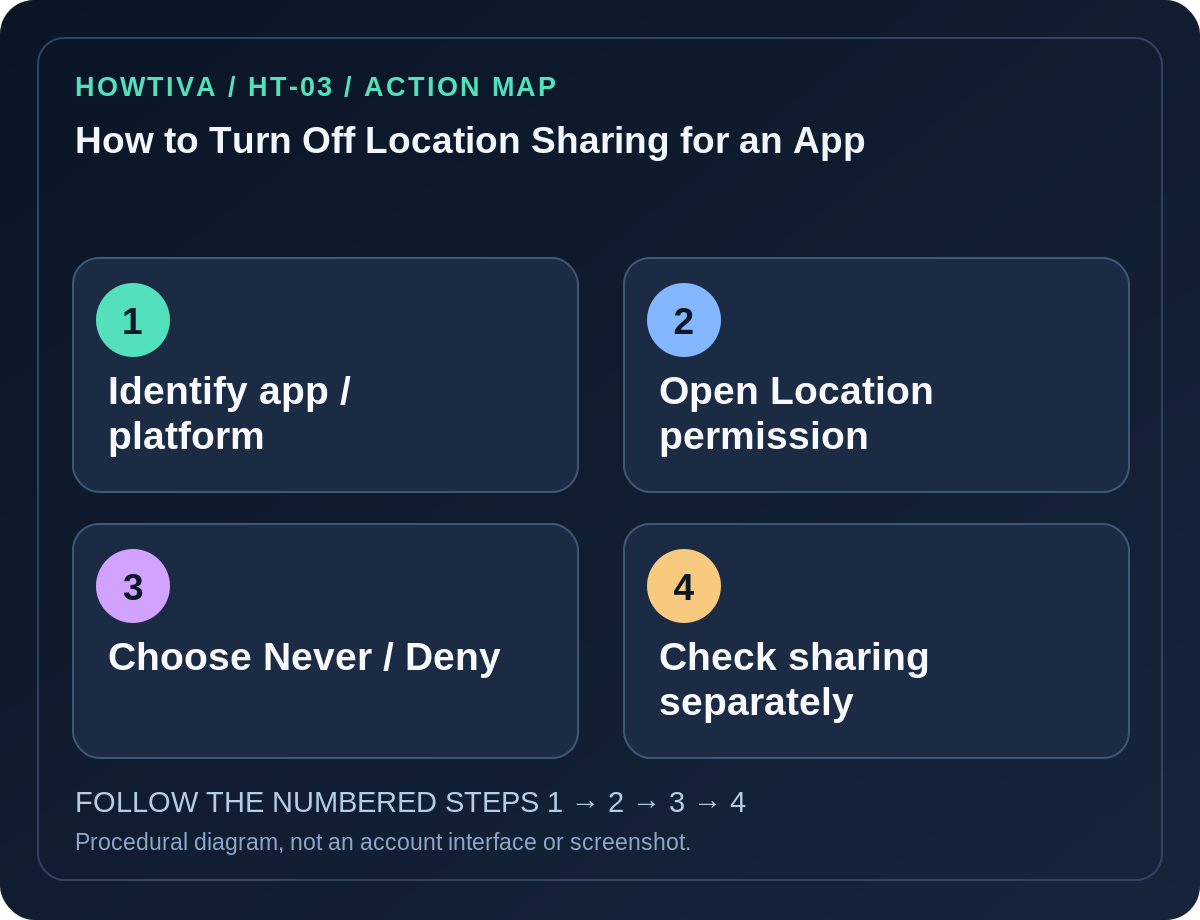
To stop an app using your phone's location, change that app's location permission. On iPhone go to Settings → Privacy & Security → Location Services → [app] → Never.
Quick answer: To stop an app using your phone’s location, change that app’s location permission. On iPhone go to Settings → Privacy & Security → Location Services → [app] → Never. On Android open Settings → Location → App location permissions → [app] → Don’t allow (or Settings → Apps → [app] → Permissions → Location). This is not the same as stopping live location sharing with another person inside an app; that may need an additional in-app setting.
A navigation app might need your position while you’re using it. A retailer may not need background access. Decide whether you want to block all location access, allow it only on demand, or merely stop sharing your live location with people.
iPhone: deny location for one app
- Open Settings and choose Privacy & Security → Location Services.
- Confirm you are adjusting the intended app; the list includes apps that have requested location permission.
- Tap the app and choose Never to prevent it accessing location through iOS Location Services. Some apps may only display a subset of the normal options.
- If you prefer partial access, choose While Using the App or Ask Next Time Or When I Share, if available.
- If you want approximate rather than exact coordinates, disable Precise Location in that app’s location settings when supported.
- Return to the app and verify whether the relevant location-driven feature still works. A map may need manual city entry when location access is denied.
Android: block one app without turning off all GPS functions
- Open Settings → Location → App location permissions on supported Android phones.
- Find the target app in the permissions list; tap it and select Don’t allow for location.
- If you cannot find that view, use Settings → Apps → [app] → Permissions → Location.
- Where supported, choose Ask every time or Allow only while using the app as a compromise. You may also be able to turn off precise location for that one app.
- Check background-access categories carefully. An app allowed location all the time may retrieve positions outside the period when its screen is visible.
- Retest any features that depend on location. Some services function with a manually chosen city, while others may require permission.
Android manufacturers may rename or relocate permission screens. Google’s current reference is based on Android and Pixel patterns, not guaranteed to match every device.
Separate location permission from location sharing
An app can have permission to determine your location without sending it to a friend. Conversely, an online service may continue displaying previously uploaded location information even after its operating-system permission is revoked.
Find My on iPhone: Apple documents stopping person-to-person sharing from Find My → People → [person] → Stop Sharing My Location. To stop sharing with everyone, go to Find My → Me and turn off Share My Location. On newer system versions Apple may also provide a temporary Hide Location action. These account-sharing controls are distinct from Location Services permission for a third-party app.
For a social-media or messaging app, inspect its own live location or sharing settings and end any active sharing session with recipients, in addition to revoking phone-level permission. The exact menu varies by application and its current version; do not rely on unverified instructions for a named platform.
What about turning off Location Services entirely?
On an iPhone, disabling Location Services globally can limit navigation and other important functions. On Android, a system-wide Location toggle also affects many apps. If your concern is one application, prefer the single-app control; it is more targeted and reduces unintended side effects.
Location can sometimes be inferred from IP addresses, user-entered addresses or data already stored on a service. Phone-level location denial should not be presented as a guarantee of anonymity.
Common problems
- The app does not appear in the location list: It may not have requested location yet, may be using a different permission, or may need you to open a relevant feature first.
- A family member still sees an old pin: It could be a cached last-known position or another ongoing location-sharing feature. Check the sharing interface itself.
- The app asks again: You may have selected a one-time or ask-next-time option. Use Never/Don’t allow if you want consistent denial.
- The option is grayed out: Work management, family restrictions or OS policy may govern the setting; don’t attempt to bypass authorized restrictions.
- Navigation stops working: Switch to while-using access or enter a destination manually if the app supports it.
Frequently asked questions
Does revoking Location Services remove saved location history? No. It prevents future access through that permission but does not automatically delete past history on a server.
Is ‘While Using the App’ the same as ‘Never’? No. It allows certain access during active app use.
Will this prevent a friend from seeing my Find My location? Not necessarily. Stop sharing through Find My’s person-sharing controls.
Sources & Further Reading
- Turn Location Services on or off for specific apps — Apple.
- Manage location permissions for apps — Google Android.
- Share your location in Find My on iPhone — Apple.
Use the checklists as you go, and confirm the result before moving on to a more involved repair.