How to Encrypt a USB Drive with Built-In Tools
On Windows 11 Pro, Enterprise or Education, attach the USB drive, search Manage BitLocker, find it under Removable data drives — BitLocker To Go, select Turn on BitLocker, choose an unlock method, save the recovery key separately and follow the wizard.
Quick answer: On Windows 11 Pro, Enterprise or Education, attach the USB drive, search Manage BitLocker, find it under Removable data drives — BitLocker To Go, select Turn on BitLocker, choose an unlock method, save the recovery key separately and follow the wizard. On a Mac, Finder may offer Encrypt [drive name] when you Control-click a compatible volume. Apple’s Disk Utility can also format a drive as encrypted APFS, but its Erase action destroys existing contents. Back up your files before making any changes.
Encryption protects stored files when the drive is not unlocked. It does not replace backups or stop malware from reading an unlocked drive. First decide whether you need the USB on Windows, Mac, or both: the built-in formats do not offer effortless cross-platform writing and unlocking.
Before touching the encryption controls
- Make a separate readable copy of every important file. Check that your backup opens before you reformat or encrypt the USB. An encrypted drive is not a backup of itself.
- Confirm which device will need to unlock the USB. Windows BitLocker To Go and macOS APFS encryption serve different ecosystems. Never assume an encrypted USB will open natively on the other platform.
- Use a strong unique password you can retrieve. Store a recovery key, if provided, in a secure place away from the same USB drive. Do not email it to strangers or write it on the device.
- Connect the intended USB, verify its volume label and size, and avoid selecting your operating system or backup disk in a formatting tool.
- If the USB is faulty, reports read errors or frequently disconnects, repair or replace it before trusting it with important encrypted data.
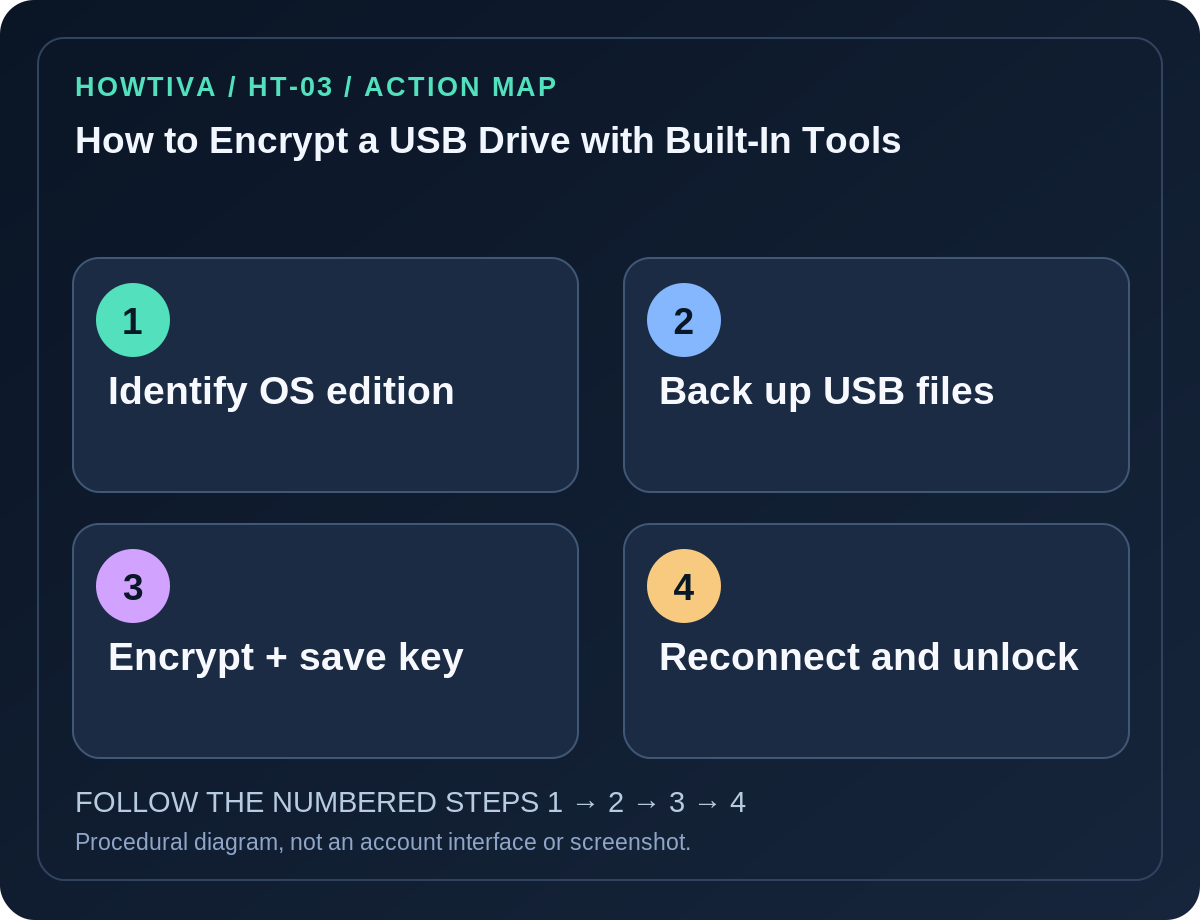
Windows 11 Pro, Enterprise or Education: BitLocker To Go
- Insert the USB into your trusted Windows PC; wait for File Explorer to show the drive.
- Open Start, type Manage BitLocker and open the BitLocker Drive Encryption Control Panel utility. Administrator permission may be required.
- Under Removable data drives — BitLocker To Go, identify your USB by letter and size. Select Turn on BitLocker beside that drive, not beside the system disk.
- Follow the prompts to choose how to unlock the drive, normally using a password. The available choices depend on device policy and edition.
- When prompted, back up the BitLocker recovery key separately. If you lose all unlocking options, files can become permanently inaccessible. Check that you actually saved it, not just clicked past the warning.
- Continue through the wizard and wait for encryption to finish before ejecting. A large or slow drive can require substantial time; do not disconnect it during the operation.
- Safely remove and reconnect the USB. Confirm it prompts to unlock and that your documents still open after entering the correct credentials.
Windows Home limitation: Microsoft’s manually managed BitLocker Drive Encryption is not provided in Windows Home. Having Device Encryption for the PC’s internal storage does not grant the BitLocker To Go management feature for removable drives. Do not download a dubious “BitLocker activator” or claim a missing menu exists.
On macOS: Finder encryption or an encrypted APFS format
On a supported Mac, connect the external volume, open Finder, Control-click its icon in the sidebar and check whether Encrypt [volume name] is available. Apple’s Mac guide documents this option for compatible disks. If available, set and securely record a strong password, complete encryption and test reconnecting. No Encrypt option can mean the device format or state does not support that method.
Apple’s Disk Utility → View → Show All Devices → select correct device → Erase can initialize an external device using an encrypted format, such as APFS (Encrypted), when offered. Erase really erases the selected drive; complete and verify an external backup first. Check the selected device’s name and size twice. Do not present Disk Utility’s destructive procedure as a nondestructive toggle. After formatting, restore needed files from the backup, eject and reattach to verify the password works.
Troubleshooting and alternatives
- BitLocker option missing: Check Windows edition, admin rights and organization policies. Windows Home users should choose an appropriately supported computer or reputable audited encryption software after reviewing compatibility; do not alter system policy to force it.
- Mac says it cannot encrypt: Verify the current drive format and available Finder action. An APFS encrypted reformat is an alternative only after backing up and acknowledging that it erases data.
- USB must move between Mac and Windows: Neither built-in route promises seamless two-way use. Test with a spare drive and the exact receiving device before migrating real records. Cross-platform encrypted containers can require third-party software and separate review.
- Forgot the password: Use only the recovery material provided during setup. Neither Apple nor Microsoft can guarantee recovery without valid unlock secrets.
- Drive opens automatically: A trusted computer may have saved an unlock option. Test on a different authorized machine or review auto-unlock settings rather than assuming no encryption.
Frequently asked questions
Does encryption delete viruses? No. Scan suspicious files before copying and keep your device protected.
Can I remove the password later? Some configurations support decryption or reformatting, but first make a backup and read the platform’s exact instructions.
Can I store the recovery key on the encrypted USB? Not as your only copy. Keep it independent and accessible if the USB itself cannot unlock.
Sources & Further Reading
- BitLocker Drive Encryption — Microsoft Support.
- Protect your Mac information with encryption — Apple Support.
- Encrypt and protect a storage device with a password in Disk Utility — Apple Disk Utility User Guide.
Use the checklists as you go, and confirm the result before moving on to a more involved repair.