How to Set Up a Secure Guest Account on Windows
For someone borrowing a Windows 11 PC, create a separate standard user account rather than enabling an old built-in account named Guest.
Quick answer: For someone borrowing a Windows 11 PC, create a separate standard user account rather than enabling an old built-in account named Guest. Open Settings → Accounts → Other users → Add account, choose I don’t have this person’s sign-in information → Add a user without a Microsoft account if you want a local user, and set a strong sign-in password. Keep the new account type Standard User, not Administrator, and check access before handing over the computer.
A separate Windows account gives guests their own desktop, app preferences and ordinary user folders. It helps avoid accidental access to your browsing sessions and personal files, but it does not make a shared computer a perfect sandbox: some installed programs and shared folders are available across accounts. Sensitive files need their own access protections, and the owner should sign out rather than leaving an unlocked session running.
Step 1: Add a separate Windows user
- Sign in to Windows 11 with an account authorized to manage users. Do not share your administrator password with your guest.
- Open Start → Settings → Accounts → Other users.
- Select Add account under Add other user.
- For a local account, choose I don’t have this person’s sign-in information and then Add a user without a Microsoft account when these options are offered.
- Choose a neutral account name, for example Visitor, and a unique password. Do not publish the actual password, leave it on a sticky note, or reuse your main account password.
- Complete the account creation. If Windows offers security-question or recovery prompts, use answers that an outsider cannot easily infer and handle them as account recovery material.
- Return to Other users and confirm that the new user is listed.
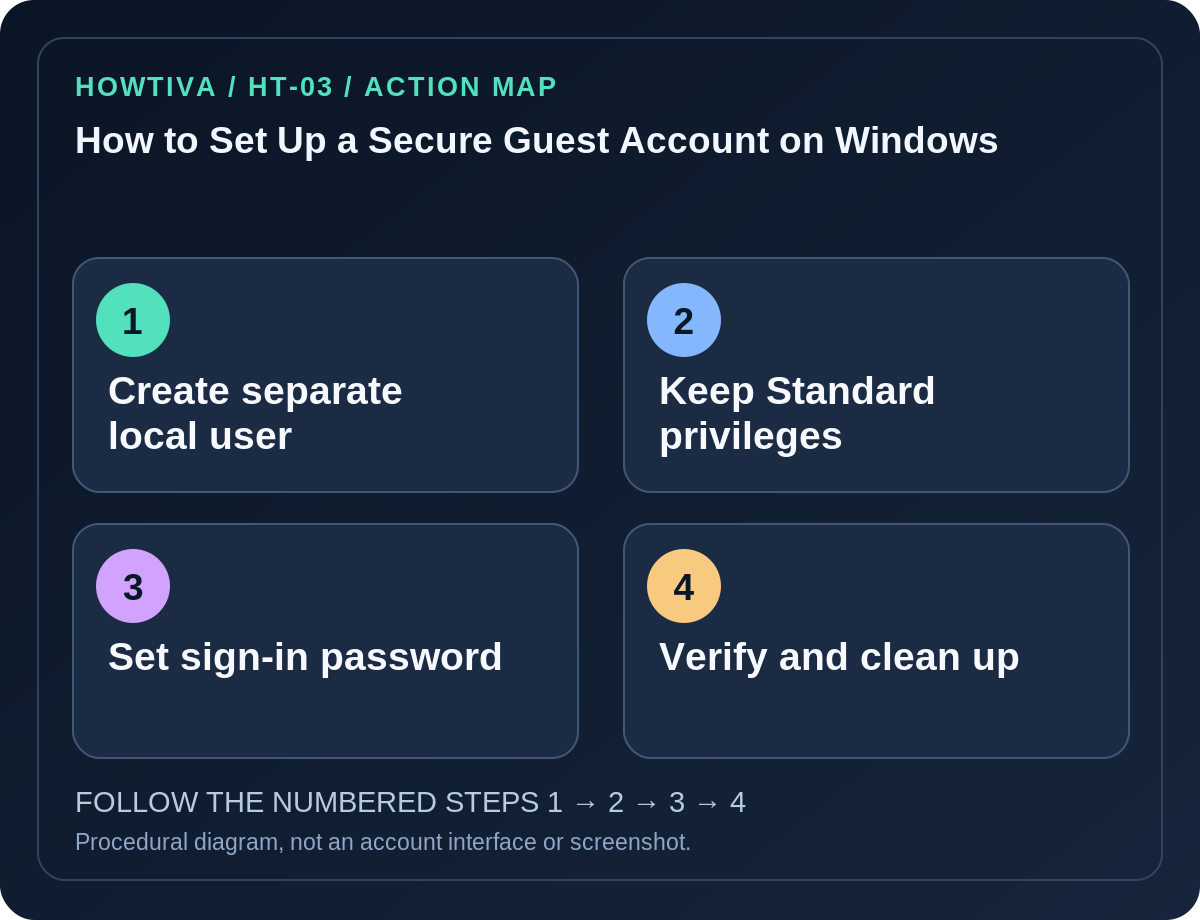
Step 2: Confirm the account is a Standard User
- In Settings → Accounts → Other users, expand the newly created account.
- If its type needs checking, select Change account type.
- Confirm Standard User, not Administrator; save only if you must change the type.
- Sign out of the owner session and sign in to the guest account to confirm it works with its own credentials.
- Open File Explorer from the guest session and verify that your private owner files are not unintentionally stored in Public or other shared folders.
- Sign out when finished. Do not leave the owner session unlocked; switching users without locking the owner session leaves avoidable risks.
Step 3: Protect your own files and browser before sharing
Move sensitive material out of the Public folders and review intentionally shared directories. Ensure your primary account has a strong password or Windows Hello sign-in. A Standard User ordinarily cannot make all administrative changes without authorization, but Windows access control varies with file permissions and software installation. If the PC holds highly sensitive corporate data, use an organization-approved managed guest solution instead of assuming an ordinary local account is sufficient.
If the guest needs a browser, let them create a separate browser profile inside their Windows account; do not give them your Chrome, Edge or password-manager profile. Check what applications are available to all users, and avoid signing in to payment, email or cloud services on the guest desktop using your own account.
When the guest leaves: remove the account safely
After the visit, sign in as the authorized owner and open Settings → Accounts → Other users. Microsoft’s help describes expanding an account and choosing Remove next to Account and data. This can remove the account’s local sign-in information and data from the device. Before removing it, ask the guest to copy any files they need from their own profile or back up approved work; do not casually delete shared data or a family member’s ongoing workspace.
Removing a local Windows account from the PC is not the same as deleting an unrelated online Microsoft Account. Also, simply deleting a browser profile is not a substitute for removing or managing the separate Windows account.
Why not enable the built-in ‘Guest’ account?
Modern Windows personal-device guidance focuses on adding separate users. Tutorials that recommend enabling a built-in Guest account using hidden administrative commands, disabling passwords or changing local security policy can reduce protection and are unnecessary for this goal. Use a normal Standard User account created through Windows Settings and avoid undocumented bypasses.
Troubleshooting
- Add account is unavailable: You may not have administrator permission, or the device may be organization-managed. Ask its owner or IT administrator.
- The guest cannot install software: This is expected for many actions that require administrator approval. Consider whether the software is necessary rather than granting broad admin rights.
- A guest sees your files: Inspect Public and shared folders, sync client configuration and explicit file permissions. Do not assume the account boundary fixes intentionally shared locations.
- You cannot sign in to the new account: Verify that the account exists and that the password was recorded securely. Do not delete the working owner account while troubleshooting.
- Removing a guest threatens important data: Stop and back up the guest profile’s needed files before any removal.
Frequently asked questions
Can I create an account without a Microsoft email address? Microsoft documents the local-user option through the Add account workflow.
Should I give the guest Administrator rights? No for ordinary guest access; Standard User is safer.
Is a Standard User a complete security sandbox? No. Shared folders and installed software still need review.
Sources & Further Reading
- Manage User Accounts in Windows — Microsoft Support.
Use the checklists as you go, and confirm the result before moving on to a more involved repair.