How to Print a Photo from Your Phone
On iPhone, open a photo, tap Share, choose Print and select an AirPrint-compatible printer. On Android, open a photo in an app with a Print action and choose a configured print service and printer.
Quick answer: On iPhone, open a photo, tap Share, choose Print and select an AirPrint-compatible printer. On Android, open a photo in an app with a Print action and choose a configured print service and printer.
Print options depend on device, photo app, printer discovery, operating system and printer support. AirPrint needs a compatible printer; Google’s Pixel guidance describes Android printing services, with certain steps requiring Android 14+.
Print a photo from iPhone or Android
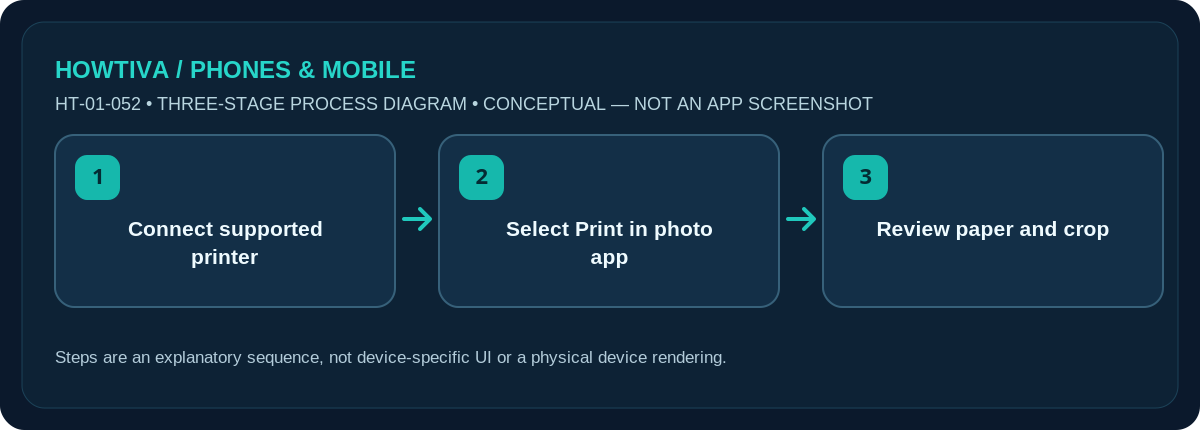
- Prepare the printer. Turn it on, load appropriate photo paper, check ink/toner and connect it using the printer maker’s supported network method. Confirm the phone can reach that printer.
- On iPhone, open Photos, select the image and tap Share. Scroll the action list to Print. The option may be below more familiar messaging apps.
- Select an AirPrint printer, review paper size, copies and options exposed by your printer, then tap Print. Check the printer preview before committing if the app provides one.
- On Android, open the photo in your gallery or photos app and find Print under Share, More or an overflow menu. The exact choice is app-dependent.
- Select the Android print service/printer and check paper size and orientation. On Pixel, print services are managed under Settings > Connected devices > Connection preferences > Printing.
Get a printer discovered first
AirPrint works with supported printers; a generic wireless printer is not automatically AirPrint-capable. If iPhone cannot find yours, check the printer’s support documentation, network segmentation and whether both devices can reach the required local network. On Android, Google documents adding a print service through Settings on supported devices. Some printer makers supply their own official print service or app; check vendor support rather than installing a random utility.
Check resolution, aspect ratio and photo paper
Phone photos often have a different aspect ratio from common photo-paper sizes. A borderless print can crop edges unexpectedly. Inspect the printer’s preview, orientation, border/borderless selection and output size. If the original photo is stored only as a low-resolution preview, retrieve the full-quality copy before printing a large physical photo. Paper type should match the media actually loaded in the tray.
Wireless, cloud and app-specific alternatives
Some printers offer their own companion app or direct Wi-Fi method. Others may support print services across a network but not on guest Wi-Fi. If you are on a work or hotel network, restrictions can prevent printer discovery even when the internet works. As an alternative, save the photo to a computer and print from there or use a reputable photo-print service after reviewing its privacy and retention policy.
Photo metadata and privacy
Before sending a personal photo to a third-party printing service, review the image for private details and whether you want embedded location metadata included. Photo kiosks and commercial print shops may keep copies for processing. A network printer may expose queued work to other people with device access. Pick a printer you trust and collect finished photos promptly.
Troubleshooting and alternatives
- Printer missing: Check AirPrint support or Android print-service setup and local network visibility.
- Photo cropped: Choose the appropriate paper size and review borderless cropping.
- Print action missing: Try a supported gallery app or official printer software.
- Low print quality: Check original image resolution and correct photo paper settings.
Frequently asked questions
Why is Print missing from Share?
The app may not offer it, or it can be farther down the actions list. Try the device’s Photos/Gallery app or the printer maker’s official app.
Why is no printer found?
Confirm printer compatibility, network visibility and the required print service. Check the printer manufacturer’s instructions.
Will my whole photo fit on paper?
Not always. Review cropping and borderless options because camera and paper aspect ratios often differ.
Sources & Further Reading
- Apple iPhone User Guide: View, share, and print photos on iPhone (checked 2026-10-27)
- Google Pixel Phone Help: Print from your device (checked 2026-10-27)
Use the checklists as you go, and confirm the result before moving on to a more involved repair.