How to Check Which Apps Use Mobile Data
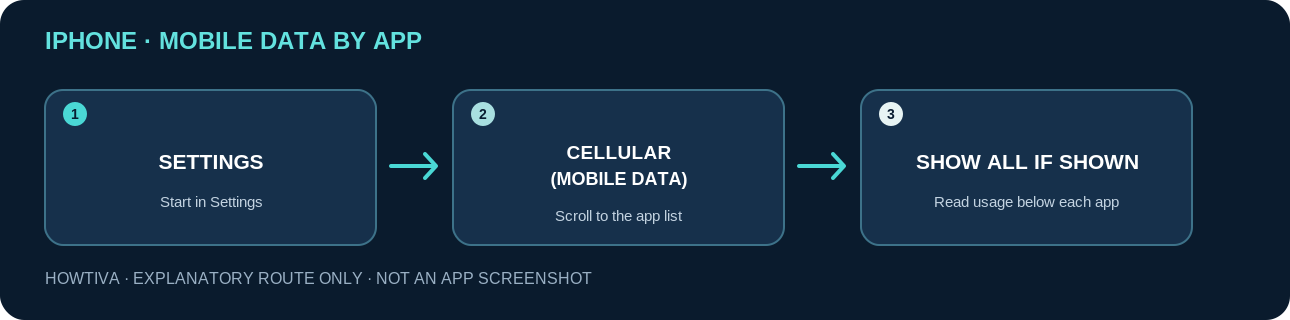
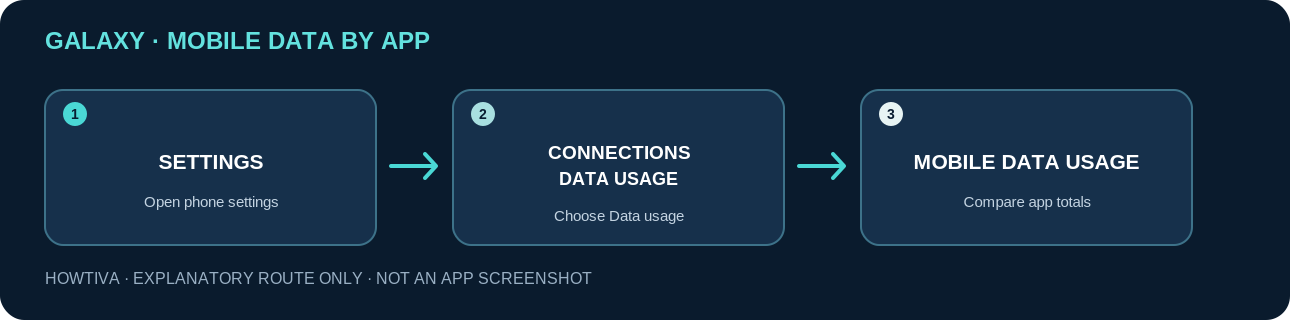
On iPhone, open Settings > Cellular; on Pixel, Settings > Network & internet > SIMs > App data usage; on Galaxy, Settings > Connections > Data usage > Mobile data usage.
Quick answer: On iPhone, open Settings → Cellular (called Mobile Data in some regions), scroll to the app list and tap Show All if it appears. The usage amount appears below each app. On a Google Pixel, open Settings → Network & internet → SIMs → App data usage. On a Samsung Galaxy, go to Settings → Connections → Data usage → Mobile data usage. Check the date range before deciding which app is using the most data.
These built-in tools measure traffic through your mobile network, not necessarily your Wi-Fi traffic. The menu labels depend on your iOS or Android version, region, operator and device maker. This guide uses Apple’s iOS 27 user guide and current Google Pixel and Samsung documentation; older iPhones and other Android phones may show different layouts. You do not need to install a third-party data-monitoring app.
Check mobile data usage on an iPhone
- Open Settings.
- Tap Cellular. In some English-language regions, this setting is called Mobile Data.
- Scroll to the app and service list. On versions that show Show All, tap it to expand the full list.
- Read the amount shown beneath each app. Compare several large entries rather than assuming the first app is responsible for your most recent usage.
- Scroll to System Services if you want to inspect categories of usage that are not attributed to a conventional app. You cannot individually disable cellular access for each system service here.
- If an app should use only Wi-Fi, turn off its switch on the Cellular page. The app may no longer fetch messages or refresh content when no Wi-Fi is available.
Understand “Current Period.” On an iPhone, the usage numbers refer to the phone’s recorded statistics since its last statistics reset; they are not automatically a guaranteed match for your mobile operator’s monthly bill. You can scroll to the bottom of Settings → Cellular and choose Reset Statistics to start a fresh measurement window. Do this only after noting the old totals if you may need them for comparison. Resetting the counter does not refund data or change your data plan. Your provider’s usage report remains the best reference for billing.
Two SIMs or eSIMs? Check which number is selected for cellular data before comparing totals. Apple notes that the displayed usage can be for your selected cellular data number. If you use both lines, do not add numbers or assume both were measured in the same period without checking the selection and provider statements.
Check app data usage on a Google Pixel
- Open Settings and select Network & internet.
- Tap SIMs. Choose the active mobile-data SIM if your phone offers more than one line.
- Look at the total mobile data amount at the top of the page.
- Tap App data usage to view the graph and the per-app breakdown.
- Use the time-period selector (the down arrow) to check the correct period; compare it with your plan’s billing cycle.
- Tap an app’s entry only when you want to inspect available controls. Labels and background-data options can change by Android release.
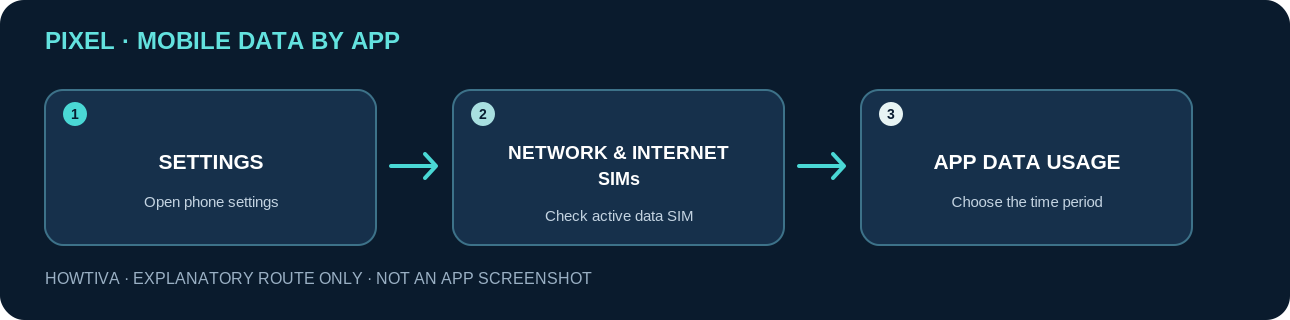
These directions are the Google Pixel path in Google’s documentation, not a guaranteed path on every Android device. If you cannot find SIMs, search within Settings for data usage or consult the help page for your phone maker. Google also warns that some options require Android 8.0 or newer.
Check app data usage on a Samsung Galaxy
- Open Settings.
- Tap Connections → Data usage.
- Select Mobile data usage to view mobile-network use, not Wi-Fi data usage.
- Check the period displayed above the graph and compare the amounts listed by app below it.
- If the date range does not match your plan, look under Billing cycle and data warning or the settings control on the Mobile data usage screen. Available choices vary with the model, software and carrier.
- Tap a specific app to review any available Allow background data usage control before changing it.
Samsung also provides Data saver and, on supported devices, Allowed networks for apps. These are ways to manage future traffic; they do not erase mobile data already counted. A Galaxy without an active SIM or mobile connection may not show all the data-usage screens.
Find out why a particular app uses so much data
The number next to an app is a useful starting point, not a diagnosis. To investigate a spike, compare it with actions that transfer large files: uploading a video, streaming high-definition media, downloading an offline map, restoring a cloud backup or sending attachments. Even an app used for a short time can transfer substantial data. A messaging app can consume data while handling media, and navigation or cloud-storage apps can transfer information in the background.
First compare the measurement dates. If your iPhone counter covers months but your mobile plan restarted yesterday, its largest number may be perfectly normal. On Android, make sure the graph shows the appropriate cycle or a matching period. Next, test a normal day while on trusted Wi-Fi and another while using mobile data; do not create a large download merely to test usage. Finally, check the app’s own settings for download on Wi-Fi, streaming quality or automatic backup preferences. Those controls are app-specific; there is no universal setting for every app.
Mobile data versus Wi-Fi: On Galaxy phones, Samsung explicitly provides separate mobile and Wi-Fi usage views. On iPhone, the Cellular app list reports cellular usage. An app that appears busy on Wi-Fi may not contribute the same amount to your mobile plan. Conversely, Apple’s Wi-Fi Assist, when enabled, can switch to cellular when the Wi-Fi connection is poor, so some traffic can use your allowance even though you thought you were connected to Wi-Fi.
Reduce future mobile data use without losing important updates
iPhone: restrict one app or use Low Data Mode
In Settings → Cellular, turn off mobile access for an app you can comfortably use only over Wi-Fi, such as a large-download or media-editing app. Leave mobile access enabled for services you rely on while away from Wi-Fi. Apple’s Low Data Mode can reduce some automatic and background activity; the option is located in the cellular data settings, but its precise route varies by selected SIM, carrier and connection type. It is a system-wide data-saving aid, not a per-app usage report.
Avoid turning off cellular connectivity for critical communication or travel apps without planning how they will work when you are away from Wi-Fi. Also review data roaming settings before travel, because your operator may charge differently for roaming traffic.
Pixel: enable Data Saver if appropriate
On a Pixel, open Settings → Network & internet → Data Saver and switch it on to limit background mobile traffic for many apps. Google’s documentation makes an important distinction: apps in active use can still use mobile data. If a necessary service becomes delayed, go to Data Saver → Unrestricted data and allow that app as an exception. Data Saver is not a blanket block on mobile use.
Pixel phones also offer Data warning & limit within Settings → Network & internet → SIMs. A warning sends a notification when you reach the threshold you choose. A data limit can automatically turn mobile data off; do not enable that limit casually if you rely on data for messages, travel or time-sensitive services. Match the selected cycle with your operator’s plan first.
Galaxy: check background traffic and alerts
Samsung documents Settings → Connections → Data usage → Data saver, plus per-app Allow background data usage controls on supported Galaxy software. Some versions also provide Allowed networks for apps, letting you choose Wi-Fi or mobile access for particular apps. Restrict only apps for which delayed updates are acceptable. Depending on the app, blocking background access may delay uploads, backups, synchronisation or notifications.
For an advance warning rather than an immediate restriction, use Billing cycle and data warning and set the cycle start date and warning threshold. A hard limit is different: on some devices it can disable mobile data when reached. A warning does not increase the data allowance on your plan.
Troubleshooting: usage numbers or menus do not look right
I cannot see the app usage list
On iPhone, scroll down within Cellular and use Show All if available. Check that the phone has cellular capability and the expected active mobile-data line. On Pixel, check Network & internet → SIMs and the App data usage item. On Galaxy, use Connections → Data usage → Mobile data usage; an inactive or absent SIM can limit what appears. Work-managed phones and carrier-specific firmware may also display fewer controls.
Phone and carrier show different amounts
Compare the same dates, SIM, time zone and billing-cycle boundary. Your phone measures traffic locally; the operator uses its billing records. Google and Apple both recommend the mobile operator for the most accurate plan usage. Treat phone counters as diagnostic estimates rather than evidence that a bill is incorrect. If a discrepancy is large, save screenshots of the counters and contact your operator.
An app appears to use data even when I rarely open it
Check automatic media download, backup, account sync, location or background activity settings for that particular app. On Android, the app detail may show a foreground/background distinction depending on the device. Do not confuse this with the background app battery screen, which measures a different resource. Switch to Wi-Fi for large transfers where appropriate, then observe usage across another comparable period.
The total increases while connected to Wi-Fi
Confirm that Wi-Fi actually has internet access and that mobile data was not used as a fallback. Review Wi-Fi Assist on iPhone or the manufacturer-specific mobile-data fallback settings on Android if present. Avoid changing unfamiliar network settings until you have confirmed the connection and your operator’s usage records. Also check whether a hotspot or roaming connection has been in use.
My alerts or messages stopped after restricting data
Undo the most recent background-data or per-app mobile data change, connect to the internet, and allow the app time to sync. If Data Saver is active, add an exception only for the affected essential app. Restricting data is reversible; uninstalling an app or erasing its storage is not needed to solve a mobile usage question.
Frequently asked questions
Can I see mobile data use by app without installing anything?
Yes. iPhone, Google Pixel and Samsung Galaxy include built-in data usage pages. Other Android brands often offer similar functionality, but the menu names and detail level vary.
Is mobile data usage the same as Wi-Fi usage?
No. Cellular/mobile data passes through your mobile operator’s network; Wi-Fi traffic typically uses the Wi-Fi connection instead. Check that you are viewing Mobile data usage, not Wi-Fi data usage, where your device offers both.
Does resetting statistics delete my files or stop my phone plan?
No. Apple’s Reset Statistics resets the usage counter displayed on the iPhone. It does not reset your operator’s billing, refund data, or delete your apps and photos. Record the current value first if you want a before-and-after comparison.
Will turning off background data stop all use of mobile data?
Not necessarily. Data Saver primarily reduces background use and may still allow foreground usage. Some devices offer stronger per-app controls; use the exact setting documented for your model rather than assuming all restrictions are identical.
Why does my phone show a higher total than my carrier’s app?
Often the dates or measurement methods are different. The iPhone “Current Period” can span longer than a single bill, while Android’s displayed cycle may not match your provider’s cycle. Check the SIM and date range, then rely on your carrier for billing totals.
Sources & Further Reading
- Apple Support — View or change cellular data settings on iPhone (iOS 27)
- Apple Support — Use cellular data on your iPhone or iPad
- Google Pixel Help — Reduce & manage mobile data usage
- Google Pixel Help — Use less mobile data with Data Saver
- Samsung Support — Manage data usage on your Galaxy phone
- Samsung Support — How to check data usage on a Samsung Galaxy
Use the checklists as you go, and confirm the result before moving on to a more involved repair.