How to Back Up Windows Files to an External Drive
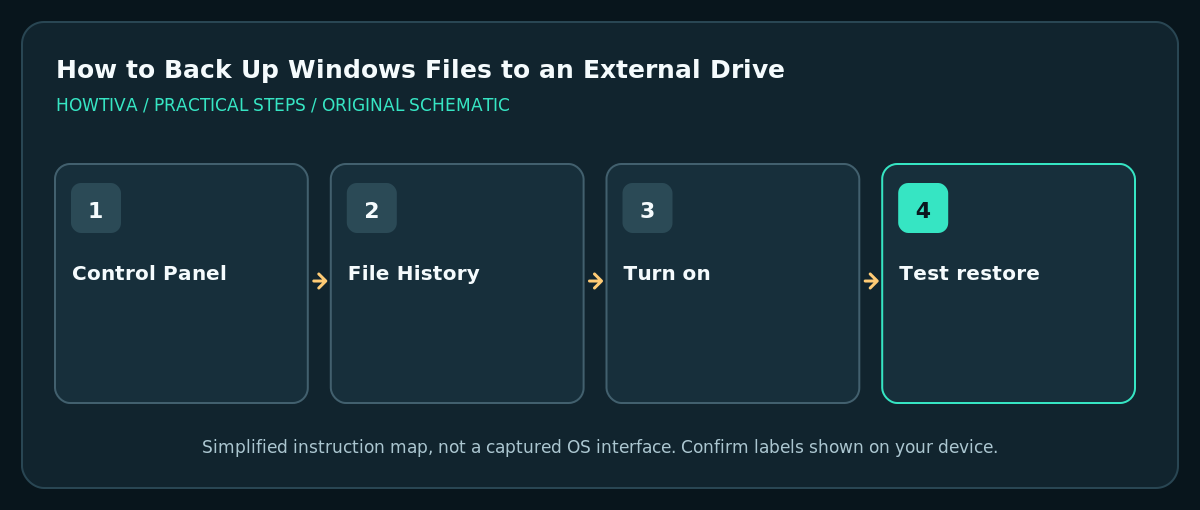
Connect a suitable external drive, open Control Panel > System and Security > File History, select or change the backup drive and choose Turn on.
Quick answer: Connect a suitable external drive, open Control Panel > System and Security > File History, select or change the backup drive and choose Turn on. Check that your important folders are covered, then verify a backed-up file can be restored without overwriting your only copy.
An external drive is one of the simplest ways to keep a second copy of personal files. On Windows 11, File History can maintain versions of folders in your libraries and key user locations. It is different from Windows Backup’s cloud settings, a manual one-time copy and a full system image. Protecting files means knowing which folders are included and testing recovery—not merely connecting a disk.
Choose a backup drive without erasing existing data
- Select an external USB drive with enough free space for the current files and future versions. A larger drive is useful if you edit lots of photos or video.
- If the drive already contains important data, do not format or erase it merely to set up File History. Confirm any Windows prompt before proceeding.
- Plug it directly into a reliable port and make sure it appears in File Explorer under This PC. If the drive is not recognized, use another safe cable or port before making disk-management changes.
- Keep the drive physically separate when not backing up. Always eject it safely after backup activity stops, and consider a second independent backup kept elsewhere.

Turn on File History in Windows 11
- Open Control Panel using Start search. Navigate to System and Security > File History. This is the desktop Control Panel feature, not the newer Windows Backup app.
- Check the target drive displayed in File History. If it is not the drive you intend, select Select drive and choose the appropriate external storage.
- Select Turn on and allow Windows to begin backing up eligible folders. Do not disconnect the disk while the first backup is running.
- In File History settings, review available options such as how often copies are saved and how long versions are kept. Choices can vary by Windows build and available storage.
- Confirm that Documents, Pictures, Videos and Desktop, plus any other critical locations you intentionally include, are protected. Microsoft explains that additional folders can be added through a library; files kept in arbitrary custom folders are not automatically guaranteed to be included.
Check coverage before relying on it
- Make a small test document in a backed-up folder, then wait for the next backup or use an available immediate-backup control.
- In File History, open the Restore personal files view and locate the test file. Preview its content where possible.
- Restore a copy to a safe test location rather than replacing your active version. Read all overwrite prompts carefully.
- If the test is absent, confirm that File History is on, the external drive is connected and the test folder is within backed-up locations.
- Keep a dated note of a successful backup/restore check. A green drive icon or ‘connected’ indicator alone does not prove recoverability.
Manual copy as a separate alternative
For a one-time snapshot, create a dated folder on the external drive and copy (not move) your selected Documents, Photos and project folders. Open several copied items to check integrity. This avoids depending on a single backup feature but does not automatically track later changes; repeat the copy after major work sessions and preserve older versions.
Troubleshooting
File History does not show my drive
Confirm it is visible in File Explorer and is writable. Try a different port and verify available capacity. Do not initialize, convert or format an unfamiliar disk without first identifying what is on it.
A custom project folder was skipped
Check whether it belongs to a backed-up library or was otherwise included through supported File History settings. Consider a manual additional copy for application data stored outside user libraries.
File History is on but versions are missing
Check the date of the first backup, backup schedule, disk connection and folder inclusion. You cannot restore a file version from a time before it was backed up.
My external drive failed
Do not assume the laptop’s original data is also safe indefinitely. Replace the failed backup disk and create a fresh backup. A second offline or offsite copy helps reduce a single point of failure.
Frequently asked questions
Does File History back up Windows itself?
No. It is primarily a personal file and version-history mechanism, not a bootable system-image backup.
Can OneDrive replace the external disk?
OneDrive synchronization has useful version and recovery features, but synchronization and independent offline backups have different failure modes. For important files, use more than one recovery method.
Is restoring a previous version risk-free?
No. Replacing the current file may overwrite newer work. Preview and use Restore to another location when available.
Sources & Further Reading
- Microsoft — Backup and restore with File History — Control Panel File History, drive selection, library coverage and restore to alternative destination.
- Microsoft — Restore files deleted from OneDrive — Cloud recovery differences from local backup.
Use the checklists as you go, and confirm the result before moving on to a more involved repair.