How to Set Up Keyboard Shortcuts on a Mac
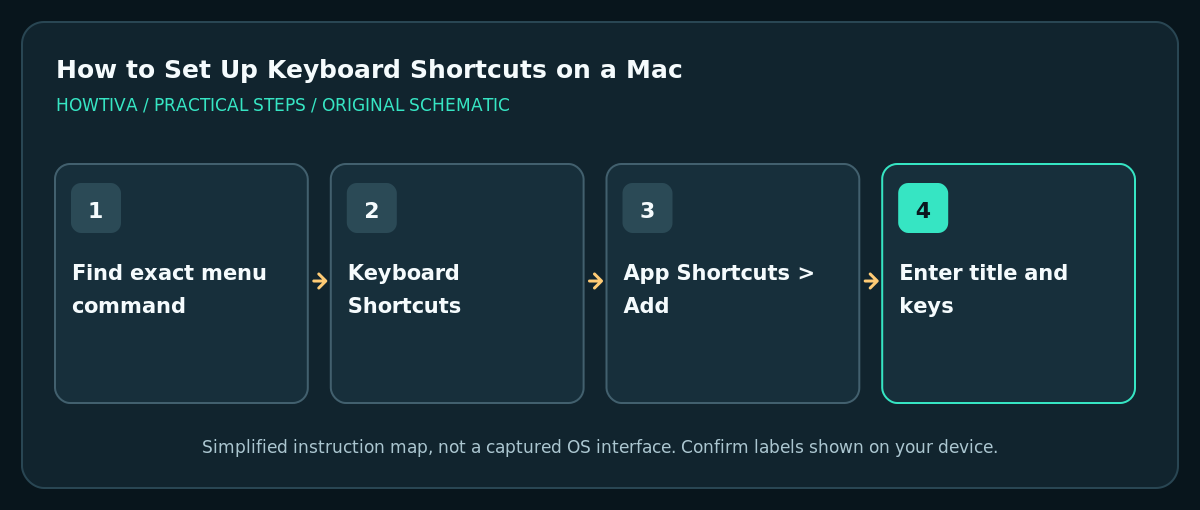
For an existing app menu command, open Apple menu > System Settings > Keyboard > Keyboard Shortcuts > App Shortcuts.
Quick answer: For an existing app menu command, open Apple menu > System Settings > Keyboard > Keyboard Shortcuts > App Shortcuts. Add a shortcut, choose the app, type the exact menu command title, press your preferred key combination and save. A macOS App Shortcut cannot create an arbitrary command or launch any application by itself.
Mac keyboards already have many shortcuts, but you can assign a personal key combination to an existing menu command such as a document operation. Apple documents app-specific and All Applications shortcuts in System Settings. The tricky part is entering the precise menu command name and avoiding conflicts with shortcuts that an app or macOS already uses.
Create a shortcut for a real menu command
- Open the target application and look at its menu bar. Locate the exact command you want to trigger. Note its spelling, punctuation and whether it is nested in a submenu. It must actually exist in the app’s menu; a button that appears only inside a custom window may not qualify.
- Choose Apple menu > System Settings > Keyboard, then select Keyboard Shortcuts. On older macOS releases, the system preferences navigation and appearance can differ; search for Keyboard Shortcuts in Settings.
- Select App Shortcuts, then click the Add (+) control. Choose the specific app from the Application menu, or All Applications only for a command genuinely shared across apps.
- Enter the Menu title exactly as Apple instructs. For nested menus, Apple documents using a
->separator between menu levels. Preserve punctuation, including ellipses, because near-matches can fail. - Click the keyboard shortcut field and press a combination that is not already assigned in that application or the system. Apple warns that conflicting shortcuts will not work reliably.
- Save the entry with Done and switch back to the target app. Open a harmless test document and trigger the shortcut to verify that the intended menu action fires.
Example: a nested menu command
Apple’s own example uses TextEdit’s Format > Font > Ligatures > Use Default command. The menu-title field is written with a sequence like Format->Font->Ligatures->Use Default. Your exact entry must reflect the menus on your installed language/version, not a guessed translation. Apple’s guide also demonstrates punctuation-sensitive commands, including ellipses. If an app updates and changes its menu wording, revisit the entry.
Fix a shortcut that does not work
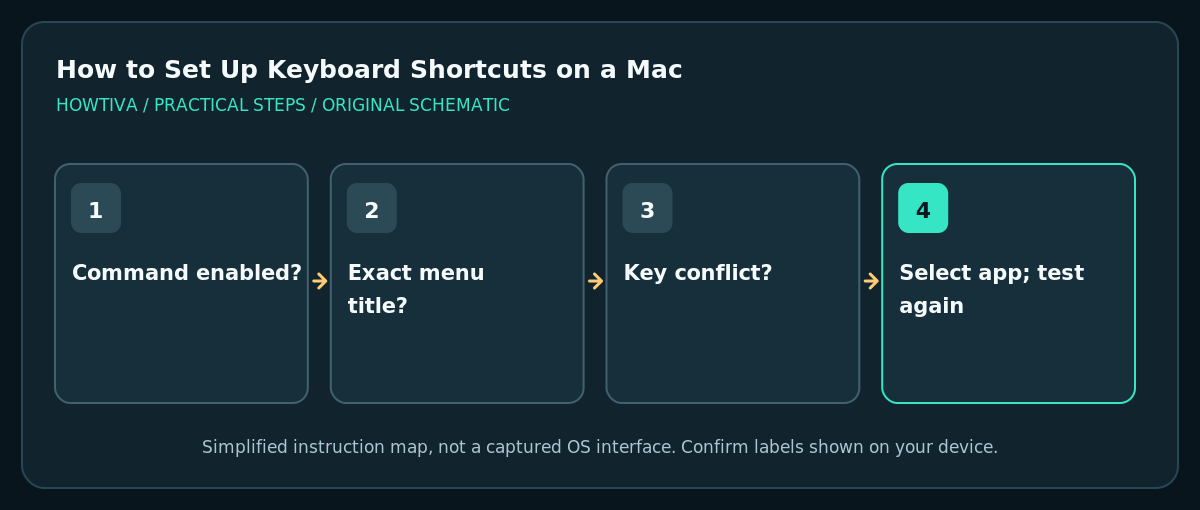
- Open the target app and confirm that the menu command is present and enabled in the current context. A gray menu command may require an open document or selection.
- Recheck capitalization, spaces, hyphens and punctuation. For submenu commands, verify each item is in the right sequence.
- Inspect whether your chosen combination is already used by macOS, the app or another shortcut. Choose a less common combination if there is a conflict.
- Verify that the shortcut was assigned to the correct application, not a similarly named app or All Applications inappropriately.
- Restart the affected app if the new assignment does not take effect immediately. Avoid changing unrelated keyboard layouts or installing automation tools before the basic checks.
Edit or remove an assigned shortcut
Go back to System Settings > Keyboard > Keyboard Shortcuts > App Shortcuts, select the entry and edit its key combination as supported. To delete a shortcut you created, select it and click Remove. Removing the assignment does not delete an app or the underlying menu command.
Keyboard shortcuts in System Settings are distinct from workflows built in the Shortcuts app. The Shortcuts app can automate tasks with actions, but the App Shortcuts panel described here maps keystrokes to existing menu commands. If you want to launch an app or automate several operations, investigate an appropriate workflow instead of expecting a menu shortcut to create a new feature.
Good shortcut design
Keep accessibility and standard shortcuts in mind. Avoid overriding familiar combinations such as Command+C or Command+V. On a laptop, test a key combination that you can comfortably press; some function keys are shared with media and brightness controls. A shortcut that works in one app may not work in another because each app owns different commands and menus.
Frequently asked questions
Can I assign a shortcut to any button?
Not necessarily. Apple’s built-in App Shortcuts target existing menu commands, not arbitrary on-screen controls.
Do shortcuts work in all apps?
You can choose All Applications, but the target menu command must exist and match appropriately in each app. Specific apps can also reject custom shortcuts.
Why does my shortcut do something else?
A conflicting system/app shortcut, a mismatched menu name or a context-dependent command may explain it. Try a unique combination and test again.
Sources & Further Reading
- Apple — Create keyboard shortcuts for apps on Mac — System Settings procedure, exact menu titles, submenu separators, conflicts and scope.
- Apple — Mac keyboard shortcuts — Existing standard keyboard shortcut conventions.
Use the checklists as you go, and confirm the result before moving on to a more involved repair.