How to Fix a Computer That Is Running Slowly: First Checks
Save your work, restart the computer, and see whether the slowdown affects one app or the entire system. On Windows, use Ctrl + Shift + Esc to open Task Manager; on a Mac, open Activity Monitor.
Quick answer: Save your work, restart the computer, and see whether the slowdown affects one app or the entire system. On Windows, use Ctrl + Shift + Esc to open Task Manager; on a Mac, open Activity Monitor. Check CPU, memory, disk activity and free storage. Review unnecessary startup apps and install legitimate updates. Avoid registry cleaners, random driver packs, forced shutdowns and full resets as first fixes.
A slow computer can have very different causes: too many active applications, insufficient space, a hung browser tab, software updates, malware, thermal issues or aging hardware. First checks should be reversible and should protect your files. This guide covers Windows 11 first and provides Mac equivalents; hardware repair is beyond this initial diagnostic workflow.
Before troubleshooting: Recognize urgent warning signs
If you hear unusual grinding or repeated clicking from a drive, see frequent storage read errors, experience repeated crashes during file access, or notice suspected battery swelling or unsafe heat, prioritize safety and data preservation. Stop stressing the device, secure an existing backup where possible without risking further damage, and arrange qualified inspection. Do not keep running demanding benchmark or cleanup tools to see whether a failing drive improves.
If important files are not backed up, copy or back them up before making high-impact changes. Do not run a reset, reinstall, disk formatting or aggressive deletion while diagnosing a routine slowdown.
Step 1: Identify the pattern of slowness
- Ask whether the problem happens immediately after sign-in, only in a browser, while opening one program, or all the time.
- Note what changed: a new app, recent update, connected device, storage nearly full, or a new browser extension.
- Close apps you no longer need, save work and perform a normal Restart rather than repeated forced power-offs.
- Try one basic task after restarting. If only a single app is slow, focus your inspection on that app rather than changing the entire computer.
- If symptoms persist, inspect resources before removing software.

Step 2: Check resource usage on Windows 11
- Press Ctrl + Shift + Esc to open Task Manager. If it shows a simplified view, expand it.
- In Processes, inspect the CPU, Memory and Disk columns while the computer feels slow. A process consuming resources during a real task is not automatically malicious.
- Sort by one column to see which app is most active. Note the name and whether it belongs to a task you initiated, an update or a legitimate security tool.
- Close an unused application normally first. Use End task only when you recognize a stuck user app, understand it may discard unsaved work, and have no safer way to close it.
- Open the Performance tab to see if CPU, memory or disk remains saturated over time. One brief usage spike alone does not prove faulty hardware.
For a Mac, open Applications > Utilities > Activity Monitor, then inspect the CPU and Memory tabs. Apple notes that memory pressure and free startup disk space can affect performance. Avoid force-quitting unfamiliar system processes.
Step 3: Check available storage
On Windows, open Settings > System > Storage and review drive use. On a Mac, open System Settings > General > Storage. Very little free space can disrupt updates, temporary files and application caching. Remove only files you recognize or use the operating system’s built-in storage suggestions.
Do not empty Downloads blindly: it might contain the only copy of a tax document, receipt, project or installer. Back up files before deleting; avoid manually deleting unknown folders under Windows or macOS system directories. On Windows, review Storage Sense settings, including any option that targets Downloads. On Mac, consider moving trusted large media files to a separate verified storage location.
Step 4: Review startup and background applications
On Windows 11, inspect Settings > Apps > Startup or Task Manager’s Startup apps area. Disable automatic launching for applications you recognize and don’t need at sign-in. This does not normally uninstall the app. Avoid disabling security software, device drivers or organization-required software without understanding their role.
On a Mac, open System Settings > General > Login Items & Extensions where supported and review both login items and background permissions. App and system versions can alter the layout. Disabling a necessary sync or backup agent can interrupt file protection, so confirm the purpose of every item before changing it.
Step 5: Install legitimate updates and check for malware
On Windows 11, open Settings > Windows Update and check for updates; use vendor documentation for any necessary drivers. Microsoft also recommends scanning for malware through Windows Security > Virus & threat protection. Choose a normal or quick scan first. Do not download random “one-click PC booster” software or driver packs from ads.
On a Mac, review System Settings > General > Software Update and update compatible applications through official channels. A sudden slowdown accompanied by pop-up ads or browser redirects warrants security investigation, but performance problems alone are not evidence of infection.
Step 6: Check power, heat and external devices
A laptop using a low-power profile may be slower under heavy load, while a high-performance mode can increase heat and shorten battery life. Windows has a power mode control under Settings > System > Power & battery; only change it if appropriate. Keep vents clear and the device on a firm surface; do not block airflow with soft fabric.
Disconnect nonessential docks, USB hubs and external drives one at a time if slowness begins when connected. Safely eject storage devices first. If the computer is too hot to use safely, shuts down unexpectedly or shows physical damage, stop using it and seek qualified service rather than trying aggressive performance settings.
Troubleshooting specific patterns
Browser is slow, but other programs work
Close unnecessary tabs, test a private window without extensions where available, and update the browser from its official source. If one website alone is slow, the problem may be network or website-related rather than the whole computer.
Computer is slow only during sign-in
Review startup applications, drive usage and whether background updates are completing. Give a legitimate update time to finish; repeated forced restarts can make troubleshooting harder.
Disk or memory stays near maximum
Identify whether backups, synchronization, antivirus scans or large file transfers explain the activity. Sustained resource pressure with ordinary workloads can indicate inadequate RAM, limited storage or a process stuck in a loop. Do not delete system components because their names look technical.
The slowdown started after installing something
Check that app’s support guidance, recent startup additions and whether it is compatible with the OS. If you uninstall anything, preserve its files and licenses. Avoid third-party registry cleaners or unknown optimizer scripts.
Nothing helps
Back up data, note observed symptoms and consider a hardware health check from the manufacturer or a qualified technician. Sustained performance problems on older hardware may require a repair or upgrade rather than another software tweak.
Safe first-check checklist
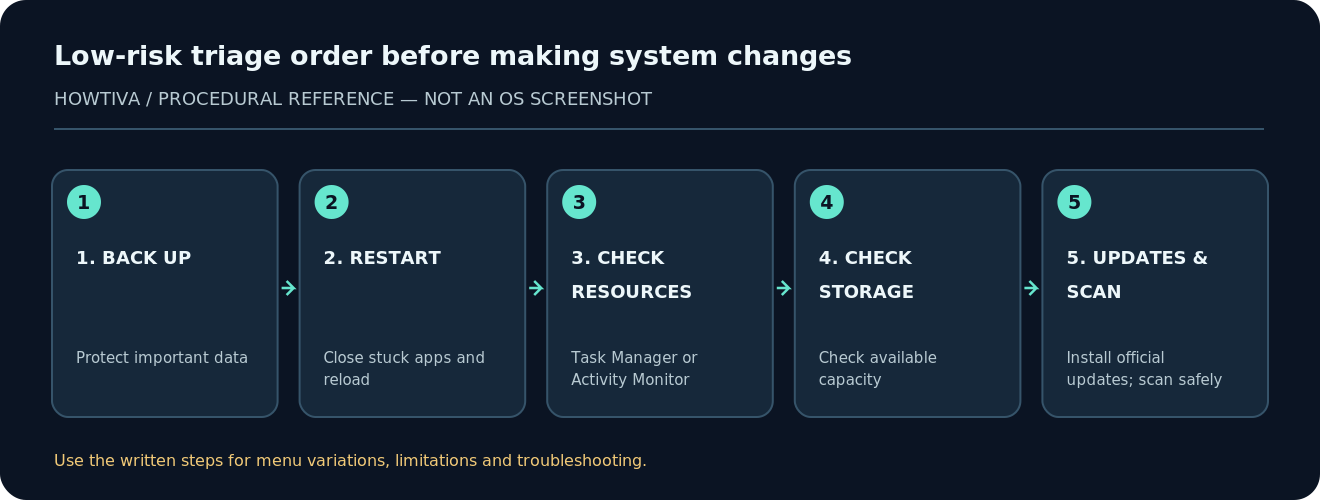
Confirm a backup, restart, isolate one app versus the whole system, inspect Task Manager or Activity Monitor, check free storage, review startup items, install trusted updates and run an appropriate security scan. Change one thing at a time and record its effect; that helps distinguish a real improvement from a temporary fluctuation.
Frequently asked questions
Should I reset Windows to fix a slow PC?
Not as a first step. Resetting can have major app and data consequences; investigate simple reversible causes and protect your files first.
Will more virtual desktops or a cleaner desktop make my PC faster?
Virtual desktops organize windows but do not add hardware resources. Removing unnecessary running applications can matter more than rearranging them.
Is 100% CPU usage always a virus?
No. Normal heavy work, updates and legitimate apps can drive high usage. Investigate the responsible process and context first.
Should I install a registry cleaner?
No. It is not an appropriate first diagnostic step and can introduce new stability risks.
Sources & Further Reading
Use the checklists as you go, and confirm the result before moving on to a more involved repair.