How to Use Multiple Desktops on Windows 11
Press Windows + Tab to open Task View, then select New desktop. Choose a desktop thumbnail to switch between workspaces.
Quick answer: Press Windows + Tab to open Task View, then select New desktop. Choose a desktop thumbnail to switch between workspaces. You can also press Windows + Ctrl + D to create a desktop and Windows + Ctrl + Left/Right Arrow to move between desktops. Virtual desktops organize windows on the same Windows account; they do not create separate user profiles.
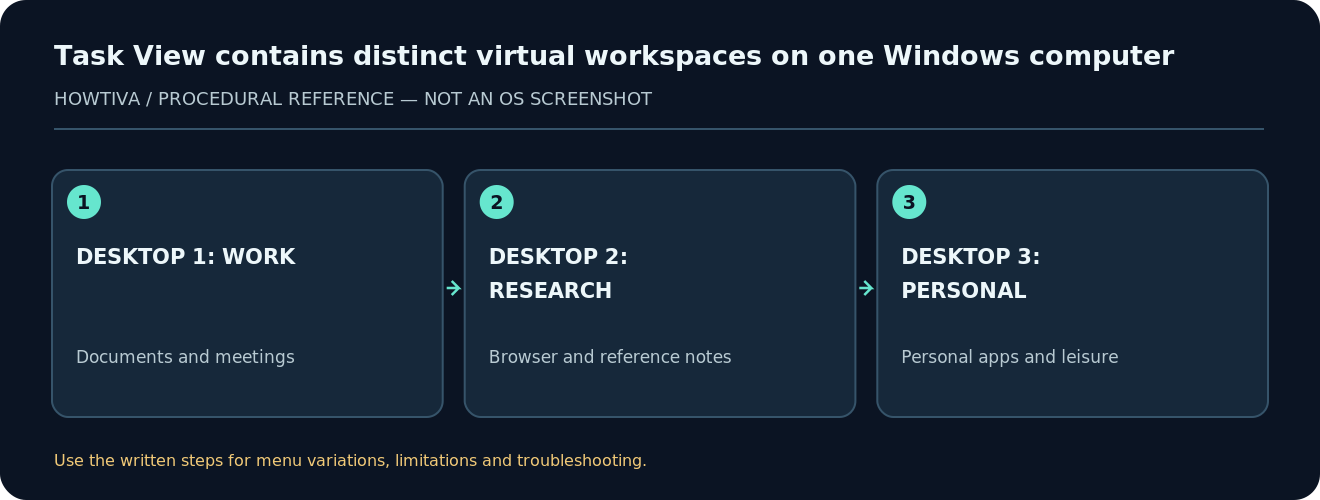
A virtual desktop is a workspace, not an extra physical monitor. You can keep a research browser on one desktop, a meeting on another, and a document editor on a third while everything runs under your signed-in Windows session. This is a convenience feature, not a security boundary: the same account, files and many notifications remain shared.
Create your first extra desktop
- Save any ongoing work. Creating a desktop does not normally close apps, but saving is still a good habit before reorganizing many windows.
- Press Windows + Tab or select the Task View button on the taskbar, if it is shown.
- Select New desktop. Windows creates another workspace and displays its thumbnail.
- Click the new desktop to switch to it. Open the app or browser window you want to keep there.
- Return to Task View to see available desktops; click a thumbnail to switch back.
If the Task View icon is hidden, Windows + Tab still provides the direct keyboard route. The number and placement of desktop thumbnails can vary with Windows updates and display arrangement.
Rename desktops to reflect what you are doing
- Open Task View using Windows + Tab.
- Select an existing desktop’s name and choose the option to rename it. For example, use Client A, Research or Writing.
- Apply descriptive names rather than personal secrets. They may appear in screen-sharing or support sessions.
- Repeat as needed, but keep the number manageable. Creating many desktops does not add CPU power or memory.
You can also set different picture backgrounds to distinguish workspaces. Microsoft notes that per-desktop backgrounds support individual pictures; do not assume slideshows or separate solid colors can be set per desktop in the same way.
Switch quickly with keyboard shortcuts
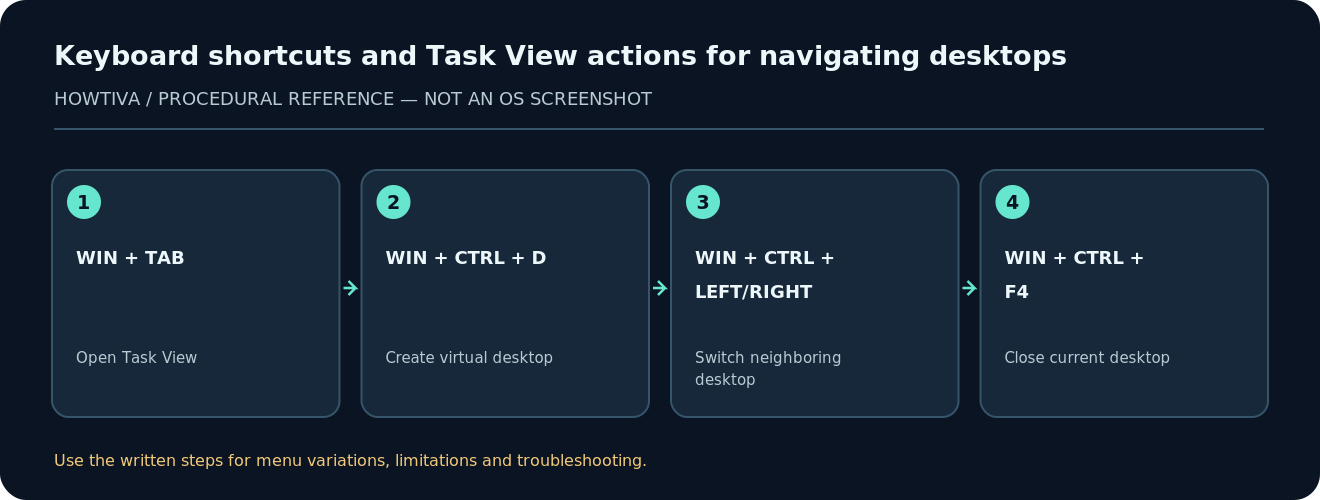
- Windows + Tab: Open Task View with windows and desktops.
- Windows + Ctrl + D: Create another desktop.
- Windows + Ctrl + Left/Right Arrow: Move to the neighboring desktop.
- Windows + Ctrl + F4: Close the current desktop. This is not the same as Alt + F4, which closes an application window.
Practice with a document whose changes have been saved. Windows may move the open windows of a closed desktop to another desktop; closing a desktop is not the same as closing its applications. Do not rely on this behavior instead of saving important work.
Move an existing app window to another desktop
- Open the app you want to move, then press Windows + Tab.
- Identify the window thumbnail. If several windows look similar, inspect their titles carefully.
- Drag the window thumbnail onto the destination desktop thumbnail. Depending on the Windows build, a right-click menu may also provide a Move to option.
- Switch to the destination desktop and confirm that the intended window is there.
- Repeat for other windows of the same app if they are not automatically grouped as you expected.
Some full-screen apps, games, Remote Desktop clients and window managers may respond differently to moving or switching. Try Task View rather than assuming every program supports exactly the same navigation behavior.
Customize taskbar and Alt + Tab behavior
Open Settings > System > Multitasking, then expand Desktops. Microsoft provides options for which desktop’s windows appear on the taskbar and when using Alt + Tab. If you prefer strict visual separation, select only windows on the desktop you are currently using. If you regularly need cross-desktop access, showing windows from all desktops may help.
These settings affect how windows are displayed, not whether a program is running or whether a file is accessible. Notifications and background processes may continue on other desktops.
Troubleshooting
I cannot see the Task View button
Use Windows + Tab. If that works, the feature is available even without the taskbar icon. Check taskbar personalization to show the button if desired.
A window seems to have disappeared
Open Task View and inspect thumbnails on every desktop. The app may still be open on a different workspace. Use Alt + Tab behavior settings if you want a wider view across desktops.
Switching desktop feels slow
Virtual desktops do not suspend all background apps. If the system is short on RAM, many open browsers or heavy programs can still create pressure. Close or save work in unused applications rather than multiplying desktops to improve speed.
Keyboard shortcuts do nothing
Try Windows + Tab, verify the keyboard’s Windows key, and check whether a remote session or third-party keyboard tool intercepts the combination. Some organization-managed environments remap shortcuts.
Can I use separate passwords or accounts per desktop?
No. Virtual desktops are a window-organization tool within a user session. Use separate Windows user accounts for stronger separation where appropriate.
Example workspace layout
Keep a Writing desktop for the editor and sources, a Meetings desktop for conference apps, and a Research desktop for browser tabs. Place private windows away from the desktop you plan to present, but remember that screen-sharing of an entire display may reveal more than expected. Check the meeting application’s share target before presenting.
Frequently asked questions
Does creating a virtual desktop slow the PC?
Creating the workspace itself is generally lightweight; running more applications and tabs consumes the resources.
Do different desktops have separate files?
No. They share the same user account and filesystem.
Can I close a desktop without losing my open apps?
Windows normally retains those apps by moving their windows, but save work first and verify the result.
Is a second physical screen required?
No. Multiple desktops work with one monitor; they organize windows rather than extending your physical display.
Sources & Further Reading
Use the checklists as you go, and confirm the result before moving on to a more involved repair.