How to Back Up a Mac with Time Machine
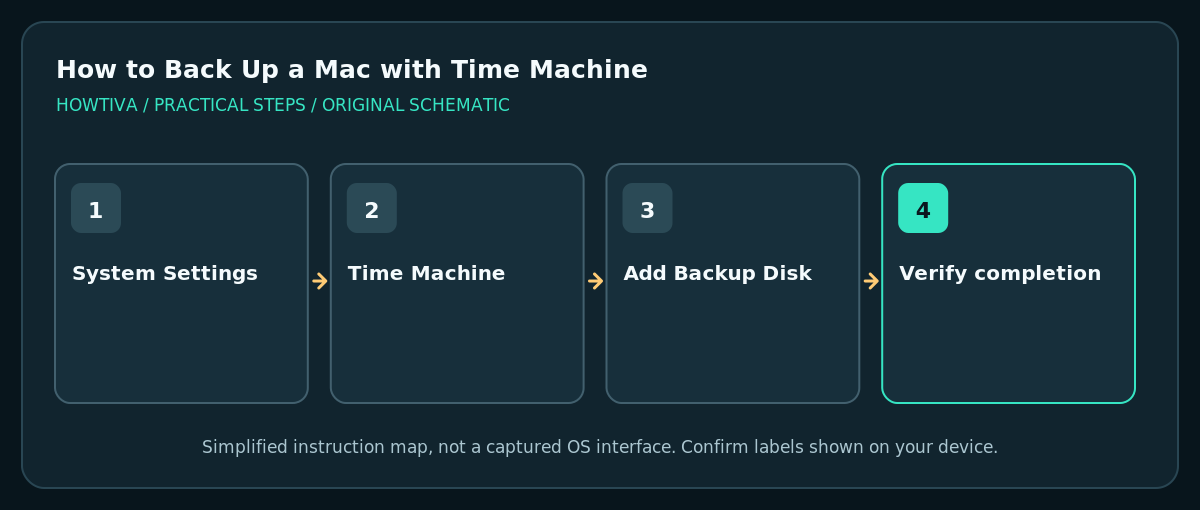
Connect a suitable external drive, then go to Apple menu > System Settings > General > Time Machine > Add Backup Disk.
Quick answer: Connect a suitable external drive, then go to Apple menu > System Settings > General > Time Machine > Add Backup Disk. Select the correct disk, set up encryption if desired, and confirm the first backup completes. Read erase warnings carefully: Time Machine setup can erase the selected disk.
Time Machine automatically maintains historical copies of supported Mac files so you can recover an earlier version or a lost document. It is most useful when the backup is stored on a separate disk that survives a computer failure. Apple recommends a backup device ideally at least twice the capacity of the Mac’s internal storage, and recommends using the Time Machine volume only for backups.
Before connecting a backup disk
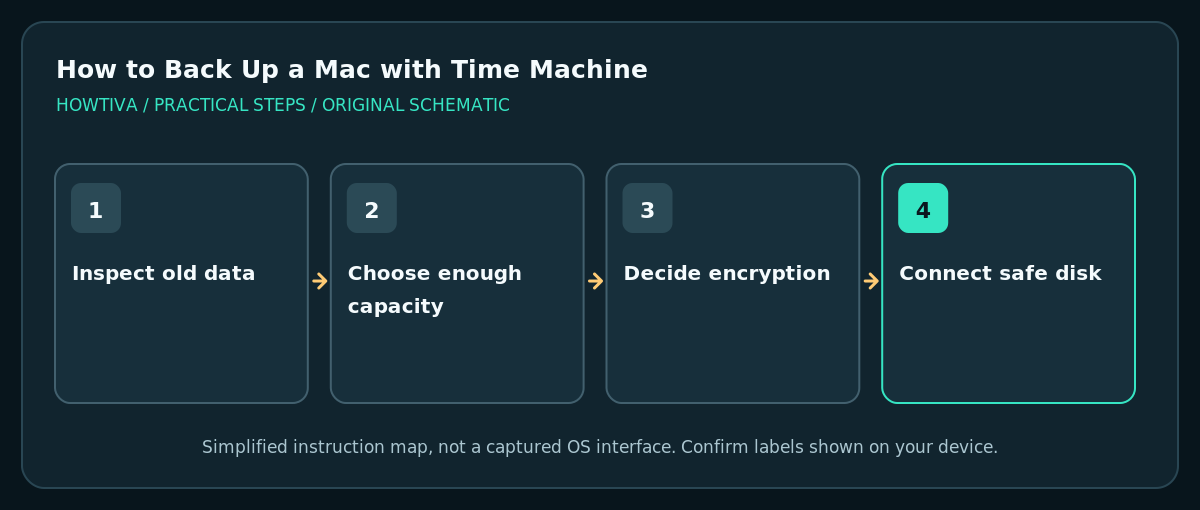
- Determine the capacity of the Mac’s internal drive in System Settings > General > Storage. Choose a backup destination with adequate room for the first copy and later file versions. Apple’s general recommendation is a backup disk with at least twice your Mac’s storage capacity.
- Inspect the external disk for existing data before setup. If it contains photos, projects or another computer’s backup, make a separate verified copy or choose a different disk. Time Machine might require reformatting and erasing the selected destination.
- Connect the disk using a compatible port, cable or trusted hub. Check that Finder identifies the intended drive and note its name.
- Decide whether to encrypt the Time Machine backup. Encryption helps protect private data if the drive is lost, but losing the backup password can make the backup unusable.
- Do not use a single Time Machine backup as the only copy of irreplaceable material. Consider another independent or offsite backup for critical files.
Set up Time Machine safely
- Open Apple menu > System Settings, select General, then Time Machine. These instructions cover macOS Ventura 13 and later; older macOS editions use a different preferences interface.
- Click Add Backup Disk or the available plus button.
- Choose the exact external drive intended for backups. Verify the volume’s name and capacity against what you inspected in Finder.
- Select Set Up Disk. If the Mac warns that the drive must be erased, stop and confirm every existing file on that drive is already saved elsewhere. Cancel and select another disk if uncertain.
- Set an optional backup space limit and Encrypt Backup if offered. Save the encryption password in a secure, recoverable place separate from the computer.
- Complete setup. Time Machine generally begins the first backup automatically; for a manual run, choose Back Up Now in the Time Machine menu if that control is available.
Confirm that the backup really worked
- Check Time Machine’s status in its menu or settings. Look for the date of the latest completed backup rather than relying only on an icon that the drive is connected.
- A first backup can be large and may take longer than later incremental backups. Keep the disk connected and the Mac powered while it completes.
- Choose an unimportant test file in a backed-up Documents folder. Locate that file in a historical Time Machine view and inspect the available restore choices.
- If practical, restore a noncritical older version and check its contents, taking care not to overwrite the current working copy without comparing versions.
- Eject the backup disk before physically disconnecting it. Reconnect it periodically to let automatic backups continue.
Recover a deleted document from a backup
Open Finder to the folder where the document existed, then launch Time Machine (using Spotlight if needed). Browse the backup dates and select the file to restore. Its original location may be used for restoration; inspect any overwrite warning when a file with the same name already exists.
Troubleshooting
Time Machine asks to erase my disk
This can be normal when a drive uses an unsupported format, but erasing removes current contents. Cancel if the disk has anything you have not backed up. Choosing a new, dedicated empty disk is safer than experimenting with a drive holding your only photos.
Backups are taking longer than expected
The first backup is often the largest. Use a stable connection, avoid disconnecting the disk mid-transfer and review Time Machine’s reported status. An external drive with intermittent disconnects may need hardware investigation.
There are no recent backups
Check whether the backup drive was disconnected, full or unavailable. Read any Time Machine warning. Reconnect and request a fresh backup, then confirm completion.
I forgot the encryption password
Do not repeatedly erase the disk hoping to recover the data. Check your securely stored password records and Apple’s supported recovery guidance; encryption can prevent access to otherwise intact backups.
Frequently asked questions
Does Time Machine replace iCloud?
No. iCloud sync keeps current files accessible across devices; Time Machine keeps separate historical backup copies on a designated backup destination.
Will Time Machine back up every external drive automatically?
Do not assume so. Review the excluded items and available backup scope in Time Machine settings; backup coverage depends on the files and volumes selected.
When is it safe to unplug the drive?
After backup activity finishes and you safely eject the volume. Apple says backups can resume when the drive is reconnected.
Sources & Further Reading
- Apple — Back up your Mac with Time Machine — Double capacity recommendation, erase warning, encryption, first backup and schedule.
- Apple — Choose a backup disk and set encryption options — Disk setup may reformat, encryption password implications.
- Apple — Restore items backed up with Time Machine — Browse backup versions and restore file location.
Use the checklists as you go, and confirm the result before moving on to a more involved repair.