How to Convert a PDF to WordWithout Losing Layout
To turn a PDF into an editable Word file while keeping as much of its layout as possible, open Microsoft Word on Windows or Mac, select File → Open, choose the PDF, accept the conversion prompt, and save the new document as.docx.
Quick answer: To turn a PDF into an editable Word file while keeping as much of its layout as possible, open Microsoft Word on Windows or Mac, select File → Open, choose the PDF, accept the conversion prompt, and save the new document as .docx. For more control, use Adobe Acrobat’s Convert → Microsoft Word → DOCX command. Neither method guarantees an identical layout: always compare the converted file with the original before sending it.
A PDF records where things appear on a page; Word must reconstruct paragraphs, tables, and other editable objects. Microsoft says its built-in conversion works best for documents made mostly of text. A scanned page, complex newsletter, table with unusual spacing, or document full of graphics may need recognition or manual repair. These instructions refer to recent Word desktop releases, including Word for Microsoft 365 and Word 2024/2021/2019/2016. Menu labels can differ on other products.
Before you convert: decide what you really need
- Need to edit paragraphs? Try Word’s PDF conversion or Acrobat’s export to DOCX.
- Need a visually identical page for reading or printing? Keep the PDF. Converting it to Word creates a new layout, not a guaranteed clone.
- Have the original .docx? Edit that instead of reverse-converting the PDF.
- Have a scan or photograph? Expect to use OCR (optical character recognition) and manually proofread the result.
Make a separate copy of the PDF and note its page count. If it contains confidential forms, personal records, or client contracts, prefer software that processes it locally under an approved workflow rather than uploading it to an unfamiliar converter.
Method 1: Convert a text-based PDF with Microsoft Word
- Open the desktop Word application, not just a preview of the PDF in your browser.
- Select File → Open → Browse, then select the PDF. If you do not see it, make sure the file filter includes PDFs or all files.
- Read the prompt explaining that Word will convert a copy of the PDF. Choose OK to proceed. Your original PDF is not overwritten by this conversion.
- Check the first page, a page with a table or image, and the final page. Compare them with the original side by side before editing.
- Select File → Save As (or Save a Copy on applicable versions). Choose Word Document (.docx) and use a new descriptive name.
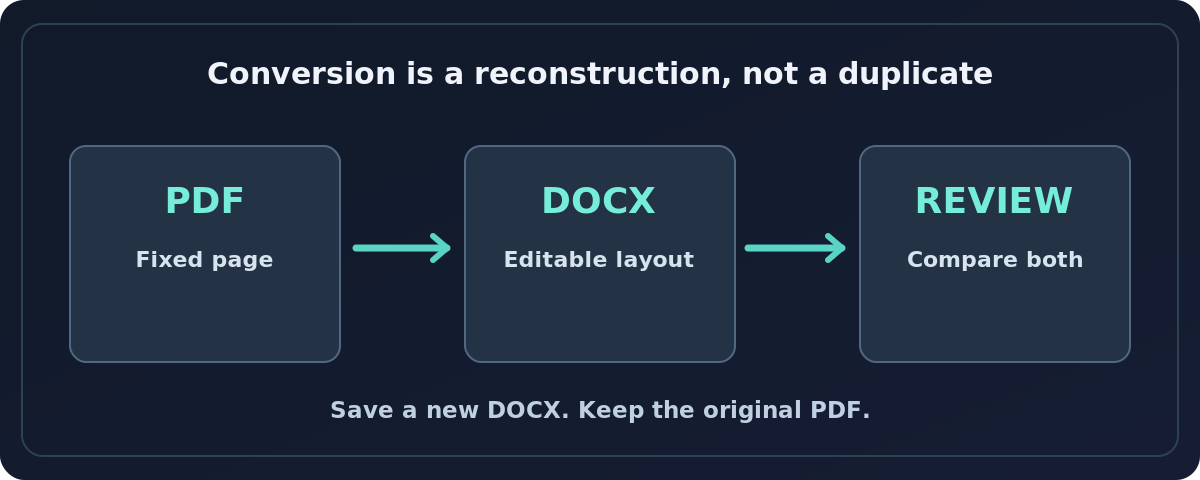
Word reconstructs editable content from the positions recorded in the PDF. If lines break differently, the font changed, or the last paragraph moved to a new page, that is an expected conversion limitation—not proof the PDF is damaged. Correct the Word layout before distributing the file.
Method 2: Export a PDF to DOCX with Adobe Acrobat
This alternative is useful if you already work with Acrobat’s paid PDF editing/conversion features. Adobe lists PDF export to Word in its Acrobat Standard and Pro plan comparison; do not assume that free Acrobat Reader or an anonymous online tool includes unrestricted conversions.
- Open the PDF in an Acrobat desktop edition that includes export/conversion.
- Select Convert in the top bar.
- Choose Microsoft Word from the left pane, then DOCX from the format menu.
- Choose Convert to DOCX, select a destination, and save the result.
- Open the DOCX in Word, inspect its fonts and spacing, and revise any broken tables or text before using it.
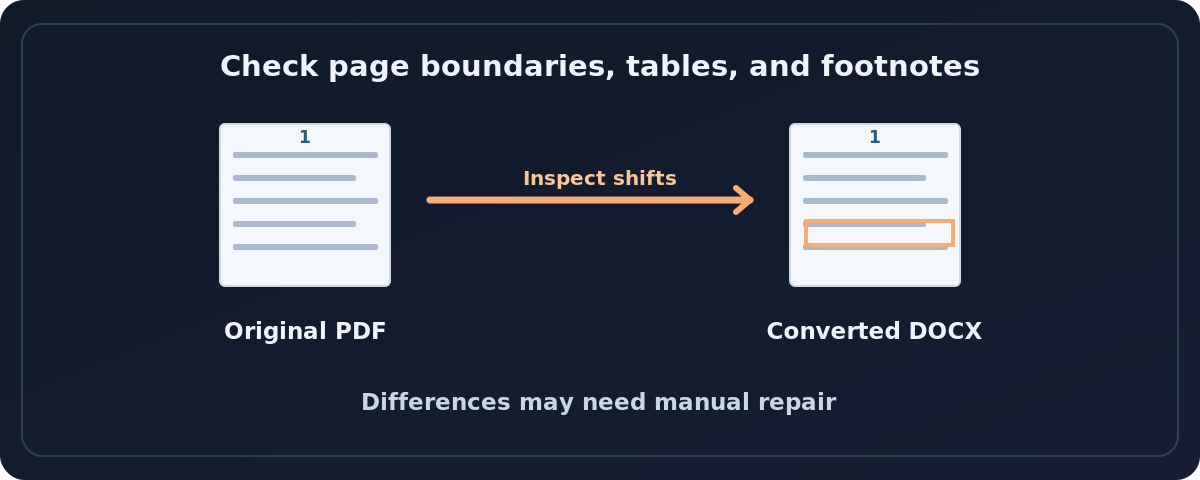
Adobe’s menus and entitlements change between Acrobat desktop, web, mobile and subscription plans. If Convert or the DOCX option is unavailable, check the signed-in account’s plan and product version; do not purchase an add-on solely because a tutorial assumes it is included.
How to keep the layout as close as possible
Start with a text-native PDF if you can. A document exported from Word usually offers a better starting point than a flattened page image. After conversion, use the same page size (for example, A4 versus US Letter), page orientation and margins as the source. Inspect any substituted fonts: one missing font can shift line endings across several pages. Avoid repeatedly converting the file back and forth between formats, as each round can introduce further changes.
Check complex structures individually. Tables may become separate text boxes or misaligned rows; rebuild the Word table if editing it matters. Multi-column magazines and brochures can lose their reading order. Footnotes may move into body text. Form fields, comments, bookmarks, media and tracked changes should not be assumed to survive as working Word features. When the PDF must be an exact visual record, attach the original alongside the editable copy.
What if the PDF is scanned and its text cannot be selected?
Try selecting a sentence in the PDF viewer. If the entire page selects as a single image, it is likely an image-only scan. The normal conversion may place the scan into Word as a picture rather than usable text. Use an OCR-capable application, such as the relevant Acrobat scanning/editing features included with your plan, and verify the text character by character where accuracy matters.
OCR is especially error-prone on small text, faint photocopies, handwriting, unusual fonts, rotated pages and complex tables. Check names, dates, punctuation, currency symbols and numerical columns. An OCR result is a new interpretation of the scan; never delete the original or treat the converted output as a legally faithful copy without review.
Troubleshooting common conversion failures
The formatting looks different
Compare document page size, fonts, margins, column breaks and the spacing after headings. Look first for a missing font or a Word object that moved. Reformat sections rather than promising one universal layout-fix button.
All the text is one picture
The source may be a scan or heavily graphic PDF. Use OCR and proofread, or ask for the original editable source. Simply renaming the file from .pdf to .docx will not convert it.
Tables turn into scattered text
The PDF may not encode actual table cells. Rebuild the affected table in Word or copy the original table from its editable source if available. Check each numeric cell manually.
A password or restriction blocks the file
Ask the document owner for an authorized unlocked version or the required password. Do not bypass document security or upload protected files to random conversion services.
The result is too large or has unexpected page breaks
Try saving a new DOCX, inspect embedded images, and correct page breaks in Word. If the document is primarily graphics, consider editing it in its native design application rather than using Word.
Final quality checklist
Compare total pages, first and last paragraphs, headers and footers, tables, captions, footnotes, links, special characters and page numbering. Search for a distinctive phrase from the middle of the PDF in the converted DOCX. If you need an editable contract, obtain its source file whenever possible; conversion cannot certify fidelity or legal validity.
Frequently asked questions
Can I convert a PDF to Word with no formatting changes?
Not reliably. Both the document structure and installed fonts can change the result; Word expressly warns that PDF-to-Word conversion may not match the original page for page.
Is Microsoft Word’s PDF conversion available in the browser?
This guide’s File → Open method is for the Word desktop application. Word for the web has different capabilities and interface paths; do not assume the desktop sequence appears in your browser.
Will a scanned PDF become editable?
Possibly after OCR, but recognition accuracy and layout quality vary. A photograph-like page may otherwise be inserted into Word as an image.
Does changing a file extension from PDF to DOCX work?
No. The data inside the file must actually be converted by a compatible application.
Sources and further reading
- Microsoft Support: Opening PDFs in Word (checked 2026-10-27).
- Microsoft Support: Edit a PDF (checked 2026-10-27).
- Adobe Help: Convert PDFs to Word formats (checked 2026-10-27).
- Adobe Help: Edit scanned PDFs in Acrobat (checked 2026-10-27).
- Adobe Acrobat: Acrobat plans and pricing (business comparison) (checked 2026-10-27).
Use the checklists as you go, and confirm the result before moving on to a more involved repair.