How to Add Page Numbers to a PDF
In Adobe Acrobat desktop, open the PDF, choose Edit → Header and footer → Add, set Page Number and Date Format, click the footer or header position, choose Insert Page Number, preview and save a copy.
Quick answer: In Adobe Acrobat desktop, open the PDF, choose Edit → Header and footer → Add, set Page Number and Date Format, click the footer or header position, choose Insert Page Number, preview and save a copy. In Acrobat on the web, use Edit → Number pages and choose the page range and position before saving.
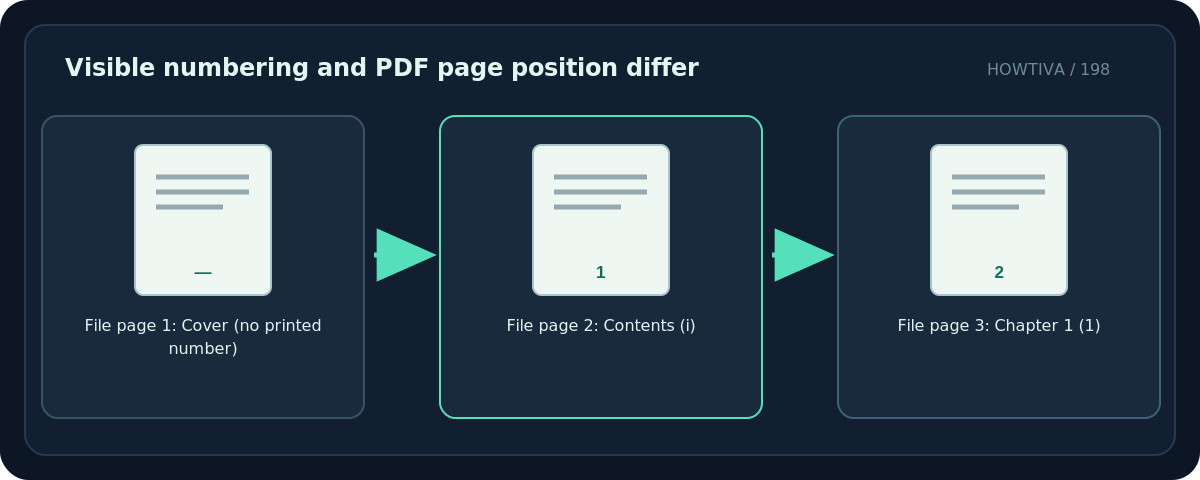
A printed page number is content on the page. It is not the same thing as the page number shown in a PDF viewer’s navigation bar. For a report with an unnumbered cover or Roman-numeral introduction, decide exactly where printed numbering begins before changing the file.
Prepare the PDF and number scheme
- Make a copy of the source PDF, especially when it is a contract or an archived record.
- Review existing footers. If numbers already appear on the pages, adding another set can produce duplicates.
- Decide between bottom center, bottom right, top right or another margin position.
- Decide whether the cover or table of contents should be excluded, and whether the body should start at 1.
- Check that the intended header or footer zone is clear of signatures, QR codes, table text and other content.
Method 1: Add page numbers in Acrobat desktop
- Open the PDF in an Acrobat edition with PDF editing and header/footer controls.
- Choose Edit → Header and footer → Add.
- Select Page Number and Date Format. Choose the format and starting number appropriate to the document, then confirm.
- Click the desired header or footer field (for example, bottom center) and select Insert Page Number.
- Set font, size, margins and color. Use the preview to ensure the number does not overlap page content.
- Set any offered page-range controls to match your plan. Preview the cover, first numbered page, a middle page and the last page.
- Choose OK, save a new file, reopen it and confirm the numbering sequence.
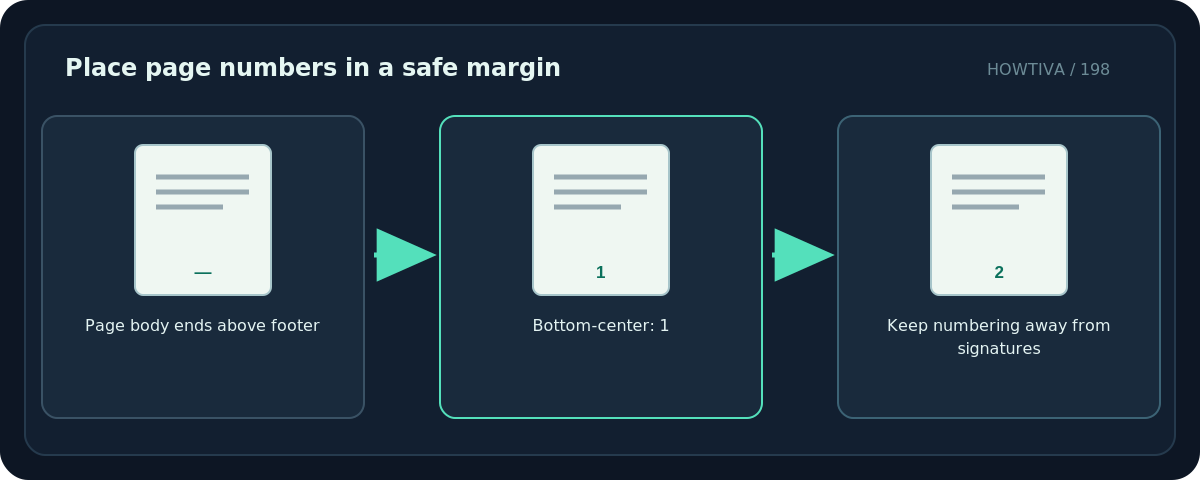
Adobe documents page-number insertion within its header/footer feature. The position is adjustable; if a document already contains a header or footer, Acrobat may prompt whether to replace or add to it. Read that prompt carefully instead of silently stacking two sets of numbers.
Method 2: Number pages with Acrobat on the web
- Open Acrobat on the web and sign in if required.
- On its home page, choose Edit → Number pages.
- Select the PDF file. Be aware that this route uploads the document to Adobe cloud services; use local software instead if company policy or confidentiality prevents upload.
- Set the Position on page and Page range. Open More for available font and numbering options.
- Preview and select Save. Adobe says this workflow automatically saves the resulting PDF to Adobe cloud storage.
- Download or otherwise obtain the resulting PDF, then inspect the beginning and end to confirm the visible numbers.
Online options and subscription limits may vary by account and region. Do not assume unrestricted use of paid tools simply because the feature appears in documentation.
What about a cover page that should not say “1”?
Separate two questions: Which pages receive labels? and What number appears on the first labeled page? Use page ranges or numbering settings where the application offers them. Preview the resulting sequence rather than assuming that skipping a cover automatically resets later numbers to 1.
For complex books with Roman-numeral front matter and Arabic-numeral chapters, editing the original Word or layout document and exporting a fresh PDF can offer more control than stamping numbers onto a finished PDF.
Troubleshooting mistakes that are easy to miss
Numbers overlap existing text. Increase the relevant margin or choose another placement. Check landscape pages separately; a position that works in portrait might conflict with a wide chart.
The first chapter starts at 3 instead of 1. Revisit the first numbered page, page range and starting-number settings. These settings are related but not interchangeable.
The PDF already has numbers. Remove or change its existing footer where safe rather than placing a second label over it. Adobe provides a separate header/footer removal command.
A PDF viewer shows page 8, but the printed footer reads page 6. That can be valid if the cover and front matter are counted differently. Document the scheme for recipients if the discrepancy could confuse references.
The PDF is digitally signed. Adding a footer changes the file and may invalidate signatures. Do not edit a signed final document without permission and a new signing plan.
Final quality checklist
Scroll every page for missing or duplicated numbers, and inspect portrait/landscape transitions, the final page, cover pages and blank pages. A visually correct number sequence matters more than what the edit dialog initially showed.
Frequently asked questions
Can I add page numbers without editing the original Word file?
Yes. An editor that supports headers and footers can stamp visible numbers onto the PDF.
Are page numbers the same as PDF page labels?
No. Page labels in a navigation interface and numbers drawn on the pages can differ.
Can I add numbers to a confidential PDF online?
Only if its sensitivity and your organization’s rules permit uploading it to that service. A locally processed method may be preferable.
Sources & Further Reading
- Adobe — Add page numbers to PDFs (desktop) — Header/Footer, page number insertion, starting number and preview.
- Adobe — Add headers and footers to PDFs — Margins and positioning; saved settings.
- Adobe — Number pages in Acrobat on the web — Acrobat web upload, range, position, cloud storage.
Use the checklists as you go, and confirm the result before moving on to a more involved repair.