How to Blur Private Details in a Screenshot
If you need to share a screenshot without revealing a name, email address or account number, remove or replace the sensitive pixels in a flattened copy.
Quick answer: If you need to share a screenshot without revealing a name, email address or account number, remove or replace the sensitive pixels in a flattened copy. On supported Windows versions, Snipping Tool’s Text actions → Quick redact can automatically target recognized email addresses and phone numbers. For anything else, crop it out completely where possible or apply a fully opaque block in an editor, export as a new flat PNG or JPEG, reopen it, and inspect the result. Visual blur alone is not a reliable confidentiality control.
A screenshot is easy to forward, copy and zoom. Small identifiers can appear in title bars, browser tabs, notification previews, profile photos, filenames and the document behind the active window. A tasteful blur may be appropriate to de-emphasize a background; a permanent removal strategy is needed before sending a screenshot that includes actual secrets, medical details, personal identities or access tokens.
Choose removal over cosmetic blur for confidential details
- Can you recapture without the sensitive region? Close or minimize the private window and take a fresh screenshot. That is usually the simplest approach.
- Can the entire region be cropped away? Crop it out and verify the saved copy. The removed outer pixels should not appear in the exported flat image.
- Does the sensitive item sit in the middle? Apply a completely opaque replacement block in an image editor and export to a non-layered image.
- Is it an email or phone number? A supported Snipping Tool version may offer automated text redaction, but verify it detects every instance.
- Is it an API key, password, address or personal name? Do not assume automated Quick redact recognizes these. Manually remove them and validate the output.
Method 1: Use Snipping Tool’s available text redaction
- Open the screenshot in Snipping Tool on a Windows installation that provides Text actions.
- Select Text actions. Microsoft’s documentation describes local on-device text recognition and a Quick redact option for email addresses and phone numbers.
- Apply Quick redact only after reviewing the recognized text. Redaction availability can vary with Snipping Tool release and installed features.
- Visually inspect every region: an address might appear in a filename, the body of a message and an account menu. Recognition may miss unusual fonts, rotated words or low-contrast text.
- Save the result as a new image. Close the editing app and reopen the actual file you will share.
- Attempt to read the removed details in the exported image. If you still see them, redo the edit from an unshared copy before sending.
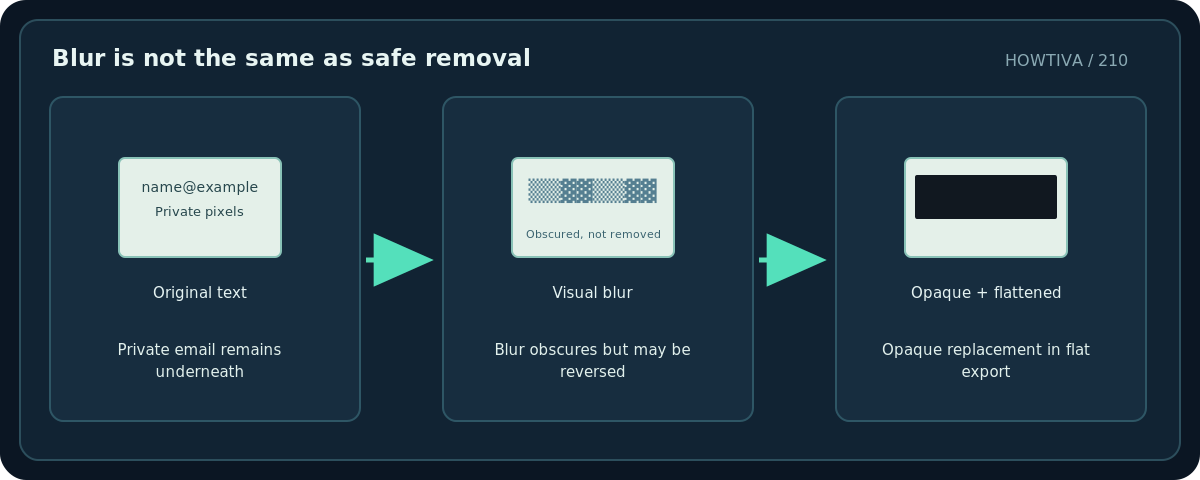
Do not confuse Windows Photos’ Background Blur with redaction. Microsoft documents it as an aesthetic background effect. It is not a verified mechanism for securely eliminating text. Likewise, a semi-transparent marker, pixelation or weak blur can leave enough visual information for a reader—or analysis software—to infer what was beneath.
Method 2: Cover remaining details with an opaque block
- Duplicate the screenshot and open that copy in a trusted offline raster editor that supports solid filled rectangles.
- Select a solid fill with 100% opacity, not merely an outlined rectangle or a transparent highlighter.
- Draw a block wide enough to cover the entire identifier, including trailing digits and spaces. Check multiple lines if the text wraps.
- If the application uses layers, flatten the image or export a standard raster PNG/JPEG that contains only the final visible pixels. Do not share the editable project file with the original layer still underneath.
- Reopen the exported image in a separate viewer and verify that the block is opaque at full zoom. If you can undo it or toggle a hidden layer in the shared file, you shared the wrong format.
- Scan for other identifiers in the remaining scene and consider metadata if the stakes are high.
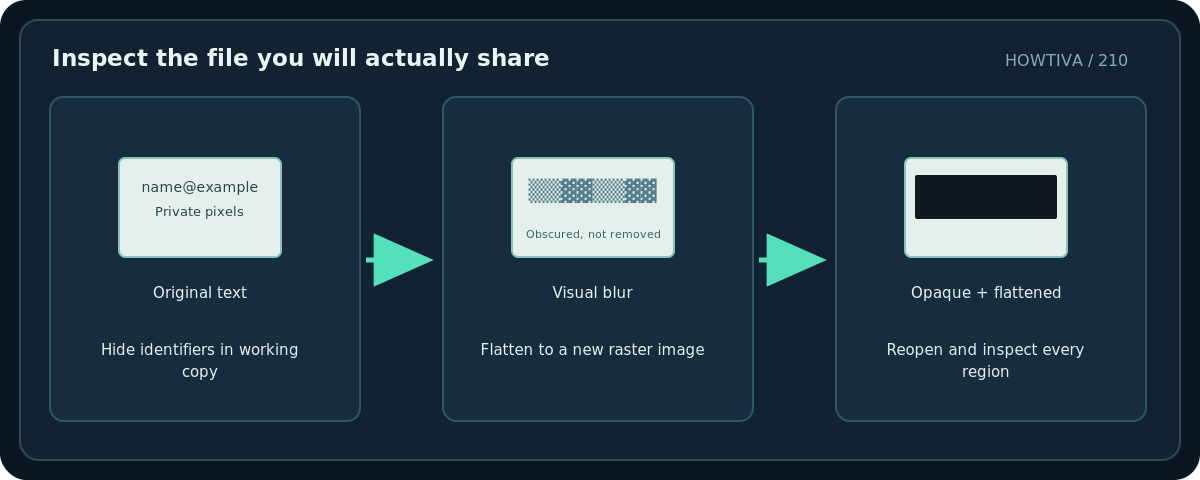
The same warning applies to cropped screenshots saved in a layered design document. The visible canvas might look safe while the underlying original image remains recoverable inside the editable file. A fresh, flattened raster export removes that layer-level ambiguity; validate the particular export rather than claiming every image tool behaves identically.
Troubleshooting
Quick redact is missing. Your Snipping Tool version may not provide that feature. Use manual opaque replacement or recapture without private content; do not invent menu locations.
The blur still reveals letters when zoomed. Replace blur with complete opaque covering or physically crop the region away, and export again. Never rely on a weak blur for authentication secrets.
The marked-up screenshot appears safe, but a recipient can move the box. You probably shared an editable composition with separate layers or objects. Export a flattened PNG/JPEG and inspect the exact shared file.
An address appears in the browser tab or behind a modal. Review the entire screenshot, not just the intended message window. Many leaks are peripheral.
Metadata might identify a person. Export settings vary by editor. Check whether metadata or hidden content is included; for sensitive or legally regulated records, use an organization-approved redaction process rather than a casual screenshot edit.
Share-safe checklist
Inspect all corners, tabs, title bars, filenames, notifications, URL paths, QR codes, and avatars. Zoom to 100% and verify blocked text is completely gone in the exported image. Confirm that the attachment selected for the email or help ticket is the flattened sanitized copy. For confidential records, ask your organization’s security team which tools and retention rules are approved.
Frequently asked questions
Is blurred text impossible to recover?
No. Blur and pixelation do not guarantee irreversible removal. Replace or remove the original pixels for a better confidentiality outcome.
Does Quick redact hide every private field?
No. Microsoft documents email and phone-number detection; other sensitive strings require manual review.
Is an opaque black rectangle always safe?
Not if it sits on a movable layer in the file you share. Export a flat image and inspect that exact file before sending.
Sources & Further Reading
- Microsoft — Use Snipping Tool to capture screenshots — Snipping Tool Text actions and Quick redact email addresses or phone numbers.
- Microsoft — Edit photos and videos in Windows — Photos background blur is background editing, not guaranteed security redaction.
Use the checklists as you go, and confirm the result before moving on to a more involved repair.