How to Add Page Numbers in Microsoft Word
In Word, select Insert → Page Number, choose a location such as the top or bottom of the page, and select a style. To leave a cover page unnumbered, edit the header or footer and enable Different First Page.
Quick answer: In Word, select Insert → Page Number, choose a location such as the top or bottom of the page, and select a style. To leave a cover page unnumbered, edit the header or footer and enable Different First Page. If you want the second physical page to display 1, go to the page-number formatting settings and set Start at: 0, as Microsoft documents for that scenario. A document with independent chapters may require section breaks instead.
Visible page numbers and the logical page count are related but not identical. Page one may be a cover with no printed number; the following page may show 2 or 1 depending on the requested convention. For longer reports, the introduction may use Roman numerals, while the body restarts at 1. Make that decision before adjusting headers and footers, because applying one setting indiscriminately to all sections can produce repeated or missing numbers.
Method 1: Add numbers to every page
- Open the saved Word document and select Insert on the ribbon.
- Choose Page Number. Pick a location—for example, Bottom of Page—and a suitable alignment and style.
- Double-click inside the header or footer if you need to reposition the field or add a short label like
Pagebefore it. - Exit the header/footer using the dedicated close control or press Escape, according to the Word version.
- Scroll from the first through the last page. Verify numbers rise by one and do not overlap any footer text, logo or tables.
A page-number field is automatically calculated. Typing literal numbers into each footer is not a substitute: inserted pages will not update those typed values. Avoid building page numbers as part of a scanned image or a manually drawn text box if the goal is a durable, editable report.
Method 2: Hide a number on the cover page
- Double-click the header/footer area of the cover page.
- Enable Different First Page on the Header & Footer ribbon. This gives the first page a separate header or footer.
- Remove the page-number field from that first-page area if it remains present. Keep numbering on later pages intact.
- Decide what the next page should display. If you want page two to read 2, leave the default numbering sequence. If you want page two to read 1, select Page Number → Format Page Numbers and set Start at: 0, in the scenario Microsoft documents.
- Close the header/footer and verify the visible numbers on pages one, two and three.
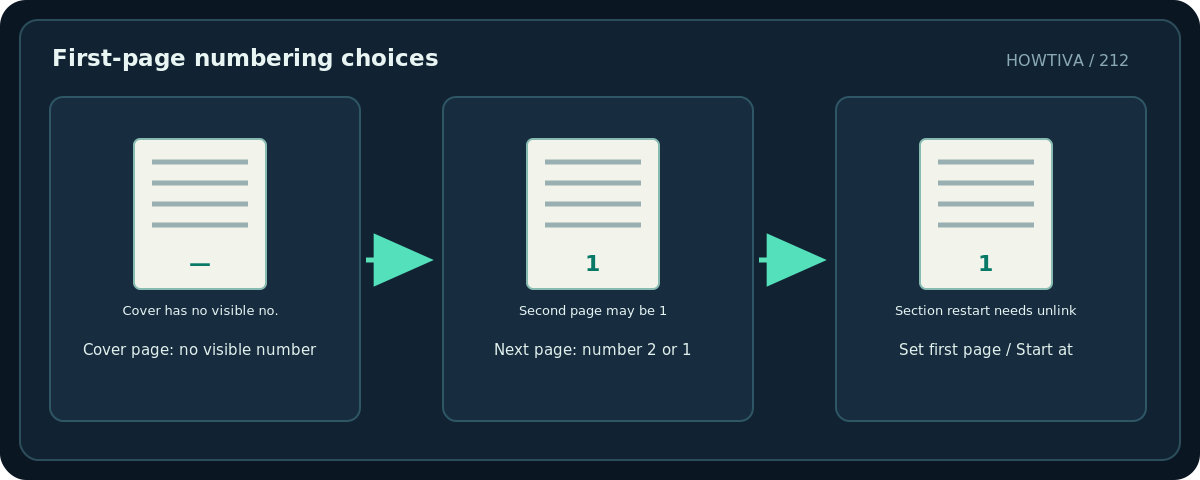
Why Start at 0? Hiding the first number does not remove that page from the internal count. To make the second physical page display 1 while the count includes the cover, adjust the start value. This behavior is easy to misread when switching between different templates, so always check the actual output.
Method 3: Restart numbering for a new section
- Place the cursor just before the first page of the main body. Insert an appropriate section break using Word’s Layout → Breaks options, not an ordinary page break.
- Open the header or footer in the new section and identify whether Link to Previous is enabled.
- Turn off Link to Previous in that new section if the header/footer should differ from the prior section. Check header and footer links separately if necessary.
- Add a page-number field in the new section, open the formatting dialog and choose the desired restart value—commonly Start at 1.
- Recheck the last page of the preceding section and the first two pages of the new section. Correct unexpected inherited fields before continuing.
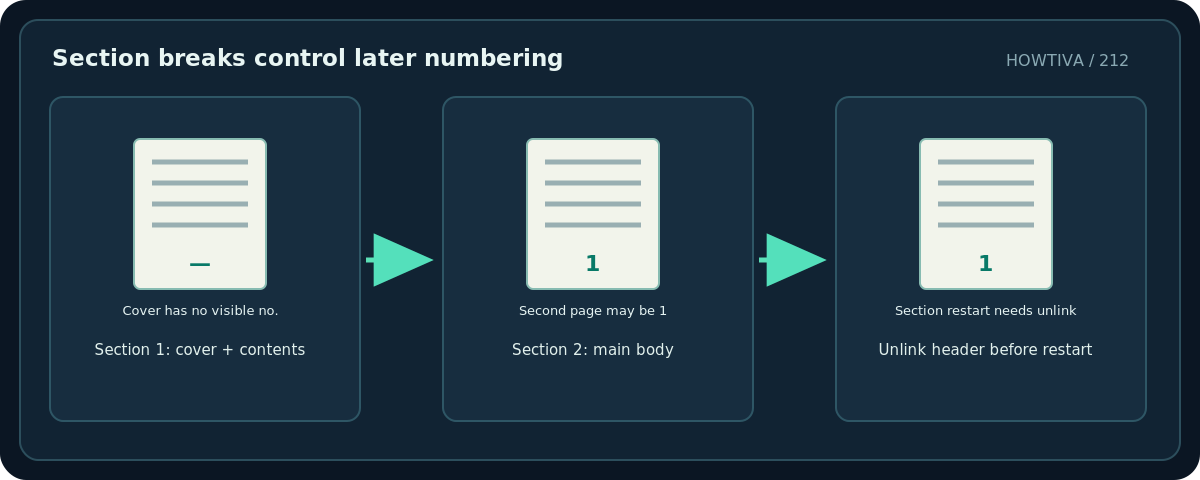
Section breaks affect more than numbering. They can influence margins, orientation, headers and footers. Work in a duplicate and show formatting marks if you are about to remove or replace one. A later section inadvertently linked to its predecessor is a common reason a footer change spreads across the document.
Troubleshooting
Every page shows the same typed number. Replace manually entered digits with Word’s Page Number field.
My cover page still shows a number. Confirm that you are editing the cover’s own first-page header/footer and that Different First Page is enabled in the correct section.
Numbering restarts unexpectedly. Inspect section breaks and page-number format settings. A restart may have been applied to a new section or inherited from a template.
Only even or odd pages are missing numbers. Check whether Different Odd & Even Pages has been enabled. It creates separate header/footer areas that may need their own page-number fields.
The footer overlaps the document body. Verify footer spacing and margins. Changing font size alone may hide a layout problem; export to PDF and inspect page edges.
Final check before sharing
Use Print Preview or a PDF export to inspect numbers on the cover, first body page, middle page and final page. If your report has a table of contents, update that table after the numbering is settled. Numbering settings differ in detail between Word desktop, Mac and web versions; for complicated section layouts, use a supported desktop Word editor.
Frequently asked questions
Can page two display 1?
Yes, for a standard cover-page scenario; Microsoft’s instructions include setting the page-number start value to 0.
Is a page break enough to restart numbering?
Usually not. Independent numbering generally requires a section and the right header/footer settings.
Can I number only one section?
Yes, with appropriate section breaks and unlinked header/footer areas. Verify both the field placement and numbering format.
Sources & Further Reading
- Microsoft — Insert page numbers in Word — Insert > Page Number; Different First Page; Start at zero for second page 1.
- Microsoft — Start page numbering later in your document — First-page suppression, second-page and section-numbering scenarios.
Use the checklists as you go, and confirm the result before moving on to a more involved repair.