How to Share a Google Doc with View-Only Access
Open the Google Doc and click Share. Add the intended person's email address, change the role to Viewer, and click Send.
Quick answer: Open the Google Doc and click Share. Add the intended person’s email address, change the role to Viewer, and click Send. For a link, select General access → Restricted for private sharing, or deliberately use Anyone with the link → Viewer if a public-link audience is appropriate. Viewer is not the same as secret or copy-proof.
Work from a document you own or are authorized to share. The web interface is the clearest place to check both named recipients and general access. School and workplace accounts may prohibit outside sharing or expose additional controls.
Method 1: Share privately with specific people
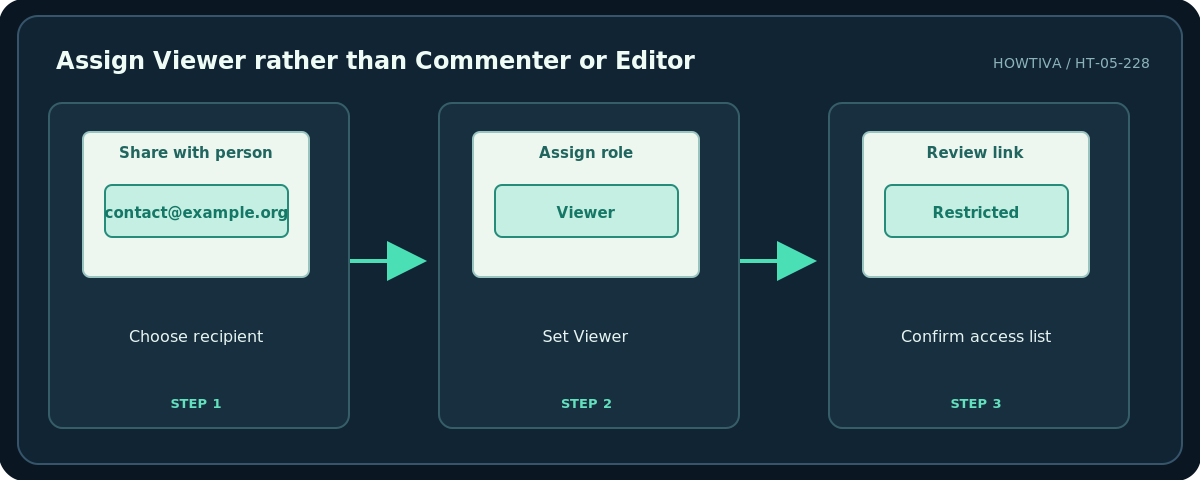
- Open the document in Google Docs. Click the blue Share button near the top right.
- Under people or groups, enter the intended recipient’s full email address. Check spelling before proceeding; autocomplete suggestions can select the wrong contact.
- Set the person’s role to Viewer. Do not use Editor or Commenter if you only intend them to read the file.
- Choose whether to notify the recipient, and optionally include a short explanation of what they should review.
- Click Send or Share, depending on the current dialog. Reopen Share and confirm their name and role appear as expected.
- Under General access, keep the document Restricted unless there is an explicit reason to allow anyone with the link.
Method 2: Share a view-only link
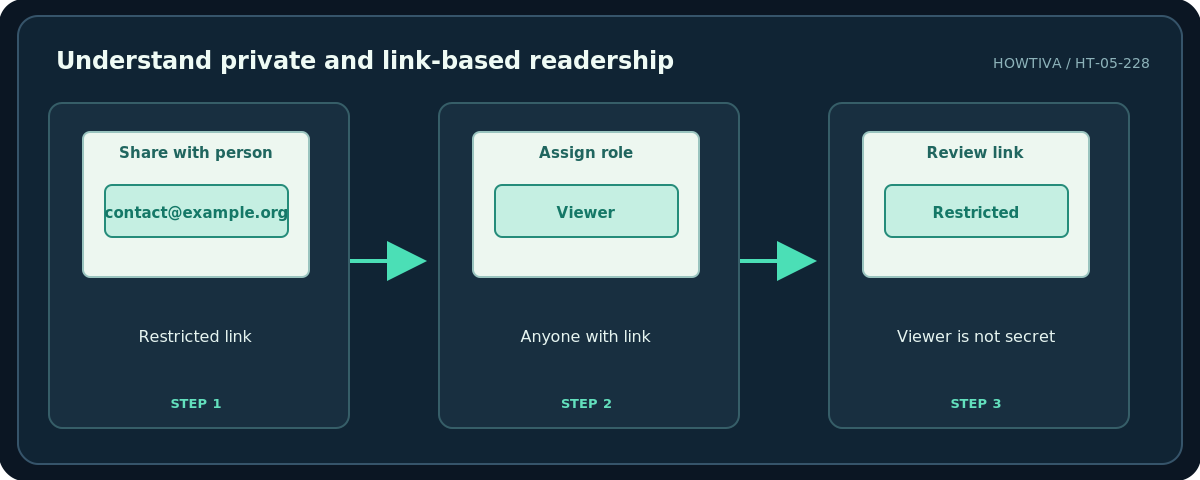
- Click Share and inspect General access. Restricted only allows people already granted access.
- If this is a document intended for broad distribution, select Anyone with the link if the account allows it. Set the general-access role to Viewer, not Editor.
- Click Copy link and Done. Distribute the link only to the audience you chose. Anyone who possesses an open link may forward it, so do not use an open-link setting for private client records.
- Check the link from an appropriate viewer session if practical. A document appearing readable in the owner’s browser does not prove that another person can open it.
What Viewer does and does not do
A Viewer normally cannot directly change the original document. A Commenter can add comments and suggestions where supported; an Editor can change the content and may share it further unless restricted. Depending on the file and its owner settings, viewers may still be able to download, print, copy content, or capture the screen. Restrictions on copying are not DRM and cannot undo copies already distributed. A viewer role also does not block access that a person already has through a shared parent folder.
If the document is in a shared folder that grants Editor permission, you may need to adjust the parent folder access, move the Doc to a more private folder, or use a dedicated limited-access folder. Google Drive manages inherited rights, so a file-level Viewer selection cannot be assumed to override Editor access inherited from the parent.
Change the permission later
Reopen Share, find the named person, and change their role or remove access if you control the item. For link access, return General access to Restricted. Check organization-wide sharing restrictions and any groups listed in the dialog. If a document has also been published to the web, that is a separate publishing setting and needs separate review.
Troubleshooting
The recipient is asked to request access: Their signed-in account may differ from the invited address, or General access is Restricted. They can edit despite Viewer selection: Inspect inherited folder access, another group membership, or owner/editor permissions. Anyone can open the document: The link may be set to Anyone with the link; change it to Restricted. Share options are disabled: You may lack permission or an administrator may block external sharing.
Frequently asked questions
Does Viewer prevent copying text?
Not reliably. The Viewer role primarily limits editing of the original document.
Can I share without emailing a notification?
If the option is present, you may uncheck notification, but access still changes. Send a separate message only if appropriate.
Can I share read-only with multiple people?
Yes. Check each recipient or group role instead of assuming the last setting applies to everyone.
Sources & Further Reading
- Google Drive Help — Share and manage access to files and folders — Viewer/Commenter/Editor roles, named sharing, general access and inheritance.
- Google Docs Editors Help — Stop, limit, or change sharing — Changing access and link restriction.
Use the checklists as you go, and confirm the result before moving on to a more involved repair.