How to Hide Photos on iPhone
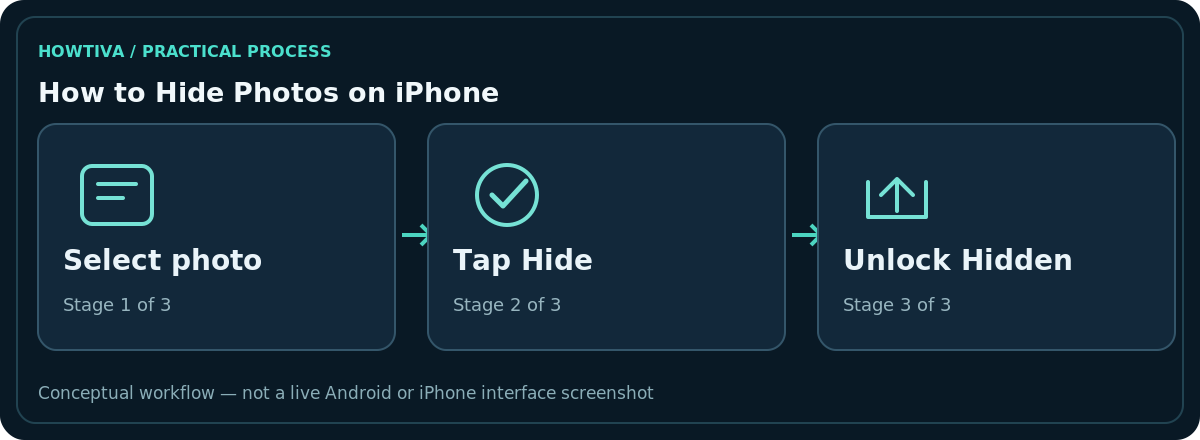
Open a photo in Photos, tap More (...) > Hide, and confirm. To find it again, open Photos > Collections > Utilities > Hidden, choose View Album, and unlock with Face ID, Touch ID or your passcode.
Quick answer: Open a photo in Photos, tap More (…) > Hide, and confirm. To find it again, open Photos > Collections > Utilities > Hidden, choose View Album, and unlock with Face ID, Touch ID or your passcode. In current iOS, the Hidden collection is locked by default. Hiding does not delete the photo or guarantee protection from someone who knows your device passcode.
These instructions match the iOS 27 guide; the layout and privacy settings vary on older releases. Consider who can unlock your phone before treating any hidden image as private.
Hide one photo or several
- Open Photos, find the photo or video, and display it.
- Tap the More (…) menu and choose Hide.
- Confirm the action. The item moves out of your normal photo-library views into Hidden.
- For multiple items, tap Select, choose the photos or videos, then use More > Hide.
Hidden is designed to reduce visibility in ordinary Photos browsing. It is not a secure-sharing tool or an encrypted export. Keep sensitive copies elsewhere under an appropriate access policy if your security needs exceed normal device privacy controls.
Open and unhide an item
- In Photos, go to Collections and locate Hidden under Utilities.
- Tap it, choose View Album, and authenticate when prompted.
- Open the desired item, select More > Unhide and check that it reappears in your regular library.
If the Hidden collection itself is not visible, it may be disabled in Photos settings. Open Settings > Apps > Photos and turn Show Hidden Album on temporarily. You can turn it off again afterward to remove the Hidden entry from view.
Decide whether to show or lock the collection
Apple lets you hide the Hidden collection from the Photos browsing interface. The current setting is Settings > Apps > Photos > Show Hidden Album. Separately, the collection is locked by default and uses supported device authentication. Avoid disabling Use Face ID, Use Touch ID or Use Passcode if you are trying to keep the album private.
If another person knows your phone passcode, they may be able to authenticate. For genuinely sensitive material, revisit shared devices, backups, logged-in accounts and the risk of third-party copies rather than relying only on the label ‘Hidden’.
Important iCloud and copy limitations
Apple states that when iCloud Photos is on, hiding a photo on one device also hides it on your other devices signed in to the same account. This is a synchronised organisational change, not a separate private backup. Pictures previously sent to other people, duplicated into another service or exported to files are not automatically recalled.
Do not confuse Hide with Delete. Deleted items generally go to Recently Deleted for 30 days and can later be erased permanently. Hidden items remain in your library, subject to the account’s sync and storage rules.
Troubleshooting
The photo seems missing: Check Hidden, Recently Deleted and the correct Apple Account. No Hide option: Confirm you are viewing an item in the Photos library and not a thumbnail within another application. Face ID fails: Use permitted fallback authentication and verify Face ID or Touch ID setup. Hidden album still appears: Turn off Show Hidden Album in Settings; remember this hides the collection’s entry, not all traces of previously shared content.
Check the privacy boundary realistically
A hidden album helps when casually scrolling through Photos, but it cannot undo a photo already attached to an email, shared through Messages or saved into a third-party backup. Even within your account, a computer signed in to iCloud Photos may display synchronised library content according to the relevant version and sign-in state. Review all places where a sensitive image was duplicated or exported.
Using a strong device passcode and controlling who knows it is as important as the Hidden switch. If someone else must routinely unlock your phone, hiding photos may not meet your privacy needs. Do not use screenshots of banking records, identity documents or personal conversations as your only archival copy; a well-controlled encrypted storage or document workflow may be more appropriate.
Know the difference between hiding and recovering
Hide retains the original in your library but moves it into the protected Hidden collection. Delete begins a separate recovery countdown in Recently Deleted. Show Hidden Album off removes the collection from the normal Photos interface; it does not automatically erase the items within it. When trying to find a ‘lost’ image, check those three states separately before assuming that iCloud or the device has failed.
Frequently asked questions
Can someone with my passcode open Hidden?
Device passcode authentication can unlock protected collections. Do not assume that Hidden protects against a person who knows it.
Are hidden photos removed from iCloud Photos?
No. Hiding syncs as a hide action when iCloud Photos is enabled; it is not a request to delete the cloud original.
Will the camera still show the hidden photo in other apps?
The Hidden collection removes items from normal Photos views, but previously exported or shared copies can remain elsewhere.
How do I reverse the action?
Open Hidden, authenticate and choose More > Unhide on the selected item.
Sources & Further Reading
- Delete or hide photos and videos on iPhone — Apple iPhone User Guide; checked 2026-10-27.
- If you are missing photos or videos in Photos — Apple Support; checked 2026-10-27.
Use the checklists as you go, and confirm the result before moving on to a more involved repair.