How to Back Up Your Two-Factor Authentication Codes
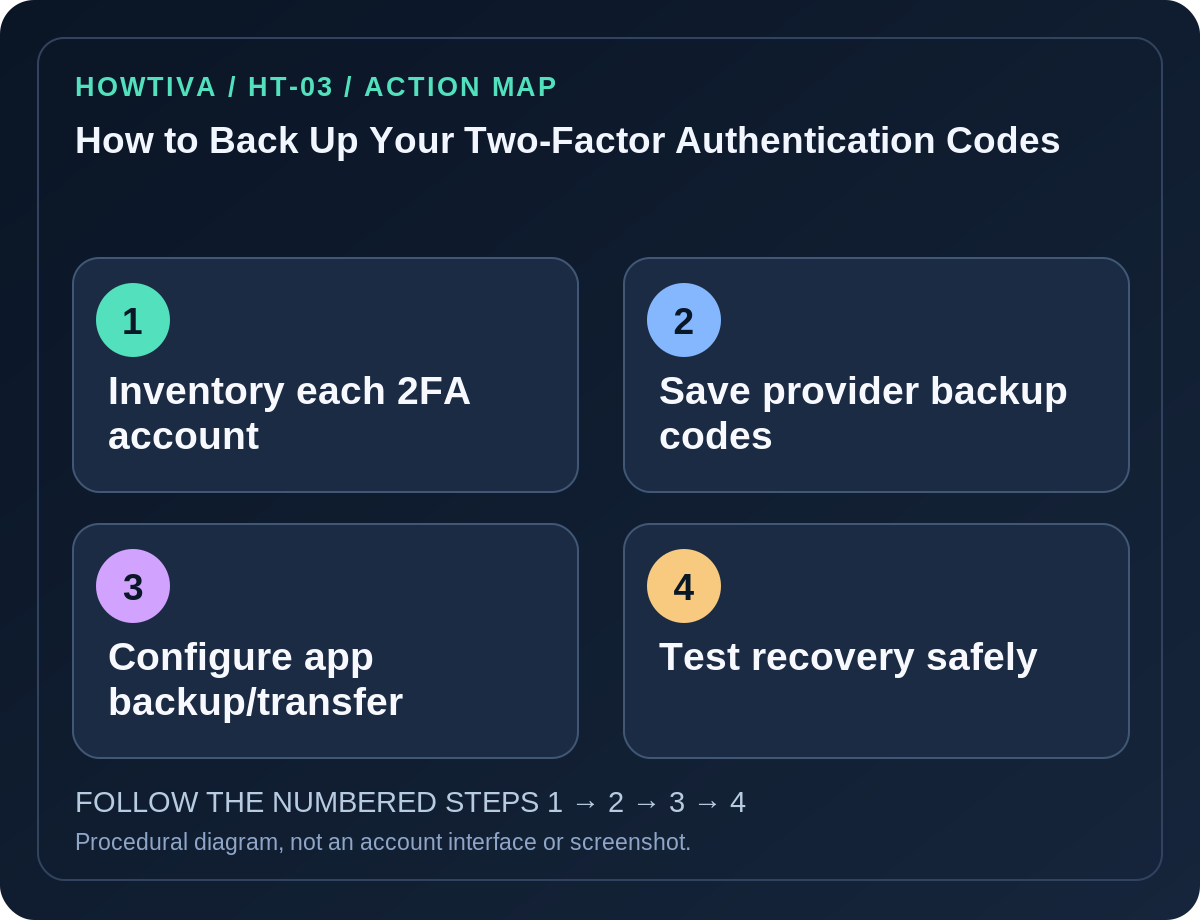
Back up two-factor authentication before changing phones. For each important account, save its provider-issued backup or recovery codes in a secure offline location or an appropriately protected vault; confirm you have another working sign-in method.
Quick answer: Back up two-factor authentication before changing phones. For each important account, save its provider-issued backup or recovery codes in a secure offline location or an appropriately protected vault; confirm you have another working sign-in method. If your authenticator app supports trusted synchronization, backup or official transfer, configure it according to that app’s current instructions. Do not assume an ordinary phone backup contains every authenticator credential. Never share current one-time codes or QR setup secrets with support staff or anyone else.
There are three different things often called “2FA codes”: short time-based codes that regenerate inside an authenticator app, single-use emergency backup codes issued by the website, and a recovery key that may be used for a special account process. They are not interchangeable. Handle setup QR codes and export QR codes as secrets because they can allow another device to generate future time-based codes.
Start with a private recovery inventory
- List accounts that would be difficult to lose: primary email, Apple or Google account, Microsoft account, password manager, banking, social networks and work sign-ins. Do not write their actual security codes in the inventory.
- For each, identify the second factor in use: authenticator, passkey or security key, push approval, SMS, provider backup codes or managed work MFA.
- Verify at least one independent recovery method exists for especially important accounts. Having a backup only on the same phone that could be stolen defeats the purpose.
- Decide whether a secure printed copy, encrypted password-manager item or provider-approved backup is suitable. Recovery material must remain inaccessible to casual visitors or compromised devices.
- Keep the old authenticator device and working session available until you have confirmed the new configuration.
Google Account: generate and store backup codes
- While signed in on a trusted device, open your Google Account → Security & sign-in.
- Under How you sign in to Google, choose 2-Step Verification, then find Backup codes. You may be asked to sign in again.
- Choose the option to Get backup codes, then download or print them if appropriate. Google’s backup codes are 8-digit, single-use codes; mark a code used after redeeming it.
- Store the set securely apart from your authenticator phone. Avoid placing plain-text backups on a shared computer, in unprotected email or in a public cloud folder.
- If backup codes were exposed, use Google’s Refresh option to create a new set and invalidate the old set. Google’s Advanced Protection Program can restrict availability of downloadable backup codes.
Google Authenticator: sync or transfer deliberately
Google Authenticator can synchronize codes through the signed-in Google Account, depending on its current account settings. Check which Google Account holds the synced codes and protect that account with strong independent recovery. If you prefer not to sync, its supported Transfer accounts procedure uses an export QR code on the old phone and import scan on the new phone. Keep that QR code private; do not screenshot it for cloud sharing. Before deleting the old app, check that at least one account’s sign-in process works with the new setup and that other recovery methods remain available.
If an Authenticator item is synchronized and you delete it in the app, Google’s guidance says the deletion can affect all devices sharing that sync. Deleting a code is not an acceptable way to test recovery. Never remove the old authenticator until you know how to recreate each site’s factor.
Microsoft Authenticator: understand what can and cannot restore
On Android, Microsoft’s current guidance describes Authenticator → Settings → Cloud Backup and choosing a personal Microsoft recovery account. On iOS, the backup and restore requirements use iCloud services; the current user interface and prerequisites should be read in Microsoft’s support page. Microsoft states that backup and restore work only within the same device type, not from iOS to Android or the reverse.
Importantly, Microsoft states that work or school account credentials are not restored from these backups; the account name may be restored but you must sign in and re-register that factor. Passwordless sign-in credentials can require separate setup too. Keep the previous phone and coordinate work-account changes with your IT administrator. A personal Microsoft account recovery code is a separate 25-digit feature, not the rotating code shown by Microsoft Authenticator.
Test without putting yourself at risk
- Confirm you can still access the primary email account and recovery methods.
- Verify the newly configured authenticator receives a valid request for a normal sign-in you initiated, without repeatedly locking accounts or consuming multiple emergency backup codes.
- When a provider offers an explicit verification or check feature, use it and monitor your existing session. For single-use backup codes, don’t waste one just to see if your printout looks correct; instead confirm the set is safely stored and distinguish used from unused.
- Only after testing and validating fallback methods should you consider retiring the old device. For managed accounts, follow IT procedures.
- Periodically revisit your backup inventory after changing phones, passwords or authentication methods.
Troubleshooting and safety limits
- You have no old phone: Use the website’s existing emergency backup codes, alternate factor or account recovery pathway. An authenticator reinstall alone cannot recreate an unsynced secret.
- Cloud restore shows only account names: Some services require re-registration, especially organization accounts. Do not assume the factor has been restored.
- Code says invalid: Confirm time settings, account selection and that the authentication entry belongs to the correct service. Avoid deleting factors prematurely.
- You lose the backup-code file: Generate a fresh set from a valid signed-in session if the provider supports it; the old set can be revoked upon replacement.
- A support agent asks for your 2FA codes or transfer QR: Refuse; use independently accessed official recovery services instead.
Frequently asked questions
Is a screenshot of the authenticator app a backup? No. Rotating digits expire; an export/setup QR may be sensitive enough to compromise your accounts.
Can one Google backup code unlock my Microsoft account? No. Emergency codes belong to the issuing provider.
Are cloud authenticator backups always portable between iPhone and Android? No. Microsoft Authenticator specifically documents same-device-type restoration restrictions.
Sources & Further Reading
- Sign in with backup codes — Google Account Help.
- Get verification codes with Google Authenticator — Google Account Help.
- Back up your accounts in Microsoft Authenticator — Microsoft Support.
- Restore one-time password codes in Microsoft Authenticator — Microsoft Support.
- How to get a Microsoft account recovery code — Microsoft Support.
Use the checklists as you go, and confirm the result before moving on to a more involved repair.