How to Create and Save Backup Codes Safely
Create backup and recovery codes only from official account settings, then store them securely away from the phone you may lose.
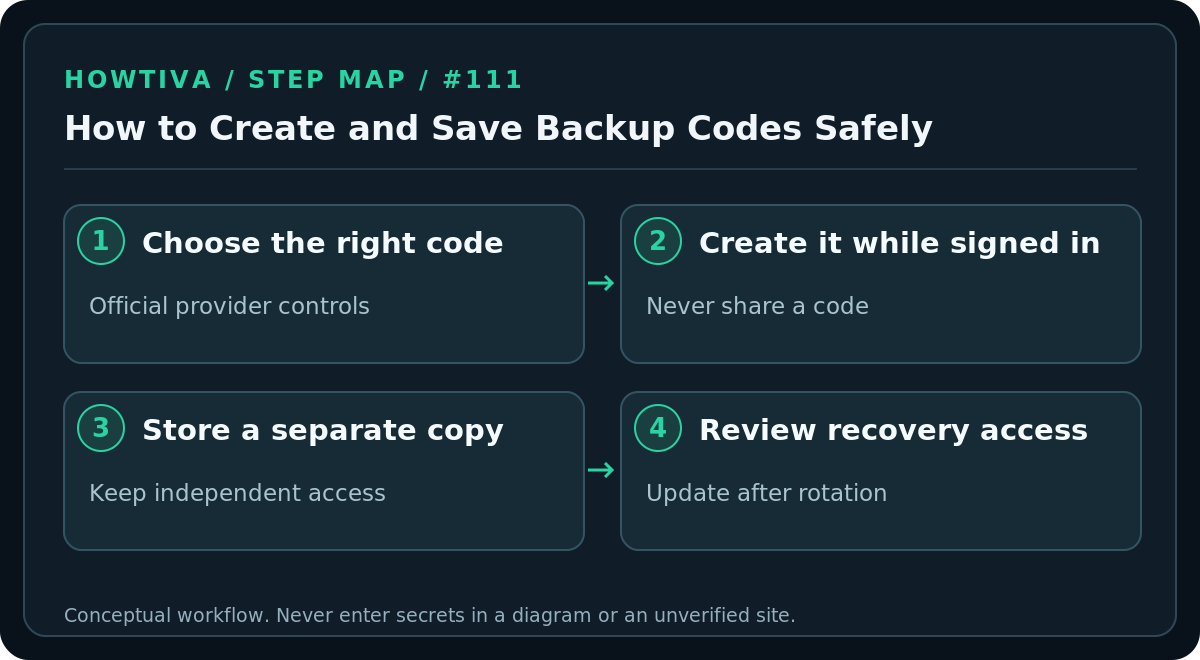
Quick answer: While you are signed in, open the official security settings for an account that supports backup or recovery codes, generate the offered code or code set, and save it offline or in another securely accessible place before you lose your phone. Never send a recovery code to anyone or store your only copy on the same phone you might lose. Google, Microsoft and Apple use different recovery mechanisms—follow the instructions for the particular account.
A backup code is an emergency credential, not a code to test on a random website. It may bypass a normal sign-in challenge or support account recovery, so protect it nearly as carefully as your password. This guide covers setting up and storing recovery material before an emergency; it cannot generate a code for an account you cannot access.
Create Google backup codes while you can sign in
- On a device you trust, navigate directly to myaccount.google.com, not to a link in a text message.
- Open Security & sign-in and choose 2-Step Verification under How you sign in to Google. Authenticate again if requested.
- Open Backup codes and choose Get backup codes or Continue when offered. Google’s backup codes require 2-Step Verification to be enabled.
- Print the set or download it and move it to your chosen secure storage. Google provides 10 eight-digit single-use codes. Do not put them into notes shared with others or attach them to an email.
- Put the paper in a locked place, or an encrypted vault accessible without the phone you are protecting. If you saved a temporary plaintext download, securely remove exposed copies, including an unprotected Downloads folder.
- Check that the chosen storage is genuinely accessible in an emergency, but do not spend a code merely to test it. Confirm that you can access the vault or physical envelope instead.
Each Google code works once. After use, mark that entry spent on your private offline copy. Generating a new set deactivates the previous set; update your stored copy immediately. If you use Google’s Advanced Protection Program, Google says you cannot download these backup codes. Use the recovery options actually available to your account.
Microsoft personal accounts use a different recovery code
For a personal Microsoft account, open the official Manage how I sign in security page (reachable through your Microsoft account security dashboard), find Recovery code, and select Generate a new code. Microsoft’s recovery code is 25 digits, not ten interchangeable one-time Google-style codes. Print it and place it somewhere safe and separate from the device used to sign in. Generating a new Microsoft recovery code invalidates the old one, and Microsoft says you cannot later retrieve the existing code; you can generate a replacement while signed in.
If you manage a work or school Microsoft account, your organization’s identity administrator may control available recovery methods. Do not assume the personal-account recovery page or code applies. Ask your IT administrator through an established support channel.
Apple recovery keys are optional and carry additional risk
Apple does not offer the same generic printable set of Google-style backup codes for an Apple Account. Instead, an Apple Account can use trusted devices, trusted phone numbers, a recovery contact and, optionally, an Apple recovery key. Apple’s optional key is 28 characters; enabling it switches off Apple’s standard account recovery process. If you lose account access and cannot supply the recovery key when required, you may be permanently locked out.
Do not enable an Apple recovery key solely because an article tells you to “get backup codes.” Read Apple’s recovery-key warning, decide whether your offline storage is robust enough, and keep access to your trusted phone number. On supported signed-in Apple devices, the recovery-key control is in Settings / System Settings → [your name] → Sign-In & Security → Recovery Key; follow the current on-screen confirmation sequence.
Where to store codes without creating a new weakness
A sealed printout in a secure home safe or bank safe-deposit box can survive losing a phone. An encrypted password manager can also work, provided you have a separate way to unlock it if your usual device is lost. For especially important accounts, consider two physically separate, controlled copies rather than a single unprotected photograph. Avoid cloud photo galleries, ordinary notes synchronized to shared devices, team chats, and visible screenshots.
Name the envelope or vault entry by service and creation date, not by spelling out a secret in the title. If you make a second copy, track when you replace the first: obsolete Google or Microsoft codes may look plausible but fail during a crisis. Never post actual codes in online support forums, send them to a caller, or upload them to a “verification” page.
Troubleshooting and realistic failure cases
- Google Backup codes is missing: First check whether 2-Step Verification is enabled and whether the account is enrolled in Advanced Protection. A managed work account can have settings controlled by an administrator.
- You downloaded codes but cannot find them: Google’s default filename can begin with
Backup-codes-; search only your own trusted device. If the file is gone but you are signed in, generate a new set rather than using a recovery-code generator found online. - A Google code is rejected: Ensure it is unused and belongs to the correct account. Get a fresh set from an authenticated session if possible; otherwise follow Google’s official account recovery flow.
- Your Microsoft code is lost: If you can still sign in, generate a replacement. If locked out, use the official sign-in helper; support cannot disclose an old code to you.
- Your Apple key is lost: If you remain signed in on a trusted device, follow Apple’s official replacement or removal instructions promptly. Do not assume Apple can bypass a lost key after standard account recovery is disabled.
What to check after saving the codes
Confirm the account has at least one usable sign-in method and that its recovery email or trusted phone number is current. Check your backup storage can be reached without the primary device. Review copies after you deliberately rotate codes, change devices or change who can access your storage. This is planning for recovery, not permission for anyone else to request your secrets.
FAQ
Should I put backup codes in my password manager? It can be reasonable if the vault is encrypted and you have an independent way to access it; a separate offline copy reduces the risk of simultaneous lockout.
Can I send a code to customer support? No. Enter secrets only in the legitimate service’s authenticated recovery or sign-in flow; a caller requesting them is a red flag.
Are backup codes the same as authenticator-app codes? No. An authenticator produces changing time-based codes; Google’s printed backup codes are pre-generated and single use. Other providers may use different schemes entirely.
Sources & Further Reading
- Google backup codes — 10 single-use eight-digit backup codes; new sets invalidate old sets; Advanced Protection exception.
- Microsoft recovery code — personal Microsoft 25-digit recovery code; replacement invalidates old; storage advice.
- Apple recovery key — optional 28-character key disables standard account recovery; loss risk.
Use the checklists as you go, and confirm the result before moving on to a more involved repair.