How to Block Spam Calls on Android
If your phone uses Phone by Google, open Phone > More > Settings > Caller ID and spam and enable See caller ID & spam.
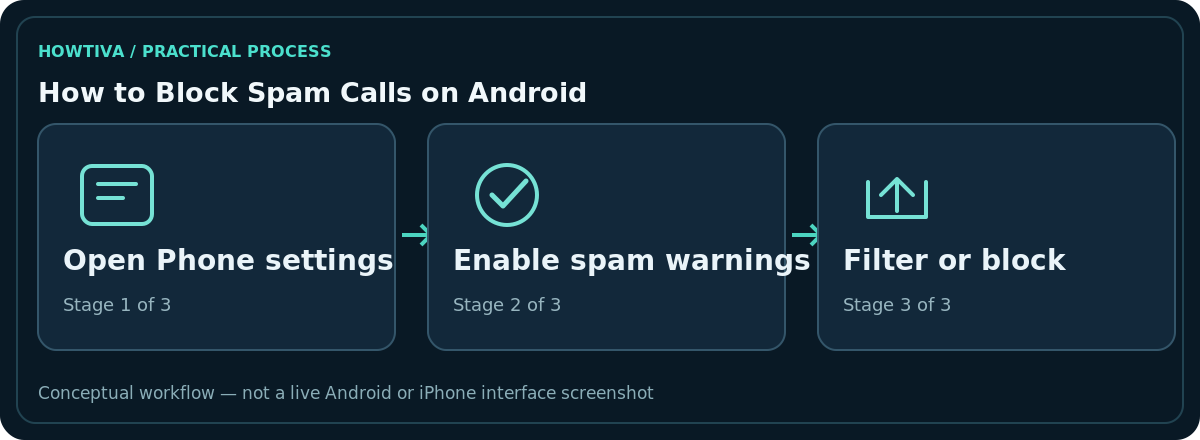
Quick answer: If your phone uses Phone by Google, open Phone > More > Settings > Caller ID and spam and enable See caller ID & spam. Where offered, turn on Filter spam calls to stop suspected spam from ringing. On supported Samsung Galaxy phones, use Phone > More > Settings > Caller ID and spam protection, then enable Block spam and scam calls and choose the available level.
The exact switch depends on your phone app, Android version, carrier and region. Spam filtering is imperfect: it can miss fraudulent calls and occasionally label legitimate callers incorrectly.
Enable the Phone by Google spam controls
- Open your phone’s Phone application and confirm it is Phone by Google rather than a manufacturer-specific dialler.
- Tap More options > Settings > Caller ID and spam.
- Enable See caller ID & spam if it is off. Google says this feature is often enabled by default.
- If your Phone version displays Filter spam calls, enable it if you want identified spam filtered automatically.
- Review filtered calls in call history and voicemail from time to time, because important numbers can be misidentified.
Google says spam identification may send certain call information to Google. Review its privacy documentation if that matters to you. Filtering usually suppresses missed-call or voicemail notifications for identified spam, but the entries can remain in call history.
Use Samsung Galaxy spam protection when available
On supported Galaxy phones, open the Samsung Phone app, tap More options > Settings > Caller ID and spam protection, accept any displayed terms and enable Block spam and scam calls. Samsung describes options such as Block all spam and scam calls or Only block high-risk scam calls. The names and availability depend on model, software, carrier and country.
Choosing high-risk filtering may reduce false positives compared with broader filtering, but can allow more unwanted calls through. You should make this trade-off based on how often you expect calls from unfamiliar legitimate numbers.
Block or report a particular repeat caller
In Phone by Google, open the relevant call in the recent-call list and use Block or Report spam. Samsung also offers blocked-number controls and reporting for eligible devices. Blocking a specific number can stop repeat calls from that number but scammers sometimes rotate or spoof their caller IDs, so one blocked number does not guarantee the campaign will stop.
Do not call a suspicious number back just to find out who it is. Real banks, carriers and government services can be contacted through their independently verified official channels rather than a number supplied by the caller.
Understand Pixel automatic Call Screen exceptions
Google documents that devices with automatic Call Screen may not show the ordinary Filter spam calls switch, because spam autoblocking is managed inside Call Screen protection settings instead. Do not assume that missing the switch means you are unprotected. Follow the Pixel-specific Phone or Call Screen documentation for your exact model.
Regional availability, supported languages and carrier features vary. A service labelled ‘spam protection’ does not necessarily guarantee every high-risk call will be silenced. If the call is threatening or involves financial fraud, document relevant details safely and report them through your local appropriate channels.
What to do if legitimate calls are blocked
Check your Phone app’s filtered or recent calls list and use Not spam where available. Unblock a number that was wrongly identified, and consider reducing filtering aggressiveness. For a medical appointment, courier delivery or new-client work, add known numbers to Contacts when practical and check voicemail until the issue is resolved.
If the setting is missing, update the Phone app and Android from trusted sources and check the manufacturer/carrier’s supported features. Do not install an untrusted caller-ID app that requests extensive contacts or call access merely because a tutorial promises universal protection.
Choose protection without missing needed calls
If you often receive legitimate calls from unsaved numbers—new clients, health providers, couriers or interviewers—begin with caller ID and spam warnings and review the warnings before enabling the most aggressive filter. Samsung’s high-risk-only option may be more appropriate in that situation than blocking all identified spam and scam calls. The choice depends on how much inconvenience from missed legitimate calls you can tolerate.
Check your call history and voicemail after changing the setting. If your service provider also offers network-level filtering, the Phone app may not show every blocked attempt. Keep a separate trusted channel for truly important contacts, and avoid depending on caller ID as proof of identity.
Prevent a scam after the phone rings
Even a call not flagged as spam can be fraudulent. Do not provide passwords, one-time passcodes or banking access on an unexpected call. Scammers can imitate local numbers and reputable organisations. End the call and dial the institution using a verified website, statement or trusted app. Never grant remote-access software permissions merely because a caller says a mobile account is in danger. If you accidentally disclosed financial credentials, contact the provider through an official channel immediately and follow its account-security procedure.
Frequently asked questions
Does spam filtering stop all scam calls?
No. Caller ID can be spoofed and filtering models can miss new campaigns or mistakenly flag legitimate calls.
Will I see filtered calls later?
Google says filtered calls may remain in call history and voicemail even though normal notifications are suppressed. Check your app’s controls.
Why is Filter spam calls missing on my Pixel?
Automatic Call Screen can handle spam protection under different settings; the ordinary toggle is not always present.
Is blocking unknown numbers the same as blocking spam?
No. Unknown-number blocking affects unfamiliar numbers broadly, including potentially legitimate callers. Spam filtering uses classification and can be less indiscriminate.
Sources & Further Reading
- Use caller ID and spam protection — Phone by Google Help; checked 2026-10-27.
- Block spam calls with Smart Call on your Galaxy phone — Samsung Support; checked 2026-10-27.
Use the checklists as you go, and confirm the result before moving on to a more involved repair.