How to Make Text Bigger on Android
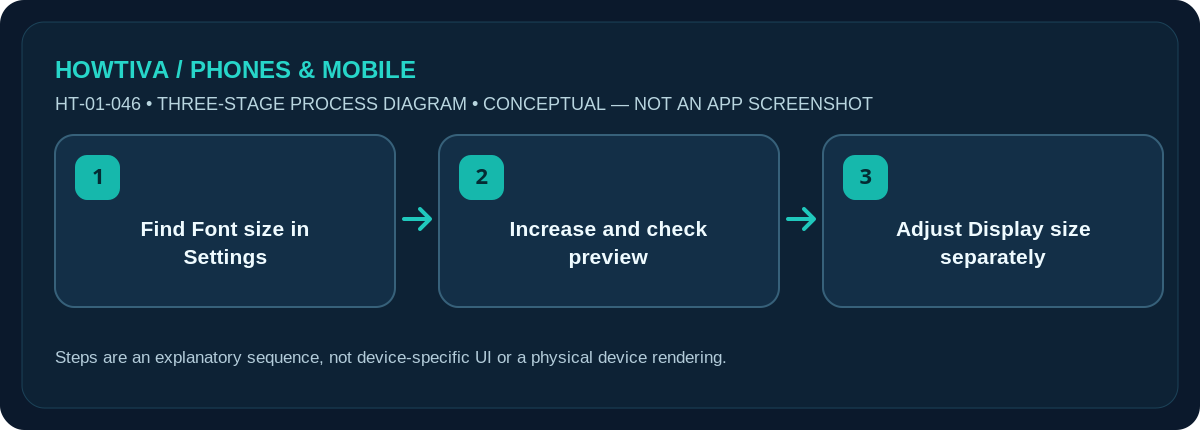
Open Settings, search for Font size, and move the slider toward larger text. If buttons and icons are too small as well, search for Display size and adjust that separately.
Quick answer: Open Settings, search for Font size, and move the slider toward larger text. If buttons and icons are too small as well, search for Display size and adjust that separately.
Google’s accessibility instructions apply most directly to supported current Android releases, with some controls requiring Android 13+. Samsung, Pixel and other phones may organise Settings differently. Not every app obeys the font-size preference.
Change text size without changing everything else
- Open Settings and search for Font size. On supported Pixels you may find it under Accessibility > Display size and text. Samsung menus may use Display > Font size and style.
- Increase the font slider. Watch the provided preview if available. Move one increment at a time to preserve readable line breaks and prevent crowded menus.
- Check a real conversation and Settings page. Test Messages, a browser and a frequently used app because not every interface obeys the same accessibility sizing.
- If controls remain small, open Display size. Enlarge on-screen elements separately. Display size and Font size solve related but different problems.
- Review Bold text or the Font size Quick Settings tile where supported. A bold font may improve contrast without requiring much larger text.
Pixel and Samsung differences
Google documents searching Settings for Font size or Display size, with a preview in supported releases. Google also documents a Font Size Quick Settings control on some Android devices, which may be added automatically or require editing the panel. Samsung has its own font style controls and may offer additional fonts. These are examples, not a universal promise for every brand or region.
Why a website or game may not change
An app can render text in fixed-size images or custom widgets. Increasing system font size cannot rewrite text embedded in a picture, and some apps may ignore the preference. Check that the app is updated, use its own reading controls if offered, or try browser page zoom. Avoid installing unknown apps merely to override font sizing across the system.
Use larger controls carefully
Increasing Display size can enlarge buttons, icons and certain layouts, but it also leaves less content visible. If an app’s buttons overlap, reduce display size by a step while keeping a slightly larger font. On an older Android version you may see Screen zoom or a manufacturer-specific name instead; search the phone’s Settings rather than copying paths from a different device.
Other accessibility tools
On Android 16+, Google documents Outline text on supported devices, while earlier versions may use High contrast text. Do not promise either control on every device. You can also explore magnification or text-to-speech under Accessibility if enlarged text is still hard to read. Review privacy permissions carefully before enabling any third-party screen-reading software.
Troubleshooting and alternatives
- No Font size menu: Search Settings rather than assuming a Pixel or Galaxy path.
- Icons still tiny: Adjust Display size separately.
- One app unchanged: The developer may not apply the system text preference.
- Buttons overlap: Reduce Display size by one notch and recheck.
Frequently asked questions
Can I increase text without enlarging icons?
Usually yes: adjust Font size alone, not Display size.
Why did only some apps change?
Some apps ignore the system font preference or display lettering as part of images.
Will increasing font size erase my settings?
No. It changes a display preference and can be reversed. Google offers a Reset settings control in supported menus.
Sources & Further Reading
- Android Accessibility Help: Change text & display settings (checked 2026-10-27)
- Samsung Support: Adjust your Galaxy phone or tablet’s display settings (checked 2026-10-27)
Use the checklists as you go, and confirm the result before moving on to a more involved repair.