How to Cast Your Phone Screen to a TV
Mirror iPhone by AirPlay or Android with a supported Cast protocol and solve missing receivers or blocked discovery.
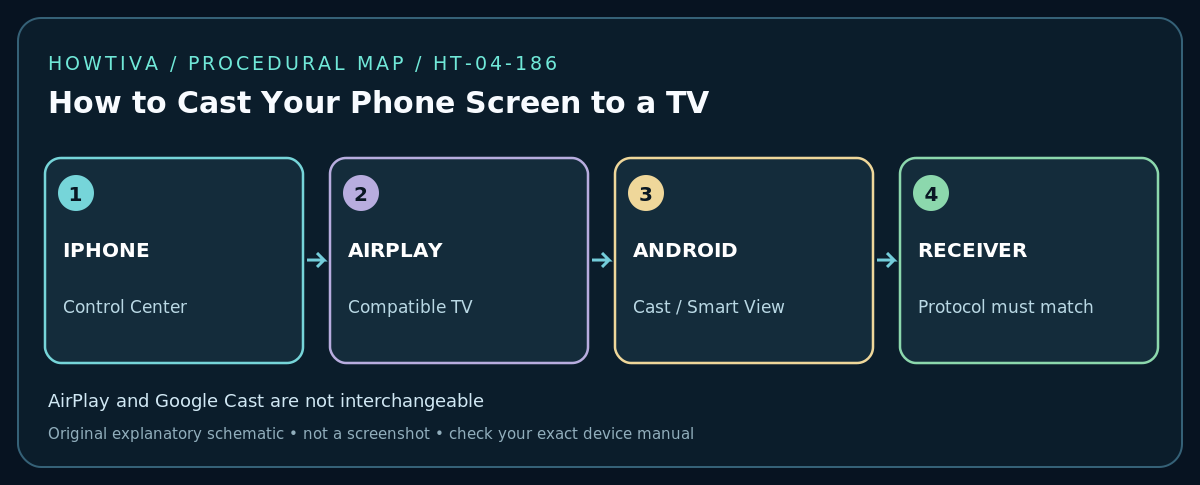
Quick answer: To show your phone screen on a TV, use a casting method that both devices support. On iPhone, open Control Center → Screen Mirroring and choose an AirPlay-compatible TV or Apple TV, usually on the same Wi-Fi. On Android, use the supported Cast screen, Smart View or Google Home casting control for a compatible receiver. If the TV supports only one ecosystem, use the matching streaming device or approved cable adapter.
Choose screen mirroring or app casting
Screen mirroring displays almost everything on the phone, including notifications and private content. In-app casting sends compatible video/audio to a receiver and can leave the phone available for other tasks. AirPlay, Google Cast and Miracast are different technologies; a generic ‘smart TV’ badge does not guarantee all three. Before starting, find the TV model and whether it supports AirPlay 2, Google Cast or a vendor-specific wireless display protocol. Do not assume a Chromecast works with iPhone Control Center’s Screen Mirroring list.
Step 1: Prepare a compatible network
Connect the phone and supported receiver to the appropriate home network. Apple’s AirPlay instructions call for both devices to have Wi-Fi on and to be connected to the same network. Google Cast generally expects the Android device and Cast receiver to share the same network name, with access-point/client isolation disabled when needed. A guest network or segregated IoT VLAN can stop local discovery even if both devices browse the internet. If you use a VPN or work-managed phone, confirm local-network access is permitted before changing any security settings.
Step 2: Mirror an iPhone using AirPlay
On an AirPlay-capable TV or Apple TV, make sure AirPlay is enabled in its documented settings. On the iPhone, open Control Center, tap Screen Mirroring, choose your TV and enter a passcode displayed on the TV if asked. Rotate the phone only if the app supports the desired orientation. To finish, reopen Control Center, select Screen Mirroring and Stop Mirroring. Apple documents that some video apps may not support AirPlay even when the phone and receiver are compatible.
Step 3: Mirror an Android phone
On a supported Android phone, open the quick-settings or settings screen for Cast, Screen Cast, Smart View, Wireless Display or its manufacturer’s equivalent. Choose a compatible receiver and approve the prompt on the TV. The exact path differs by manufacturer and Android release. For Google’s supported screen-casting flow, use Google Home controls with a Cast-compatible device; Google’s current help describes Android device and receiver requirements and same-network checks. Some phones offer only particular casting technologies, so absence of the TV in the list may indicate a protocol mismatch rather than a broken wireless connection.
Step 4: Verify video, sound and privacy
First display a harmless photo or home screen. Check orientation, audio output and whether the TV is showing the whole display versus the media player only. Switch off notification previews or enable Focus/Do Not Disturb before presenting private information. Never enter banking passwords or one-time codes while the whole screen is mirrored to a shared display. Be aware that protected streaming apps may show a black picture due to digital rights restrictions; do not recommend bypassing content protection.
Step 5: End the connection cleanly
Use Stop Mirroring, Disconnect, the Cast stop control, or the app’s original device selector. Confirm the TV is no longer displaying live phone content before opening sensitive apps. If someone else controls the TV, check that the receiver is not left paired for future unsolicited casting.
Troubleshooting
- TV never appears: Confirm compatibility, both devices’ network/SSID, local-network permission, and whether isolation or VPN prevents discovery.
- iPhone lists no Chromecast under Screen Mirroring: Standard iPhone Screen Mirroring uses AirPlay, not Google’s Cast protocol. Use an in-app Cast button when the app supports it, or an AirPlay-capable receiver.
- Android sees TV but fails to connect: Compare Cast/Smart View/Miracast compatibility, update supported apps and firmware, and check router isolation.
- Black screen in a subscription-video app: Rights restrictions may block mirroring; use the TV’s official app or supported in-app casting.
- Audio continues on phone: Look for the selected output device inside the casting app or TV settings; protocols vary.
- Mirroring freezes: Reduce interference, move closer, stop unnecessary wireless traffic and compare with another supported casting app.
Alternatives
Use an official USB-C/HDMI or Lightning-compatible video adapter only if the phone model supports video output and the adapter is approved for that product. A basic charging USB-C cable is not automatically an HDMI display adapter. A dedicated Apple TV or Google Cast device can add supported receiving protocols to an older TV. Always check copy-protection and app restrictions before purchase.
Frequently asked questions
Can I cast without home internet?
Some protocols support local or direct connections in specific configurations, but discovery, app authorization and streaming services may require internet. Follow your exact sender/receiver manuals rather than assuming offline operation.
Will turning off screen mirroring end the video stream?
For full screen mirroring, it ends the display connection. In-app casting can sometimes keep playback running independently; stop casting in the source app when you want to end the stream itself.
Sources & Further Reading
- Apple — Stream video and audio from your iPhone with AirPlay (checked 2026-10-27).
- Apple — Wirelessly stream videos and photos to Apple TV or smart TV (checked 2026-10-27).
- Google — Improve your Android screen casting experience (checked 2026-10-27).
Use the checklists as you go, and confirm the result before moving on to a more involved repair.