How to Fix a Smart TV App That Won’t Open
Fix a frozen or crashing smart TV app with safe network checks, restart, updates and brand-specific app repair before any reset.
Quick answer: When one smart TV app will not open, first check whether other apps and the TV’s internet connection work. Then restart the TV fully, check for software/app updates, and try the problem app again. Only if needed, force-stop or clear its cache (supported Google TV models) or reinstall the app (supported Samsung/LG models). Reinstalling may sign you out; clearing app data or resetting Smart Hub/the whole TV can erase settings and accounts and belongs at the end of troubleshooting.
Identify the failure before changing settings
Does the app stay on a splash screen, crash immediately, show a spinning wheel or display a specific error code? Write down the exact error and app name. Test a different app. Then open the TV’s own Network status/settings and confirm it has internet access. If several apps fail together, troubleshoot the TV network, date/time and service outage first. If only one app fails, concentrate on that app’s version, subscription, regional availability and sign-in.
Many apps have minimum operating-system or model requirements; a functioning TV does not guarantee a new app version is supported. Do not download TV ‘fixer’ APKs from untrusted websites or copy another model’s firmware. If the app shows billing or access errors, check the account directly through the service’s official website or mobile app.
Step 1: rule out a network or service issue
- Open a different streaming app or the TV’s built-in connection test. Note whether it streams normally.
- If every app stalls, inspect Settings > Network / Connection on the TV. Exact menus differ by operating system and model year. Check Wi-Fi signal or Ethernet link, and whether other home devices can access the internet.
- Check the streaming service’s official status or help page using another connected device when available. Avoid assuming a local TV failure if the provider has a service disruption.
- If the network seems unreliable, try switching from Wi-Fi to Ethernet if the TV supports it, or temporarily test on a permitted phone hotspot with enough data. LG recommends network comparison for isolating some app failures.
- Return to the app only after the TV network status looks healthy.
Step 2: fully restart the TV, not just the app
A remote Power tap may put the TV in standby, not restart its software. Follow the manufacturer’s official restart or cold-boot steps for your model. Samsung describes a cold boot via an appropriate remote-power hold for supported sets; Google TV offers Settings > System > Restart on many products. Power cycling may clear temporary process failures; do not unplug the TV while it is installing a system update. After restarting, launch the affected app once and wait for it to load.
If a TV is wall mounted or on a shared power circuit, do not repeatedly pull power cables while it is operating. Stop if the set becomes unusually hot, emits an unusual smell, or has visible electrical damage; seek qualified support.
Step 3: update the app and television software
- Google TV: Open Google Play Store (some interfaces show a search result for it), navigate to Manage apps and games > Updates, and apply an available update. For system updates, look under Settings > System > About > System update where supported.
- Samsung Smart TV: Follow the official Settings > Support > Software Update procedure for your exact model. App update behavior differs by Smart Hub generation; check the app’s official TV listing.
- LG webOS: Open the TV’s Apps/content store area and check the affected app. Menu names differ across webOS versions. LG also flags insufficient storage and region/service-country limitations as reasons an app may not install.
Only install official firmware intended for your model and region. A TV software update can take time; keep the unit powered and connected during the operation. If the update is unavailable because the TV model is no longer supported, a newer external streaming device may be more practical than risky unofficial software.
Step 4: use the least destructive app fix available
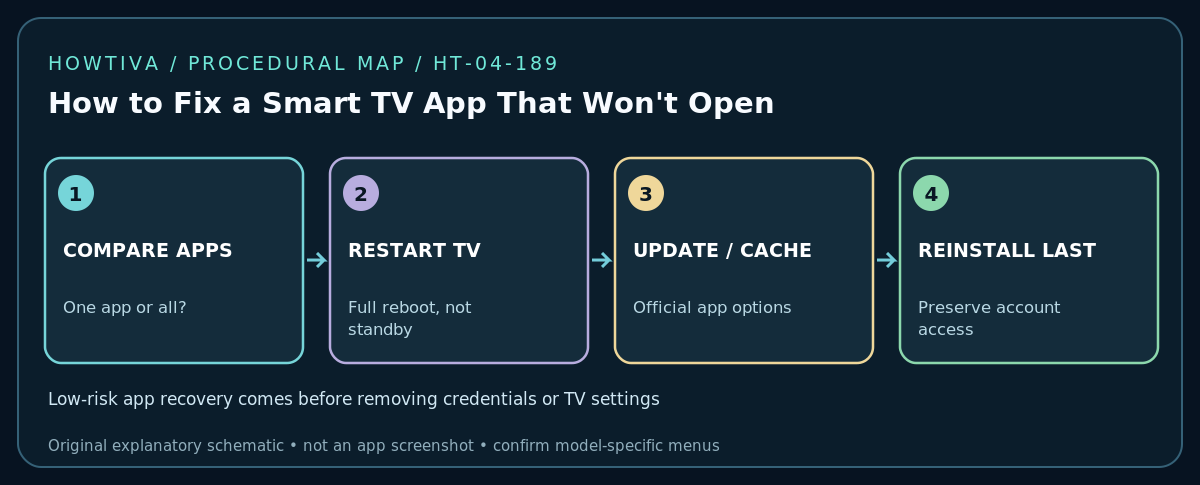
For Google TV, try Settings > Apps > [problem app] > Force stop, then relaunch. If available, select Clear cache first. Cache removal is different from Clear data: the latter can erase app-specific preferences and stored sessions. Confirm the account recovery method and login details before clearing data. The exact labels may differ by build.
For Samsung, the official support sequence includes cold boot, software update, then deleting/reinstalling a troublesome app; some system or recommended apps offer Reinstall instead of Delete. Samsung explicitly warns that reinstalling third-party apps signs you out. Make sure you know your legitimate login method before proceeding. For LG, update or delete/reinstall the affected app through the supported Apps interface; availability depends on region and model. Do not remove an app you cannot reinstall on your legacy model without checking compatibility first.
If the app still will not open
An error code appears: Search that code in the official app-provider support center. It loads only on a hotspot: Investigate router/DNS/ISP problems and local filtering; the TV may not be the cause. The app is missing from the store: Check TV model compatibility and the device’s actual service region; changing the region just to work around licensing is not a reliable fix. It starts after an update but immediately crashes: Restart once more, check remaining storage, and then contact the app vendor with the TV model, software version, app version and error message—never provide account passwords or verification codes.
All apps suddenly fail: Check clock/time-zone, network and firmware; compare with other household devices. If the entire TV operating system is unstable, contact the manufacturer before taking destructive steps. Repeated reset attempts can obscure useful diagnostic information.
Resetting Smart Hub or the entire TV: last resort
Some Samsung TV models offer a Smart Hub reset, and Google TV offers a factory reset. These are not the same as restarting a TV or clearing an app cache. Manufacturer guidance warns that resets can remove app sign-ins, customized settings or the device’s stored data. Document network settings, retrieve account recovery information and read the exact-model guide first. If you don’t control the set (rental, hotel or employer), do not reset it.
Frequently asked questions
Will deleting an app erase my streaming subscription?
A streaming subscription generally belongs to the provider account, not the installation; however, reinstalling can remove local sign-in or offline app data. Verify the provider’s account policy before deleting anything.
Why does an app work on my phone but not my TV?
The TV application may use a separate build, be unsupported on older hardware, or depend on a different network/DRM environment. Compare app requirements and supported models before blaming internet speed.
Should I factory-reset the TV immediately?
No. Check the internet, fully restart, update, try a supported app-specific fix and contact the provider first. Factory reset should be an informed last step, not routine advice.
Sources & Further Reading
- Samsung — An app will not work on my Samsung TV or projector (checked 2026-10-27).
- LG — How to fix apps that keep freezing, crashing, or won’t load (checked 2026-10-27).
- Google — Fix app crashes on Google TV (checked 2026-10-27).
- Google — Fix a slow or laggy Google TV device (checked 2026-10-27).
- Google — Fix problems with your Google TV device (checked 2026-10-27).
- Google — Fix problems with videos in your library (checked 2026-10-27).
Use the checklists as you go, and confirm the result before moving on to a more involved repair.