How to Connect a Streaming Device to a Hotel Wi-Fi Network
Connect a streaming stick to hotel Wi-Fi using supported captive-portal sign-in, and protect your accounts on shared networks.
Quick answer: First determine whether the hotel Wi-Fi needs a browser sign-in page (captive portal) or simply a Wi-Fi password. If it needs no browser login, connect the streaming device normally through its network settings. If it requires browser sign-in, use the streaming device’s official hotel/dorm connection feature where supported—for example Roku Hotel & Dorm Connect—or ask the hotel’s support desk about approved alternatives. Many Google Cast devices cannot complete captive-portal sign-ins on their own.
What to bring and check before you travel
Pack the activated streaming device, its original or manufacturer-approved power supply, remote with working batteries, and a compatible HDMI cable if it is not an HDMI stick. Test that the device turns on, has current software and can sign in to its services at home before travel. Roku explicitly recommends checking updates before leaving. Make sure the hotel room TV has a usable HDMI port and remote or accessible input selector; some hospitality TVs lock their inputs. Do not unplug or modify hotel infrastructure.
Have your own phone or laptop available for legitimate browser authentication if the streaming-device maker supports that workflow. Read the hotel’s network policy: some hotels register a small number of devices, prohibit private travel routers, or offer a separate network for streaming. Do not assume a single room password works for every device.
Step 1: decide which hotel network you are facing
- Standard password-based Wi-Fi: Select the hotel SSID on your own phone and connect using the official credentials. If no login browser opens, the streaming device may be able to join with the same permitted credentials.
- Captive portal: You connect to Wi-Fi, but a browser page then asks for a room number, acceptance of terms, or a sign-in. Many TVs and sticks lack a full interactive browser for this step.
- Per-device registration or blocked client traffic: The network may require your device to be registered by the hotel, or isolate devices so casting and remote discovery cannot work. Ask reception about the device policy instead of trying to bypass it.
Verify the SSID with hotel staff or in the room’s trusted welcome information, not by choosing a plausible-looking nearby hotspot. On a public network, avoid unnecessary account sign-ins or casting sensitive material to someone else’s display.
Step 2: use standard network setup when no portal is required
Plug the streaming device into the TV, connect power and choose the correct HDMI input. Open the device’s Network / Internet / Wi-Fi settings and select the approved SSID. Enter the password provided by the property; do not use the hotel’s employee or administrative network. Wait for the connection status and test the streaming application. If the device reports ‘connected’ but a service will not open, try the hotel’s login flow on your phone and check whether the device requires separate registration.
Some hotel networks have client isolation or low bandwidth. Even if the device gets internet access, your phone’s remote or a Cast button may not discover the TV. That is a network design constraint, not necessarily a device failure.
Step 3: connect a supported Roku using Hotel & Dorm Connect
Roku’s official instructions apply to supported Roku products; check its product comparison guidance rather than assuming every Roku offers this mode.
- On the Roku remote, press Home, then go to Settings > Network > Set up new wireless connection.
- Choose the hotel’s verified Wi-Fi SSID. Roku may show an option labeled I am at a hotel or college dorm after connecting to a public network.
- Select that option if offered. Read the instructions shown on the TV screen. Roku’s workflow uses your phone or computer browser to authenticate the Roku’s network connection.
- Follow Roku’s displayed connection and login sequence promptly; Roku warns that the authentication process can time out after several minutes.
- When complete, return to the Roku Network screen and confirm the intended network name and Connected status. Start a low-bandwidth test video.
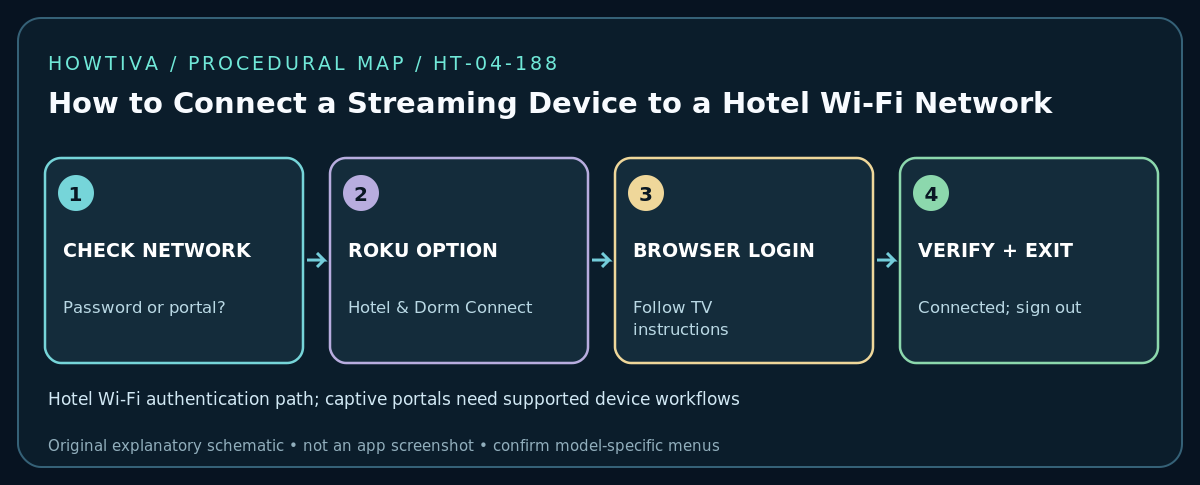
Do not improvise a substitute pairing network name or web address from a blog: the official TV prompts are authoritative for the device and firmware in front of you. If the hotel blocks the process, ask its IT/front desk to help or use a permitted alternative.
Step 4: account for Fire TV, Google TV, Chromecast and other devices
Menus and hotel-portal capabilities differ significantly by brand, device generation and software. Fire TV and certain connected TV devices can present a browser-based sign-in flow under some network conditions, but do not assume every model or firmware can handle the hotel’s portal. Choose the property’s SSID in the device’s official Settings > Network interface and follow only prompts that appear. Where there is no usable portal sign-in, the property may be able to register an approved device.
Google’s own security guidance says devices using Google Cast typically cannot connect to captive-portal networks. Even when a network has a plain password and the Cast device connects, Google’s documentation warns that other users on that shared network might be able to control the receiver or see some linked-device information. Prefer your own private network, where permitted, instead of casting private photos or personal account information on a crowded public network. A phone hotspot or travel router is not a guaranteed fix; check hotel policy, the data plan, supported devices and whether a second device can connect.
If the hotel TV or Wi-Fi blocks setup
No HDMI input available: Check the hotel’s instructions and ask staff whether external HDMI access is permitted. Don’t unplug in-room equipment or enter engineering menus. Device cannot find the SSID: Check whether the property uses a band or security mode your device supports; ask staff about any streaming-compatible SSID. Connected but no internet: There may still be a portal or device registration step. Remote will not control streaming stick: Confirm pairing and power; some USB power ports on hotel TVs are insufficient for reliable device operation, so use the approved power adapter and an available outlet.
Streaming service works on phone but not TV: Regional licensing, app availability, DRM requirements or a sign-in issue may be involved. Update the app only through official channels, check hotel bandwidth, and compare behavior with a known accessible service. Avoid factory reset: it is rarely the right first response and can erase accounts and settings.
Before checkout: protect your accounts
Open each streaming app you used and sign out where appropriate, remove temporary Wi-Fi network data if the device allows it, and disconnect the streaming device. Confirm you have packed the remote, power supply and HDMI cable. If you signed in on a hotel-owned TV instead of your own stick, use that app’s sign-out controls and consider its remote-device sign-out tool if available. Never leave personal accounts logged in on shared accommodation hardware.
Frequently asked questions
Can I bypass the captive portal by using the hotel’s Wi-Fi password?
Not if the hotel additionally requires browser authentication or registers devices individually. Use official supported options or speak with hotel staff.
Will a streaming device work without Wi-Fi?
Some locally stored media may work offline on certain models, but most online streaming apps need internet access and service authorization. Hotel TV HDMI use alone does not supply internet.
Why can I stream on the stick but cannot cast from my phone?
Guest isolation may prevent device discovery or control. Casting also depends on the specific receiver protocol; Netflix app playback and phone-to-TV casting are different workflows.
Sources & Further Reading
- Roku — How do I use Hotel & Dorm Connect to connect to the internet? (checked 2026-10-27).
- Google — Google Nest, Chromecast, and Google TV Streamer security tips (checked 2026-10-27).
Use the checklists as you go, and confirm the result before moving on to a more involved repair.