How to Change the Time Zone on a Smart Display
Check Nest or Echo smart display home location, time-zone source and automation settings without destructive resets.
Quick answer: When a smart display shows the wrong time, check its actual location/home address, network connection and manufacturer-specific time-zone settings. For Google Nest displays, Google documents the Google Home household address as the default location for time-related answers. For Echo displays, confirm the device time zone and address through the supported on-device setup or Alexa settings available for that model. Do not factory-reset the display merely to correct a clock.
Understand where a smart display gets its clock
Many displays synchronize their clock from the internet and use the configured household or device location to determine time zone and daylight-saving rules. The phone you used to set up the display can have a different time zone while traveling. Changing that phone’s clock does not necessarily update the display. Distinguish a wrong time, wrong time zone, wrong clock format (12-hour/24-hour) and an incorrect spoken answer from the voice assistant: they may have different causes.
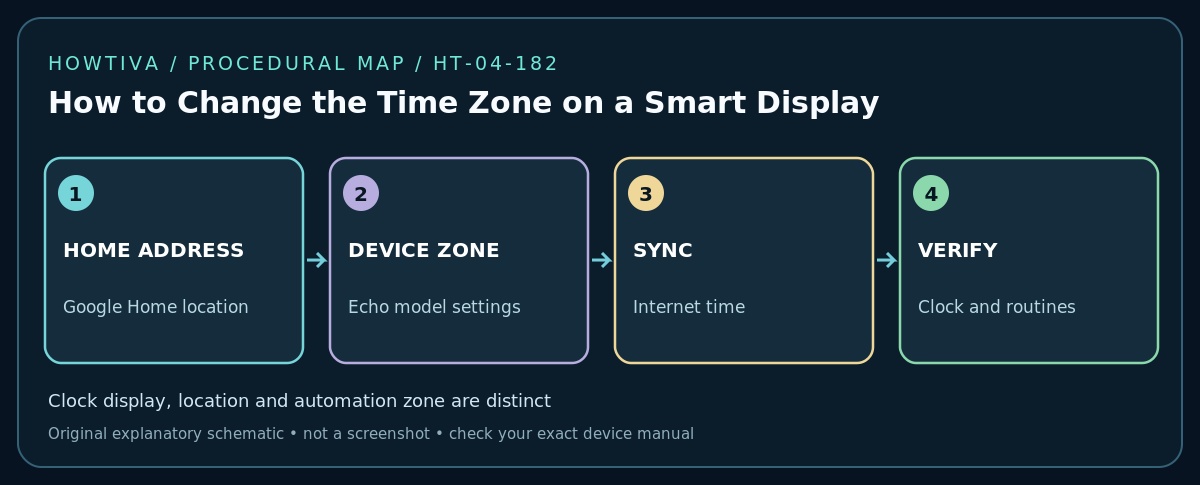
Step 1: Check the actual location and zone
On a Google Nest Hub or supported Google Home display, open the Google Home app with the Google Account that manages the correct home. Google’s current help describes choosing your profile, then Home settings, the home name and Home address to edit the location; some app versions place this under Home information. Confirm the real location of the device, not a false address chosen to force weather results. Google states this home address is used as a default for local places, weather and time information. After saving, allow the display to synchronize before testing again.
For Amazon Echo Show, identify the exact model and software version, then inspect its Settings and device location or time-zone options as provided by the official device instructions. Amazon setup guidance for screen-equipped Echo devices explicitly includes confirming the time zone; location and menu organization can vary. Do not infer that an Echo Show necessarily offers the same app toggle as a screenless Echo.
Step 2: Check internet and automatic synchronization
Make sure the display is online and ordinary voice queries work. If it was moved to a new home, use the official change-Wi-Fi instructions, not a factory reset as the first response. Verify that the router has correct internet access and the device has not been placed on a portal-based guest network that blocks background services. Power-cycle the display using the manufacturer’s approved method after checking for pending firmware updates.
Step 3: Separate clock display from automation problems
Check the on-screen clock against a trustworthy local clock, then ask the assistant for the time in your city. If the spoken answer is correct but the screen is wrong, inspect display personalization, clock face and available display update settings. If an alarm or routine runs at the wrong hour, check the automation’s own account, home, time zone and daylight-saving assumptions. A display may have a correct clock but a routine created in a different automation account or region.
Step 4: Test before changing more settings
Set a short, noncritical test alarm or reminder, verify its wording and displayed due time, then cancel it. Confirm sunrise/sunset automations separately; they use location as well as clock time. If you changed your home address, review the effects on weather, traffic, routines, local services and shared household members. Incorrectly entering a faraway address simply to get a preferred time zone can compromise other location-dependent services.
Troubleshooting
- Only the hours are wrong: Check time-zone selection, home location and daylight-saving adjustment, not Wi-Fi signal strength alone.
- Clock wrong immediately after moving: Verify you updated the device’s actual home location and relevant Amazon or Google account details.
- Clock is right, routines are wrong: Inspect schedule ownership, cloud service, sunrise location and any older home/address left in the app.
- Can’t find a manual time-zone control: Some smart displays derive the zone from location and do not provide a manual clock setting. Do not invent a hidden menu; use the exact model manual or vendor support.
- Managed display in an office or rental: Ask the device administrator to adjust its settings rather than claiming account ownership.
Alternative paths and limitations
Some Echo Show models confirm time zone during on-device setup; Google Home devices often rely on household location. Product availability, firmware and region make a universal button path unreliable. If the official documentation for your model does not expose direct time-zone override, the defensible advice is to verify the home address and contact its manufacturer—not to recommend deleting a shared home or resetting devices.
Frequently asked questions
Will changing my phone time zone update the display?
Not necessarily. A display can use its saved home location and cloud time source independent of your phone’s travel settings.
Does 12-hour versus 24-hour clock format change the time zone?
No. Format only changes how the same time is displayed. Look for a clock-format preference separately where supported.
Sources & Further Reading
- Google — Change Google home address (checked 2026-10-27).
- Amazon — Help Loved Ones Set Up Their Echo Devices with a Screen Remotely (checked 2026-10-27).
- Amazon Developer — Device Settings API Reference (checked 2026-10-27).
Use the checklists as you go, and confirm the result before moving on to a more involved repair.