How to Change Your Router’s Wi-Fi Password
Rotate the network passphrase on your router without confusing it with your admin login.
Quick answer: Open the official app or administration page for your own router, sign in using its administrator password, go to Wi-Fi / Wireless / Main Network, replace the Wi-Fi password (sometimes called Network Key or Passphrase), then choose Save or Apply. Most connected Wi-Fi devices will need the new password to reconnect.
Changing the password saved on your phone or computer does not change the router’s Wi-Fi password. This task requires authority to manage the actual router or mesh system. Some ISP-managed equipment only allows edits through the provider’s app or portal.
Know which password you are changing
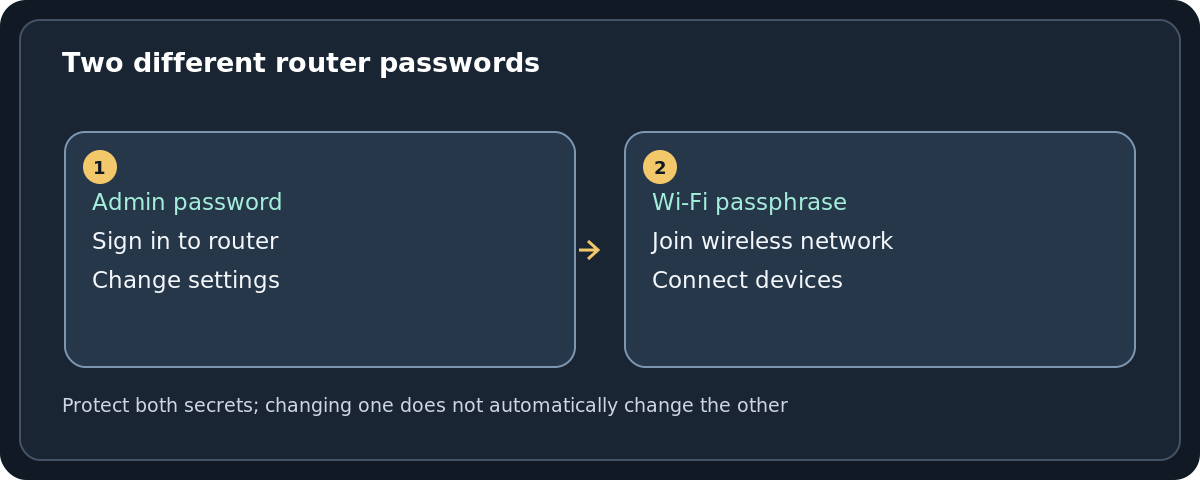
Most home routers use at least two different secrets. The Wi-Fi network password allows devices within range to join the wireless network. The router administrator password unlocks the settings used to change that network password. Some routers have a separate cloud-app account as well. Do not put your admin password into the Wi-Fi password field or assume the sticker’s factory value is still in use.
Prepare before changing the wireless key
- Confirm ownership or permission. In a shared house, business or managed building, coordinate with whoever controls the network first.
- Identify the active router or mesh controller. Changing the wrong box may leave the actual Wi-Fi unchanged. Some homes have both ISP Wi-Fi and a separate mesh SSID.
- Make a reconnection plan. Your phone, computers, TVs, printers, cameras and smart home hubs may need to rejoin. If available, use an Ethernet-connected computer to preserve access to the settings while Wi-Fi restarts.
- Choose a new, unique secret. A long, randomly generated password or an adequately long unique passphrase is better than reusing an account password. Follow the character and length restrictions shown by your router; most WPA2/WPA3 Personal passphrases have established length limits, though model input rules can differ.
Change the password on the router
- Connect a trusted computer or phone to the router, preferably over Ethernet when possible.
- Open the genuine manufacturer or ISP management interface. The correct local address or app name is in the device manual or official support pages. Never paste credentials into a lookalike web page you reached via an ad.
- Sign in with router administrator credentials. If these are forgotten, use the model’s approved account recovery or contact the administrator; avoid a factory reset unless the owner has confirmed all consequences.
- Navigate to Wireless / Wi-Fi / Main Network. Select your actual home network, not the separate guest SSID unless changing it intentionally.
- Find Password, Wi-Fi password, Network Key or WPA-PSK key. Enter the new credential and follow the router’s format requirements.
- If the router asks for a security mode, prefer WPA3-Personal where compatible, or an appropriate WPA2-Personal (AES) or vendor-supported WPA2/WPA3 transition setting if older devices require it. Do not select open, WEP or obsolete WPA for convenience.
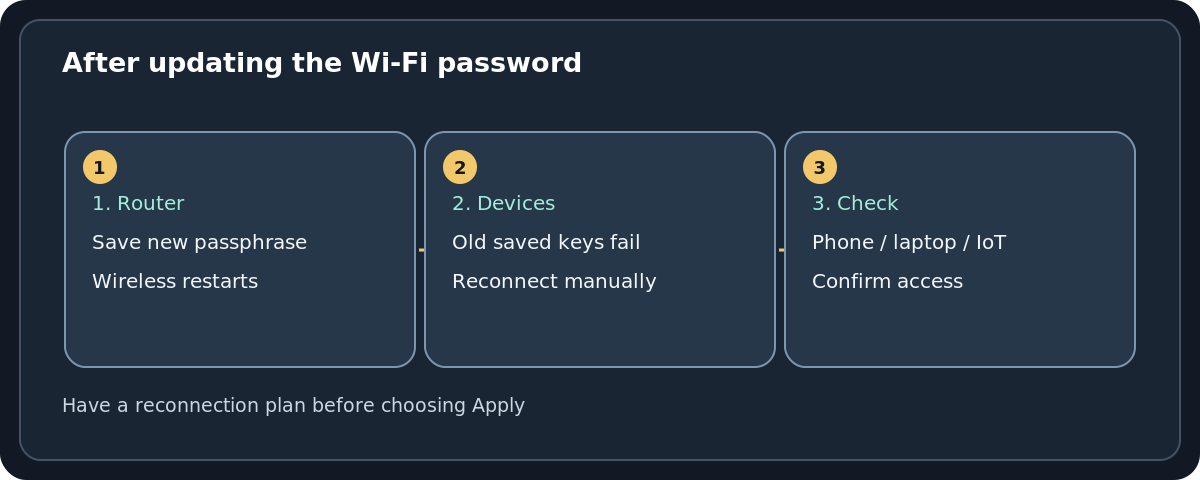
- Press Save or Apply. Expect wireless connections to drop, then rejoin the network using the new key. Update remaining trusted household devices one at a time.
Where to find the password field on common brands
- TP-Link: Newer supported web interfaces and Tether app let you edit the Wi-Fi password in the same area as the SSID. TP-Link documents More → Wi-Fi Settings in Tether on compatible devices; older web interfaces may use Advanced → Wireless → Wireless Settings.
- NETGEAR: On supported home routers, use the official router web interface, open Wireless, change Password (Network Key), and select Apply. Menu wording differs on some models.
- ASUS: The official app or browser admin interface can change wireless credentials. Depending on firmware, look in Network → Main network profile or Wireless → General; the password may be labeled WPA-PSK Key.
Do not apply the path or login address of one manufacturer to an unrelated router. For ISP gateways, identify the exact model and follow the provider’s published instructions.
Plan for guest networks, bands and older devices
A router with separate 2.4 GHz and 5 GHz SSIDs may require distinct changes, while one using Smart Connect can share a single wireless password across multiple bands. Also check whether a guest Wi-Fi network has its own key. If older smart plugs or printers fail after switching to WPA3-only security, consult the device and router manuals about compatible WPA2/WPA3 settings; do not weaken every network or disable encryption without understanding the trade-off.
A strong new password does not automatically remove access for a person who also knows your router admin credentials. Review that separate password, firmware and connected devices if you suspect the router was compromised.
What if something goes wrong?
Everything lost Wi-Fi immediately after Save
This is often expected. Wait for the wireless service to return, select your same SSID, and enter the new password. If the router changed its SSID too, choose that new name. If your editing session was on Wi-Fi, you may need to reconnect before the admin page works again.
One device keeps saying Incorrect password
Verify capitalization and punctuation, then remove the old saved connection from that device and rejoin with the new credentials if appropriate. Make sure you are not accidentally connecting to a guest network or an extender with a different password.
A printer or smart home device will not reconnect
Follow its official network-setup flow and confirm support for the security mode and radio band you chose. Some devices need to be reconfigured through a companion app. Avoid resetting the whole router to fix a single accessory.
The password field is locked or I cannot log in
On ISP- or organization-managed routers, wireless changes may be restricted. Use the authorized administrator, ISP app or help desk. A reset can erase provider settings and custom network configuration, so treat it as a last-resort owner decision, not a standard password-change step.
After changing it: a small security checklist
Store the new Wi-Fi key privately in a reputable password manager or another secure location. Consider enabling a separate guest network for visitors. Make sure the router administrator password is unique, check for official firmware updates and avoid sharing passwords in screenshots or open message groups. If an unknown device reappears, investigate administrator access rather than endlessly rotating only the Wi-Fi key.
Frequently asked questions
Can I change the Wi-Fi password from my phone?
Yes, using the router’s official mobile app or admin web page if you have appropriate access. Changing the password field on the phone’s Wi-Fi connection screen alone will not update the router.
Will changing the Wi-Fi password kick off connected devices?
Usually yes, once the wireless settings take effect. Trusted devices must reconnect with the new passphrase; exact timing varies by router.
Is WPA3 always the best setting?
WPA3-Personal offers improved protection when supported, but older devices may need WPA2-Personal or a properly configured transition mode. Follow vendor documentation and avoid obsolete WEP or open networking.
Will changing the Wi-Fi key also change the router admin login?
No. Those are different credentials. Update the router administrator password separately if needed.
Sources and further reading
- TP-Link Support: How to Change Wi-Fi Settings on a TP-Link Wireless Router (checked 2026-10-27).
- NETGEAR Support: How do I change my NETGEAR router WiFi password or network name (SSID)? (checked 2026-10-27).
- ASUS Support: How to modify Wireless (WiFi) Name and Password in ASUS Router? (checked 2026-10-27).
- US Federal Trade Commission: How To Secure Your Home Wi-Fi Network (checked 2026-10-27).
- NETGEAR Support: Why can’t I connect after changing SSID or password? (checked 2026-10-27).
Use the checklists as you go, and confirm the result before moving on to a more involved repair.