How to Stop Automatic Playback on a Smart TV
Find whether startup autoplay comes from TV Plus, Smart Hub, the last app or an HDMI source, then adjust the right setting.
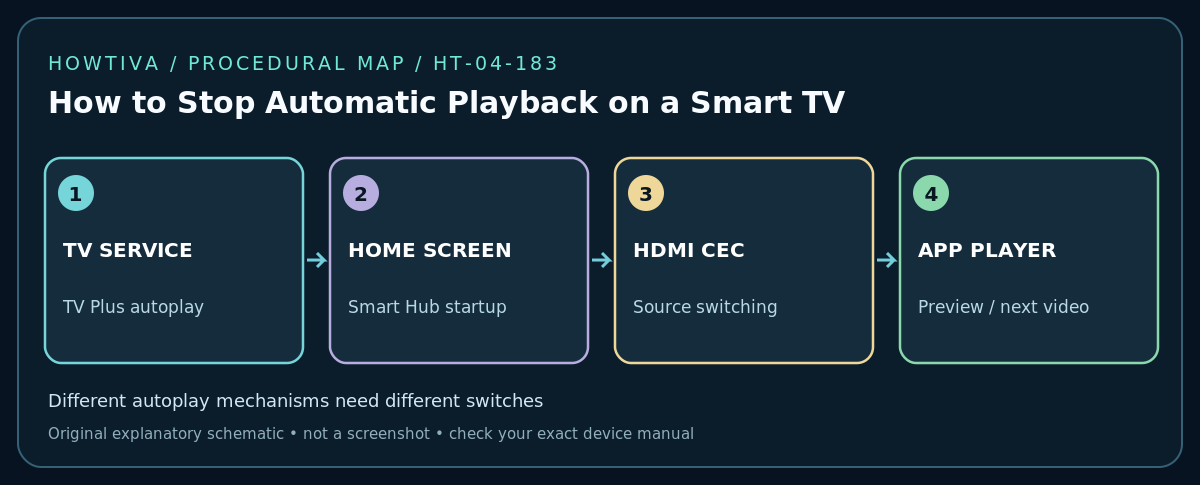
Quick answer: On a smart TV that starts playing content by itself, first determine whether the source is a streaming app, the last-used input, the TV’s content service or an autoplay preview. Turn off the specific Autorun or Autoplay setting that matches the symptom. For some Samsung TVs, Settings → General → Smart Features → Autorun Samsung TV Plus controls automatic TV Plus playback; other firmware uses Home Screen or Smart Hub options.
Identify exactly what starts without your request
A TV may launch the last app at power-on, start its manufacturer’s free live channels, play a trailer while browsing a streaming app, or resume a connected HDMI streaming device. These are not one feature. Write down what appears, when it starts, which input/app is active and whether the remote was touched. Record your TV’s brand, model year and software version; controls vary widely, even between different models from the same brand.
Step 1: Stop the current playback safely
Use the remote to pause or exit the app, or change to the intended input. Avoid forcefully unplugging the TV while it is installing software or processing a media update. If a streaming service resumes an episode, look in that service’s playback/profile settings rather than only the TV’s system settings.
Step 2: Check TV system startup behavior
Open your TV’s general or smart-feature settings and look for options resembling Autorun Last App, Smart Hub Autorun, Start with Smart Hub Home, Launch Home at startup or Power-on input. On Samsung models using the documented 2022 route, the path is Settings → All Settings → General & Privacy → Start Screen Option, then Start with Smart Hub Home. Samsung also documents other models with General → Smart Features choices. Change only the relevant toggle, then restart normally to see whether startup behavior improves.
Step 3: Check manufacturer content apps
Samsung documents that Samsung TV Plus may automatically start on some supported models and gives General → Smart Features → Autorun Samsung TV Plus as a control on affected firmware. Disabling Smart Hub startup is not guaranteed to disable TV Plus playback; inspect both if both features are available. LG, Roku TV, Fire TV and Google TV label their respective startup or recommendation settings differently. Do not claim the Samsung path works on those systems.
Step 4: Check connected HDMI devices and app previews
If autoplay occurs only when a set-top box, game console or streaming dongle is selected, inspect that device’s own autoplay/home preferences. HDMI-CEC can allow the source device to switch inputs or power on the TV, so check the TV and connected device’s CEC settings if the symptom is automatic switching, not autoplay itself. Disabling CEC may also disable desired volume and power control; record the current value before changing it.
If trailers play only while scrolling a streaming app, search that app’s profile or playback preferences for Autoplay previews or Autoplay next episode. Support varies by app and version. Some promotional tiles are non-disableable; do not present a fictitious universal ‘turn off all recommendations’ switch.
Step 5: Verify the desired startup state
Turn off the TV normally, wait a moment, then turn it on using the same remote and input. Note whether the home menu, last channel or connected HDMI input appears. Repeat once after a normal software restart if the TV was mid-update. Confirm audio is not unexpectedly playing, and check whether the change affects another member’s preferred startup behavior.
Troubleshooting
- Setting missing: Check model and firmware, region and exact product manual. Not every model has the same Smart Hub controls.
- TV keeps opening an app: Check Autorun Last App, app resume behavior and HDMI-CEC, one at a time.
- Only trailers autoplay: Check streaming-account/profile preferences rather than router settings.
- TV Plus plays every time: Look for the manufacturer-specific TV Plus autorun switch, if supported.
- Input switches when another device wakes: Test CEC after noting existing power/volume link behavior.
- Option reverts after a software update: Recheck the menu and contact the TV manufacturer; do not use unsupported service-menu tricks.
Alternatives and precautions
Switching to a static HDMI input or last-used broadcast channel may be preferable if your TV has no dedicated autoplay control. Be cautious of uninstalling core system apps or modifying service menus: these actions can disable features or void support. A factory reset should not be the first troubleshooting method, because it can delete saved apps, logins, calibration and input settings.
Frequently asked questions
Is disabling Smart Hub the same as disabling TV Plus?
No. They are separate features on some Samsung software versions. Verify which content launches and which control applies.
Can HDMI-CEC cause autoplay?
CEC may power on the TV or switch to an active source. The source device then determines what to play, so diagnose the two actions separately.
Sources & Further Reading
- Samsung — TV Plus on your Samsung TV (checked 2026-10-27).
- Samsung — How to disable Autorun Smart Hub (checked 2026-10-27).
Use the checklists as you go, and confirm the result before moving on to a more involved repair.