How to Find Battery-Draining Apps on Android
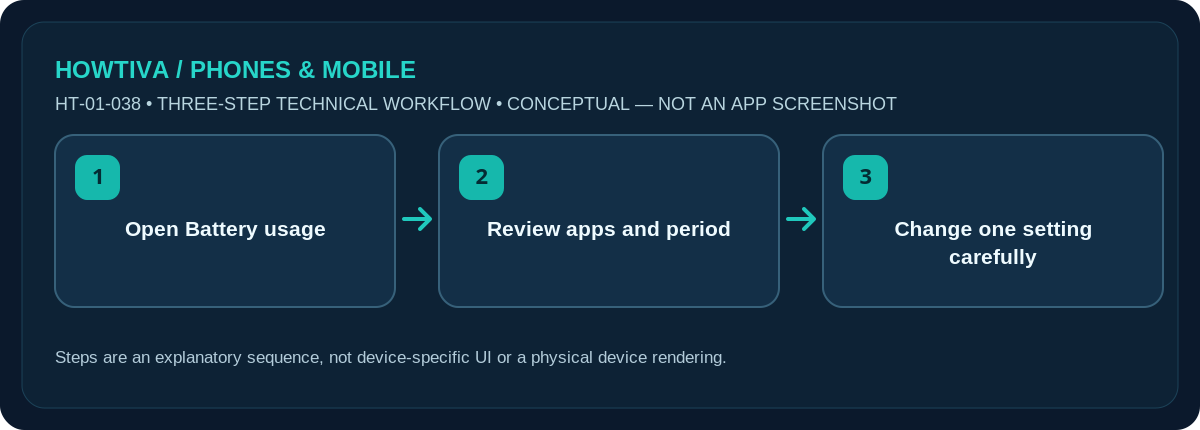
On a Google Pixel, open Settings > Battery > Battery usage, then select View by apps to identify applications using battery during the displayed period.
Quick answer: On a Google Pixel, open Settings > Battery > Battery usage, then select View by apps to identify applications using battery during the displayed period. On Galaxy and other Android phones, look for Battery or Device care > Battery usage screens.
Android battery menus and time windows are brand/version-dependent. High battery percentage on a chart does not prove an app is faulty; inspect screen use, background activity and the observation period.
Read battery use on Google Pixel
- Go to Settings > Battery > Battery usage. Google documents the battery chart and a View by apps option on supported Pixel software.
- Read the time range and charge level shown before ranking apps. Battery use since the last full charge is not the same as battery use across an entire day or week.
- Tap View by apps, then inspect apps with unexpectedly high usage. An hour of maps with the display on can reasonably use more power than an app you never opened.
- Select an individual app to review available background-use or battery-optimisation controls. Preserve optimisation for apps unless you have a specific reason to change it.
- Observe your battery over another normal use period to see whether any change helps.
What counts as abnormal usage?
Separate screen-on work from background activity. Navigation, camera recording, video calls and games consume power because they are demanding. A messaging app may legitimately need background access to deliver new messages. If an unfamiliar app is consuming battery while the phone is idle, check whether you trust the app, how recently it updated and which permissions it has.
Google notes that Pixel phones can use extra power after setup or a software update while they optimise. Give the phone a reasonable normal-use observation period before blaming an app. Also inspect signal quality and whether hotspot, Bluetooth accessories or location navigation are active. Battery percentages can be relative shares, not fixed units of capacity.
Galaxy and other Android phones
On Samsung Galaxy devices, find the battery-use screen within Settings > Battery or Battery and device care / Device care > Battery, depending on One UI. Select the graph or usage list for a per-app breakdown when available. Some Android vendors label settings App battery usage, Background usage limits or Battery optimisation. Follow the label actually present on the device rather than copying a Pixel-only sequence.
If you discover a genuine problem, start with low-risk actions: update the app through a trusted store, restart the phone, remove an app you do not use, and review permissions. Restricting background usage can delay messages, alarms from third-party apps or data sync; don’t restrict an emergency, health or work communication app without checking the impact.
Compare a normal day with an abnormal one
Suppose your battery drops quickly on a travel day. Before uninstalling apps, review whether you used navigation, a camera, hotspot or prolonged video streaming. These tasks make the apps’ share of battery use look large even if the software is working normally. A stronger clue is repeated high background usage while you were not using the phone or when the screen was off. Recheck over a comparable day with similar signal conditions.
Avoid changing many optimisations at once. First update the suspicious app, observe a day, then try a single supported background limit if notifications and synchronisation are not critical. If you change five unrelated settings together, you will not know which one helped. For work or safety apps, test alert delivery after any restriction. A battery-usage chart is a diagnostic starting point, not a list of apps that should automatically be removed.
Troubleshooting and alternatives
- Battery usage is empty: you may need a period of normal use after reboot, setup or full charge.
- System activity is highest: look for weak signal, updates, heavy screen use or hotspot before blaming one app.
- App appears twice: profiles, background services or multiple installations can be represented separately.
- Battery still drains with screen off: review the app’s background activity and your device’s battery diagnostics if available.
- Phone is unusually hot or physically swollen: stop charging and seek qualified service; do not use a battery-restricting setting to mask a hardware safety issue.
Frequently asked questions
Should I force-stop the highest app on the chart?
Not automatically. Its usage may be justified, and force-stopping important background apps can disrupt notifications.
Does uninstalling an app delete its cloud account?
Usually uninstalling removes local app data but not the provider’s online account. Check for unsynced files and login recovery first.
Does restricting background battery use have downsides?
Yes. It can delay sync and alerts. Change one app at a time and confirm essential functions still work.
Sources & Further Reading
- Google Pixel Phone Help: Check battery level on your Pixel phone (checked 2026-10-27)
- Google Pixel Phone Help: Fix battery drain problem (checked 2026-10-27)
Use the checklists as you go, and confirm the result before moving on to a more involved repair.