How to Choose 2.4 GHz or 5 GHz Wi-Fi
Choose 2.4 or 5 GHz Wi-Fi based on range, speed, walls and compatibility. Compare both bands in the room that matters.
Quick answer: Choose 5 GHz for a compatible device that is relatively close to your router and needs faster transfers or smooth video; choose 2.4 GHz when distance, walls or older smart-home gear matter more than top speed. If your router uses a single combined network name with automatic band steering, you can often leave it alone. The best band is the one that works reliably in your actual room, not the one with the highest number.
This compares Wi-Fi frequency bands, not 2.4 GHz versus 5G mobile service. Some newer networks also use 6 GHz with compatible Wi-Fi 6E/7 equipment. A fast internet plan does not mean each room or device can reach that plan’s speed.
Understand the useful trade-off
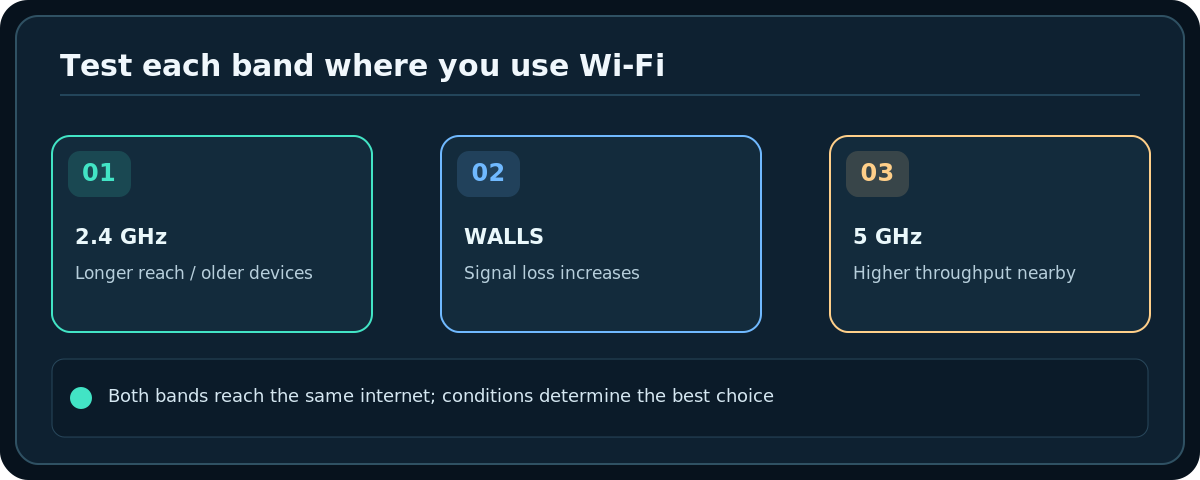
2.4 GHz: Usually travels farther through household walls and works with many older printers, cameras and plugs, but faces more neighboring networks, Bluetooth devices and other interference. It often has lower practical throughput.
5 GHz: Can deliver higher throughput and more channel options when the signal is good, but typically weakens more rapidly through obstacles. An older or budget device may support only 2.4 GHz.
6 GHz: Where permitted and supported by both router and client, can offer cleaner spectrum; it is not a magic long-range fix and does not appear on unsupported devices. Do not change regulatory country or region settings to force unsupported channels.
Choose a band for your device
- Stand where you normally use the device and check whether the router shows separate network names such as
Home-2GandHome-5G. If onlyHomeappears, the router may combine both bands under a single SSID. - Identify your device’s supported Wi-Fi bands in the manufacturer specifications. A 2.4 GHz-only device cannot join a 5 GHz-only network, regardless of password.
- For a nearby laptop, TV, console or video-call workstation, try 5 GHz first. Check that the connection stays stable during the activity that matters.
- For a distant bedroom, smart plug, older printer or thick-wall location, try 2.4 GHz first, then test whether it drops or stalls.
- Compare results at the same time of day and same position, ideally with the same speed test and a real task. Repeat each test because neighboring interference changes.
- Keep whichever connection performs consistently. If you rely on one automatic combined SSID and steering works, separating bands may add administration without improving anything.
Find or change band settings on the router
Use your router’s official application or its local administration interface. Menus may be labeled Wireless, Wi-Fi, Smart Connect, Band Steering, or Separate Bands. With a combined SSID, clients often choose or get steered between bands automatically; a device may show only the single network name even while connected on 5 GHz.
If an older smart plug insists on a 2.4 GHz setup, look for an official way to temporarily separate bands or turn off 5 GHz during onboarding. Restore the preferred settings afterward and verify the device reconnects; some setup tools require the phone and IoT accessory to appear on the same band or network during pairing.
Do not assume 5 GHz is always better for gaming. Stable latency and low packet loss matter more than a headline speed-test number; Ethernet is often a better option for stationary high-demand equipment.
Diagnose your particular room
- Test 5 GHz near the router to establish whether the client supports it and receives a strong signal.
- Move to the problem room without changing anything else. A large performance drop suggests obstructions or a weak link.
- Test 2.4 GHz in that room. A slower but reliable connection may be more useful than a 5 GHz link that drops entirely.
- Look for nearby microwaves, crowded neighboring Wi-Fi, metal cabinets and dense building materials. Move the router or client a short distance and repeat.
- If the entire house is slow, compare with Ethernet or the router’s own speed test. Switching wireless bands cannot repair a failing ISP connection.
Troubleshooting
I cannot see the 5 GHz network
Check the router and device specifications, wireless radio setting, distance and whether the SSIDs are combined. Regulatory channel restrictions and DFS behavior can also affect availability. Prefer Auto or the router’s documented regional defaults unless support advises otherwise.
My device keeps switching bands
Combined SSIDs and steering can favor either band based on signal and policy. If switching causes a real problem, see whether your router offers per-device preferences or optional separate SSIDs. Avoid assuming that merely renaming the network changes the radio performance.
My smart bulb connects during setup but goes offline
Verify its required band and security mode, keep it on the correct local network, and check whether guest isolation blocks the phone’s control app. Avoid weakening the entire network’s security solely for one old accessory; review vendor compatibility and update paths first.
5 GHz is faster near the router but worse upstairs
This fits the common range/obstacle trade-off. Try better router placement or a correctly positioned mesh point before forcing that remote client to use 5 GHz.
Frequently asked questions
Are 2.4 GHz and 5 GHz separate internet subscriptions?
No. They are radio bands used to access the same underlying local network and internet connection unless your administrator specifically configures separate networks.
Is 5 GHz more secure?
The frequency does not determine security. WPA2/WPA3 configuration, updates, passwords and network isolation matter more.
Should I disable 2.4 GHz entirely?
Usually not if you have older or IoT devices. Disable a band only when you understand exactly which devices depend on it and you have confirmed a reason.
Sources & Further Reading
- Microsoft — Wi-Fi and your home layout (accessed 2026-10-27)
- NETGEAR — Wireless frequency bands (accessed 2026-10-27)
Use the checklists as you go, and confirm the result before moving on to a more involved repair.