How to Split a PDF into Separate Pages
To get one PDF file per page in a supported Adobe Acrobat desktop edition, open your PDF, select All tools → Organize pages → Extract pages, select the pages, check Extract pages as separate files, and choose Extract.
Quick answer: To get one PDF file per page in a supported Adobe Acrobat desktop edition, open your PDF, select All tools → Organize pages → Extract pages, select the pages, check Extract pages as separate files, and choose Extract. For automatic equal-sized sections instead, use Organize pages → Split → Number of pages and set it to 1 if you want one-page outputs. On a Mac, Preview lets you drag individual page thumbnails to the desktop to make new PDFs, but this is a manual page-by-page method.
Be clear about your objective: extract saves selected pages into new document(s), while split divides an entire document according to a rule. These operations do not turn pages into JPGs or make PDF text editable. Keep the original file and plan meaningful output filenames before you begin.
Method 1: Extract selected pages as separate PDFs in Acrobat desktop
Adobe documents the individual-file option in the Extract pages workflow. It is distinct from merely selecting a range and saving it as one new PDF.
- Open the PDF in an Acrobat desktop edition with the required page-organizing feature.
- Choose All tools → Organize pages to display thumbnails.
- Select the pages you want, or use the selection field to specify the page range.
- Choose Extract pages in the left pane.
- Enable Extract pages as separate files. If you want to leave your original PDF intact, do not enable Delete pages after extracting.
- Select Extract, choose or confirm the save location and review the created files.
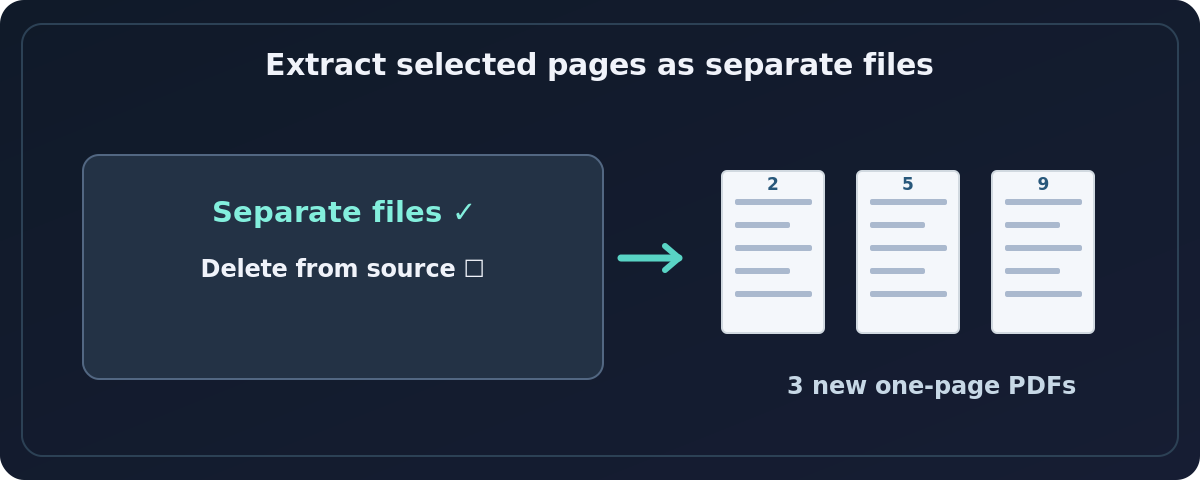
For a 12-page file, extracting pages 2, 5 and 9 as separate files should give you three individual page PDFs—not one document with three pages. Check each result before assuming the output labels correspond to the original numbering.
Method 2: Split the whole document by page count
If your goal is every page as its own file, Acrobat’s Split tool is often easier than choosing pages one by one:
- Open All tools → Organize pages.
- Select Split in the left pane.
- In Split by, choose Number of pages.
- Enter 1 as the pages-per-file limit.
- Select Output options to choose a destination folder and naming method.
- Choose Split and check the new files in the output folder.

Acrobat also documents splitting by file size or top-level bookmarks. Those choices produce sections, not necessarily one output per physical page. Use Number of pages: 1 for a straightforward one-page-per-file batch. If the app’s interface differs, check which Acrobat edition and release is installed rather than assuming the feature has moved to a hidden free tool.
Method 3: Save individual pages with Preview on Mac
Apple’s Preview can create a new PDF when you drag page thumbnails from its sidebar to the desktop. This works especially well when you only need a few pages.
- Duplicate the original PDF in Finder to protect your source.
- Open the copy in Preview and select View → Thumbnails.
- Drag the thumbnail for the page you want to the desktop. Preview creates a new PDF from the dragged thumbnail.
- Rename the file clearly—for example,
application-page-03.pdf. - Repeat for other pages, then open a few results to confirm page content.
Apple describes dragging thumbnails to the desktop to make a new PDF. Selecting multiple thumbnails may yield one PDF containing those selected pages, not a guaranteed batch of individual page PDFs. For dozens or hundreds of pages, a dedicated split-by-one-page tool is more suitable.
Option: Split a PDF using Acrobat on the web
In Acrobat on the web, Adobe documents Edit → Split a PDF, where you upload the PDF and click divider lines between page thumbnails. Select the positions you want to split, then save the resulting documents. Adobe says the web workflow supports up to 22 divider lines, depending on the page count, and saves split results in Adobe cloud storage. That is not the same as unlimited local batch extraction. Features, sign-in requirements and permitted operations can change with the account or plan.
If the PDF includes confidential employee files or other restricted records, check whether uploading the file to cloud storage is allowed by your organization before using the web workflow.
How to name and verify the files
Use filenames that survive alphabetical sorting: report-page-001.pdf, report-page-002.pdf, and so on. Verify whether the PDF begins with a cover sheet; its viewer page index may not match a printed page number displayed in the document body. Before distributing anything, count the output files, open the first and last, and spot-check a middle page. Check attachments, form fields, comments and page-level links when those elements matter.
Troubleshooting
Only one PDF was created instead of many
You probably extracted a group of pages without Extract pages as separate files, or dragged multiple thumbnails together in Preview. Repeat with the individual-output checkbox enabled or use Split by 1 page.
The result has fewer pages than expected
Check selection ranges and whether your input has blank or hidden pages. Compare the source page count and the number of output documents, then inspect the missing range.
I cannot extract pages from a password-protected file
Acrobat advises checking File → Document Properties → Security. Restrictions can prevent extraction. Ask the owner for access or an authorized copy rather than attempting to circumvent protection.
The split filenames are confusing
Choose a destination and naming convention using Output options where available, then rename files consistently after checking each output. Preserve the original page mapping in a small index if the packet will be used for legal or compliance work.
Are these pages still searchable?
If the original pages contain real text or a correctly retained OCR text layer, splitting usually keeps that page content. If the source was only a scan image, splitting alone will not add OCR. Check by selecting or searching a known phrase.
Frequently asked questions
How do I split every page into its own PDF?
In a compatible Acrobat desktop edition, use Organize pages → Split → Number of pages → 1, set output options and save.
Can I do it without Acrobat on a Mac?
Yes, for a small number of pages. Drag each required Preview thumbnail to the desktop and rename the resulting PDF.
Does splitting reduce PDF file size?
Each resulting file contains fewer pages, but its combined total size may not be smaller. Splitting is not the same as image compression.
Does extracting a page remove it from my original?
Not if you leave Delete pages after extracting unchecked and preserve your source. Always work on a copy when the original must remain untouched.
Sources and further reading
- Adobe Help: Extract pages from PDFs in Acrobat on desktop (checked 2026-10-27).
- Adobe Help: Split PDFs in Acrobat (checked 2026-10-27).
- Apple Support: Add, delete or move PDF pages in Preview on Mac (checked 2026-10-27).
- Adobe Help: Split PDFs into multiple files in Acrobat on the web (checked 2026-10-27).
Use the checklists as you go, and confirm the result before moving on to a more involved repair.