How to Track Changes in Word
In Microsoft Word, open the document and choose Review → Track Changes. Where Word offers it, select For Everyone if all editors' changes should be recorded, or Just Mine if you need to track only your own edits.
Quick answer: In Microsoft Word, open the document and choose Review → Track Changes. Where Word offers it, select For Everyone if all editors’ changes should be recorded, or Just Mine if you need to track only your own edits. New insertions and deletions appear as tracked revisions. To finalize the document, review them through Review → Accept or Reject. No Markup merely hides revisions; it does not remove them.
Track Changes is useful for contracts, reports, essays and collaborative drafts because reviewers can see the differences instead of guessing what was edited. It is not a substitute for version control or a legal audit system, and turning it on after edits are made does not retroactively mark all earlier changes. Save your baseline before starting a review cycle.
Step 1: Turn on Track Changes
- Open the correct Word document, not a PDF copy. If several people are contributing, agree on one shared location or a controlled set of copies.
- Select Review on the ribbon and choose Track Changes.
- In versions offering a tracking scope, select For Everyone or Just Mine. Microsoft documents both options; the labels may vary slightly by platform.
- Make a short example edit to noncritical text. Check that added words and deleted words appear with change indicators in the editing or margin view.
- Save the document. If coauthors are involved, verify whether your account allows editing or is restricted to Reviewing mode.
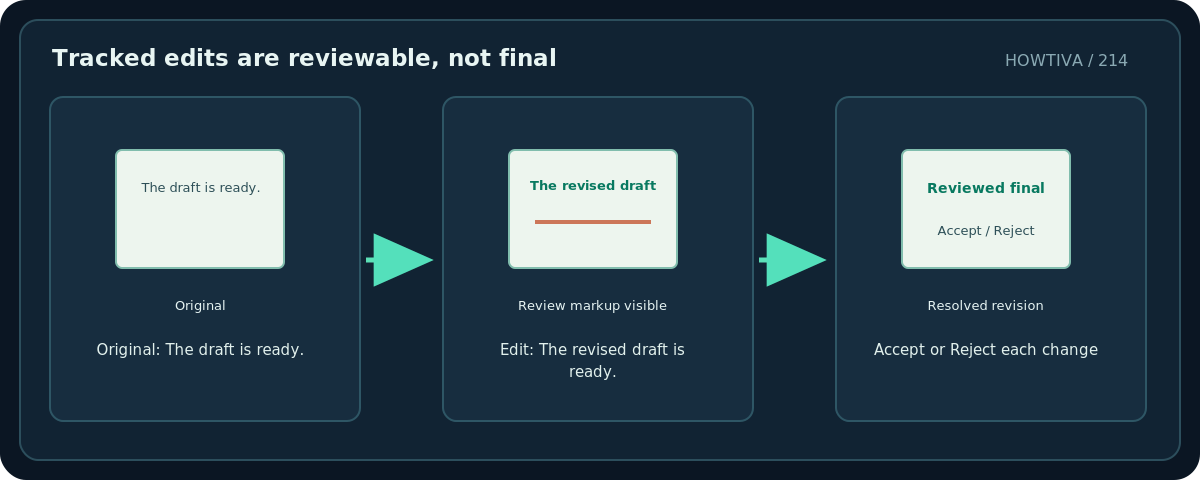
Be precise about timing: Word records edits made while tracking is on. If your draft was previously revised without tracking, those earlier modifications will not magically appear as tracked changes. Comparing two saved document versions is a separate workflow covered by guide #215.
Step 2: Choose a markup display
Word offers views such as Simple Markup, All Markup and No Markup in many desktop and web experiences.
- Use the Review tab to locate the markup display control.
- Choose All Markup to inspect insertions, deletions, reviewer colors and available comments in detail.
- Use Simple Markup for a less busy reading view, while retaining revision indicators.
- If you choose No Markup, remember that edits are only hidden visually. They remain in the Word file.
- Change the view back to All Markup before a full review or handoff if you need to confirm nothing remains unresolved.
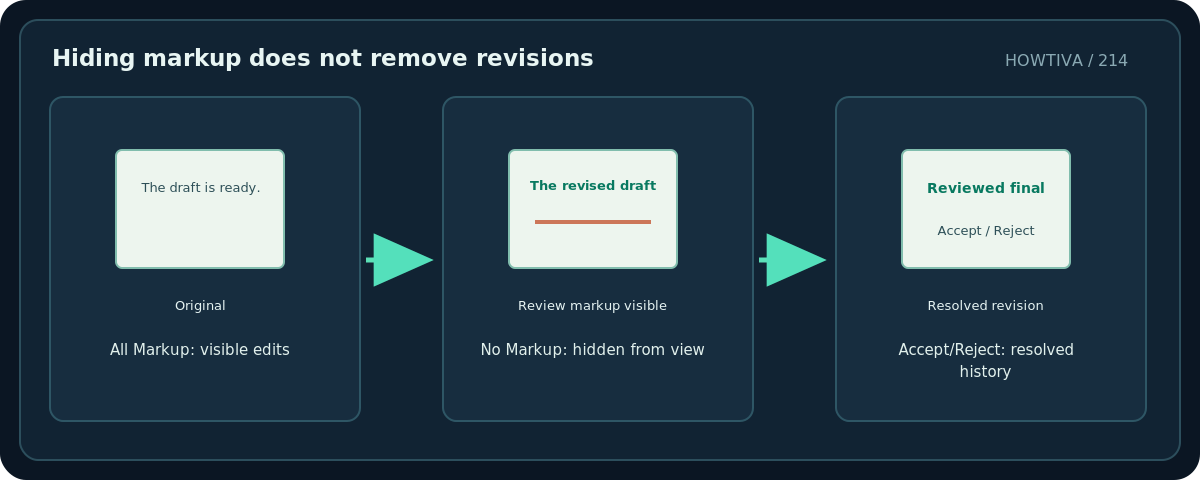
If you share a document while choosing No Markup, the recipient may change their view and see the tracked history. For confidential editorial decisions, do not treat a display setting as content removal. Microsoft explicitly warns that accepting or rejecting changes is required for permanent removal from the document’s tracked revision state.
Step 3: Review and resolve tracked edits
- Position the cursor near the beginning of the document and switch to All Markup.
- Use Next and Previous in the reviewing area to navigate revisions.
- For each edit, use Accept to keep the proposed change, or Reject to restore the earlier wording for that change.
- Check related comments separately. A comment is not automatically removed by accepting a nearby text change.
- After resolving all edits, turn tracking off if no further review is required and save a clean copy.
- On supported Word for Windows editions, consider File → Info → Check for Issues → Inspect Document before external distribution to detect other document properties and hidden material. Document Inspector is a separate check, not a replacement for editorial review.
Reviewer and platform differences
Word desktop on Windows and Mac and Word for the web support related reviewing functions, but their ribbons and permissions differ. If someone shared a file in a review-only mode, you might be unable to disable tracking without permission. Ask the document owner for the intended access mode or save an authorized separate copy rather than circumventing restrictions.
When working offline with multiple reviewers, decide whether you need to combine their revisions or compare two clean versions. Those are not synonymous with toggling Track Changes. A document with simultaneous coauthoring may already show review identities through the collaboration system.
Troubleshooting
I turned tracking off, but old red lines remain. Turning it off stops new tracking; it does not resolve existing revisions. Accept or reject them.
No Markup looks clean, but others see edits. That’s expected. Switch to All Markup and finish the review, then save the final version.
The Accept command skips changes. Check whether your view filters changes by reviewer or type. ‘Accept All Shown’ may differ from ‘Accept All Changes’.
A comment is still visible after accepting changes. Delete or resolve the comment through the separate comment controls if appropriate. Review identity and legal retention rules may affect what should be removed.
I cannot turn Track Changes off. Check if the document is shared with reviewing restrictions or if tracking is locked. Ask the owner for edit permissions.
Final handoff checklist
Verify all tracked insertions and deletions are resolved, inspect comments, confirm the filename and intended audience, and check hidden/properties data where applicable. If the document is sensitive, use your organization’s approved sanitization policy rather than assuming a change-view toggle makes it confidential.
Frequently asked questions
Does turning off Track Changes accept my edits?
No. It stops tracking new edits but retains tracked revisions already in the document until they are accepted or rejected.
Does No Markup delete the history?
No. It only changes the view. Resolve revisions before sharing a clean final file.
Can I track only my changes?
Some current Word versions support Just Mine; check the Review dropdown in your installed version.
Sources & Further Reading
- Microsoft — Track changes in Word — Review > Track Changes, Just Mine/For Everyone and markup display.
- Microsoft — Accept or reject tracked changes in Word — Permanent removal requires accepting/rejecting; No Markup only hides.
- Microsoft — Track changes in Word (support) — Mac/Windows/web version distinctions and reviewing mode behavior.
Use the checklists as you go, and confirm the result before moving on to a more involved repair.